

Adding Configured Fields Data to your Advanced Dashboards and Advanced Reports
Use this process to make your configured field data available in Advanced Dashboards and Advanced Reports.
Configured field data is stored differently from standard report data and is not included by default in default dashboards or reports. To use this data, you must first add it to an editable dashboard or report.
After completing this process, you will be able to view your configured field data in a raw data table.
What is Raw Data?
Raw Data is data in its original, unprocessed form, exactly as it was collected, before filtering, calculations, or visualizations are applied to it.
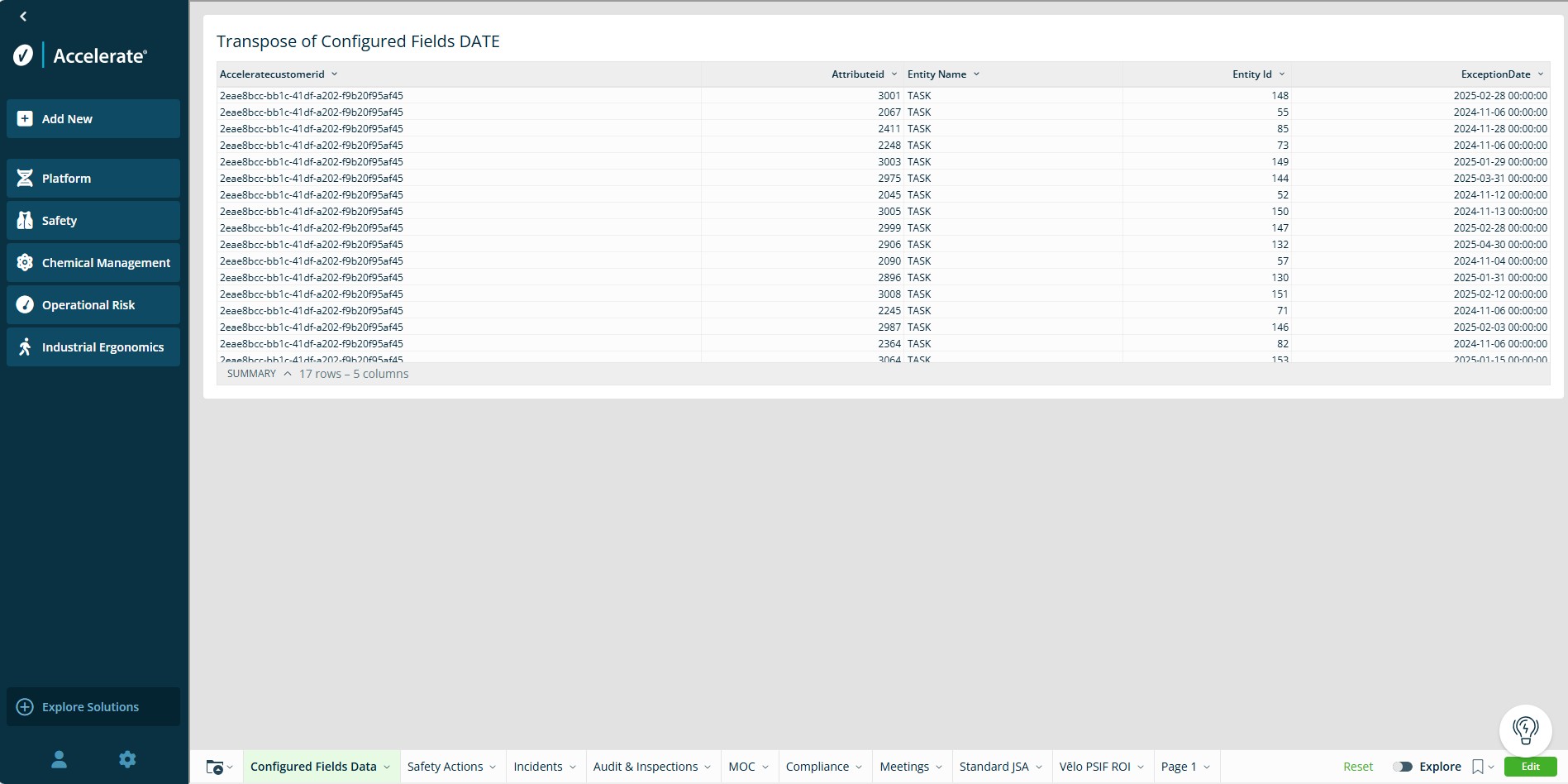
Video Overview
Before you begin
Configured field data:
- is not available in default EHS dashboards or reports
- cannot be added directly to default EHS datasets
To use this data, you must first create or open an editable version of a dashboard or report by:
- Saving a default dashboards/report as a new version, or
- Opening an existing editable dashboard/report
For more information, see: Creating a New Dashboard
Step 1: Create a tab for configured field data
- Click Edit in the bottom right corner to enable changes.
- Create a new tab in your dashboard/report.
Note: Creating a separate tab keeps your raw data organized and easier to reference when building charts and tables. - Rename the tab to something clear, such as Configured Fields Data.
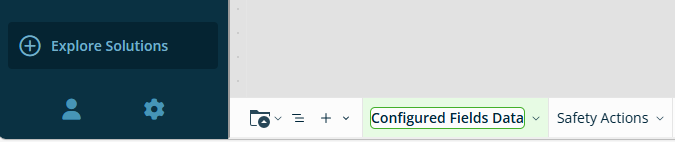
Step 2: Add configured field data
- From the element bar, click Data and select Table.
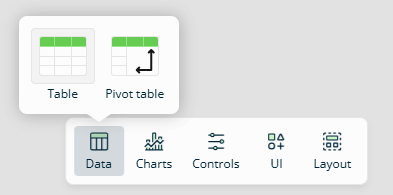
- Open the Data Sources tab and select Workspaces.
- Search for VEHS EHS Datasets and select Configured Fields Data Model.
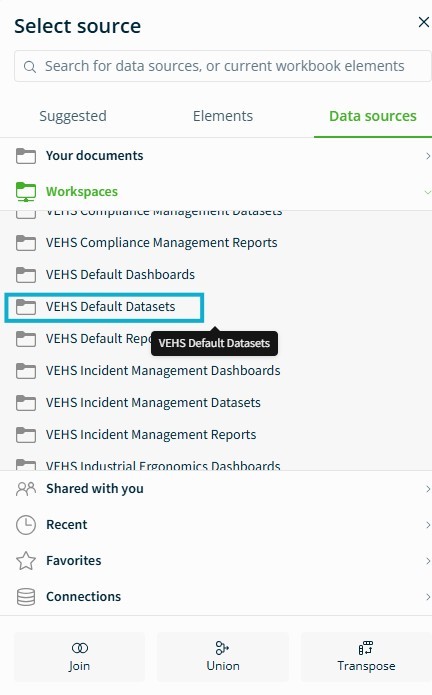
- Select the dataset you want to add to your dashboard.
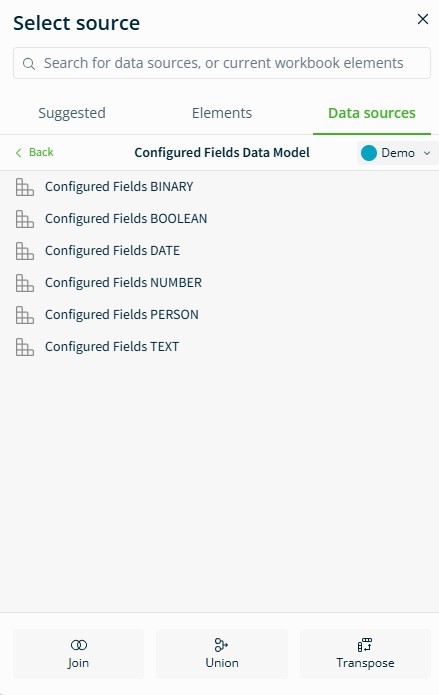
Once selected, your configured field data will appear in the table.
Configured Fields Data Types
Configured fields are stored in shared tables and grouped by field type. Each type defines the kind of data stored in the column.
- Binary – Numeric values with two possible results used to store or calculations (for example: 0 or 1)
- Date – Calendar dates and times (for example: 05/27/1991, 00:00:00)
- Number – Numeric values used for calculations (for example: 5, 100. 3.4)
- Person – A reference to a user or individual (For example: John Smit, [email protected])
- Text – Non-numeric values (for example: Descriptions, names, comments)
- Boolean – Logical values (for example: true/false or yes/no)
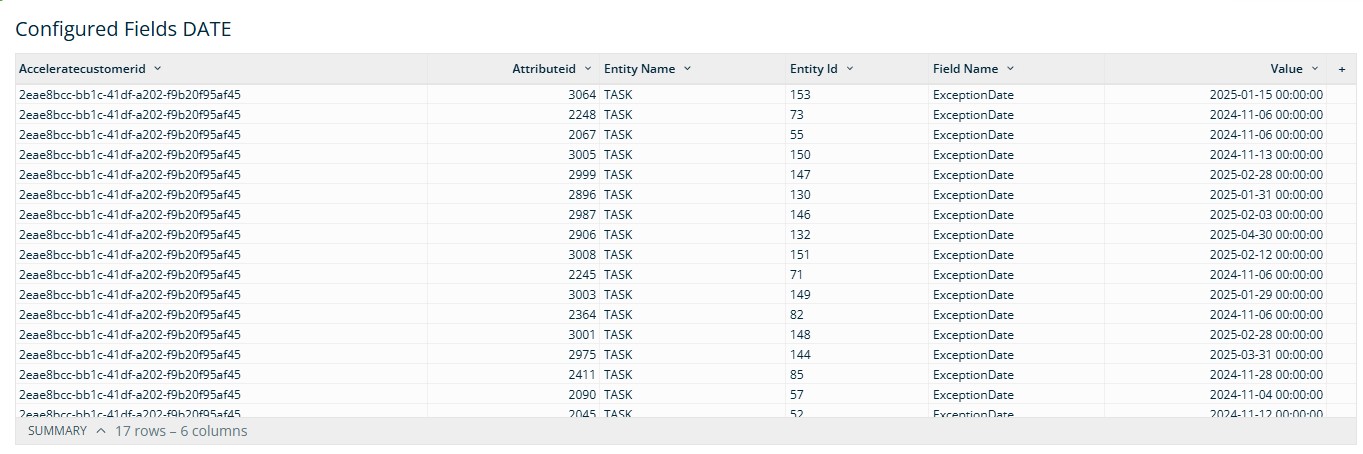
Next step: Preparing your data
Configured field data is structured so that each value appears in its own row. Before using this data in charts or reports, you will need to restructure it.
You will:
- Transform rows into columns (this is called transposing)
- Adjust fields format so they are easier to understand and use
These steps are covered in: Preparing Configured Fields Data
