

Preparing Configured Fields Data for Advanced Dashboards and Reports
Use this process to restructure configured field data so it can be combined with other datasets and used in dashboards and reports.
Configured field data is stored differently from standard report data and must be transformed before it can be used.
Step 1: Transform your data (transpose)
Configured field data is stored in rows. To use this data in reports, you need to convert those rows into columns. This process is called transposing.
Start the transposing process
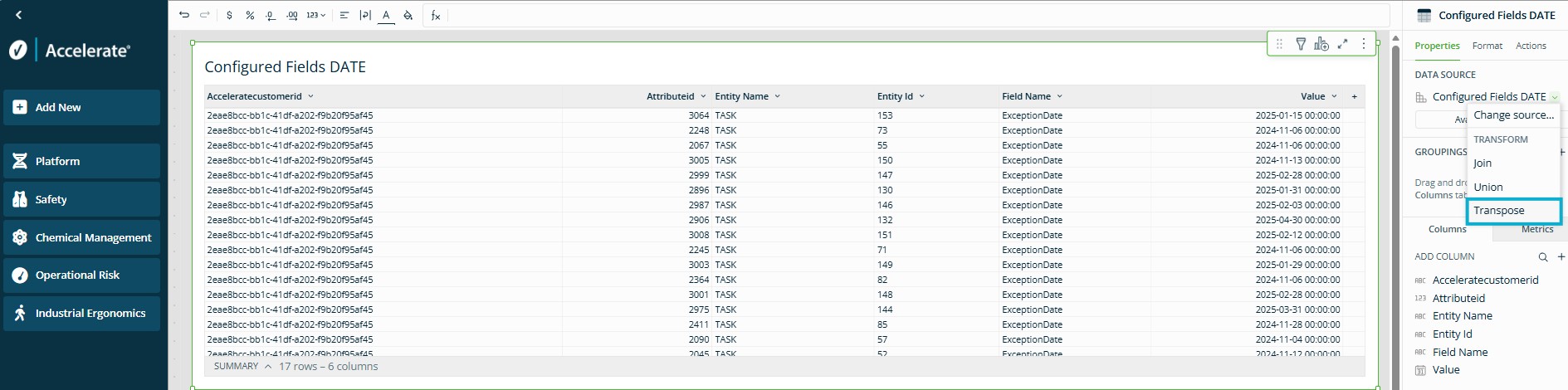
- Select the configured fields data table
- In the right-side panel, open the Properties tab
- In the Data Source section, click the dropdown arrow (▾)
- Select Transpose
Apply transpose settings
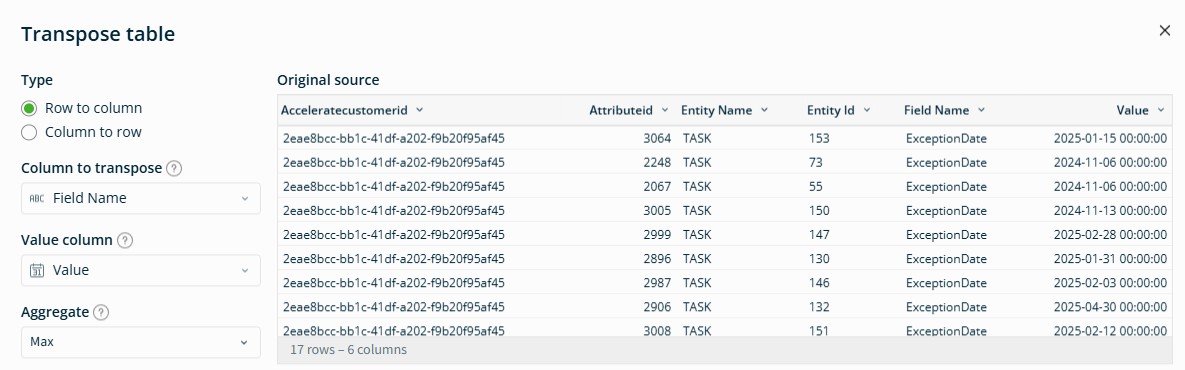
In the Transpose window, use the following settings:
- Type: Row to Column
- Column to transpose: Field Name
- Value column: Value
- Aggregate: Max
Ensures the system keeps the actual value instead of counting occurrences. - Output columns: All columns
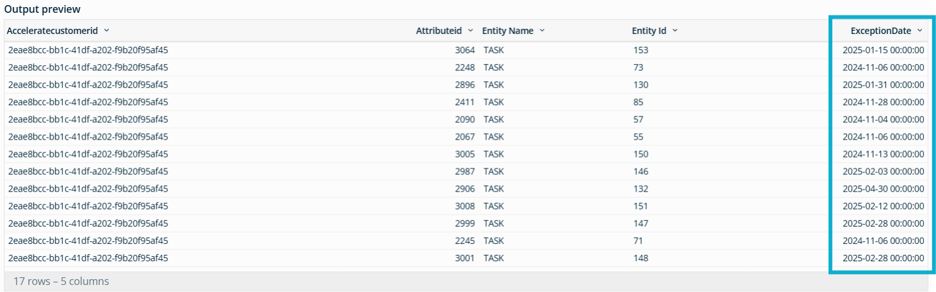
What happens after transposing:
- The original configured field column is removed
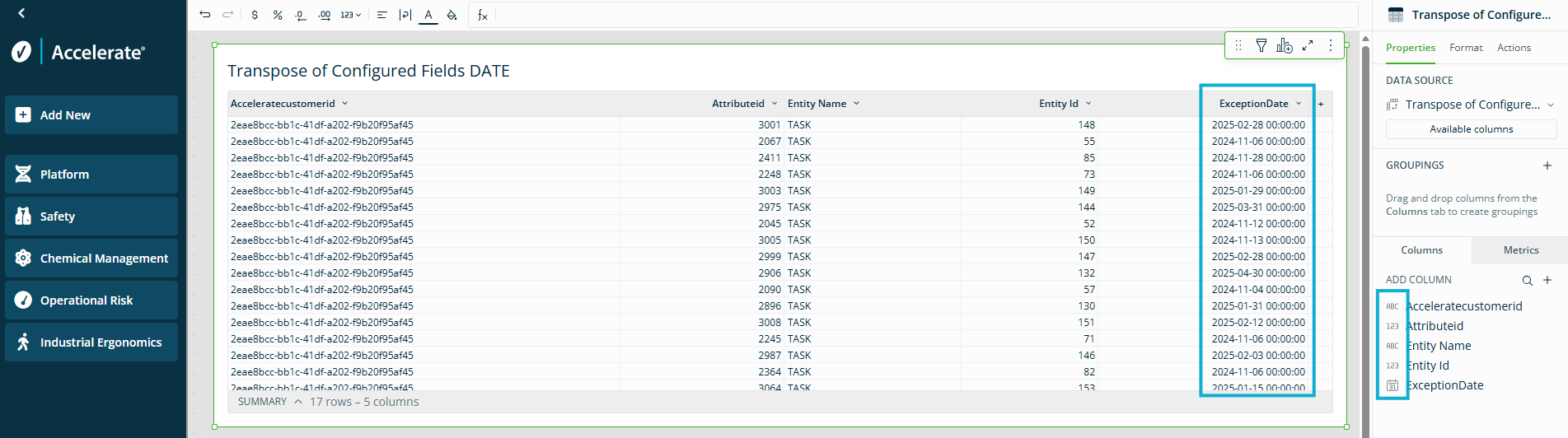
- Each configured field becomes its own column with associated values
Step 2: Format your data
After transposing, update column formats so your data works with other datasets.
Note: If data types do not match, you may not be able to join tables or display data correctly.
Change column data types
Your column formats must match the formats used in other datasets.
To update a column format:
- Right-click the column
- Select Transform, then Convert
- Choose the correct data type

Example
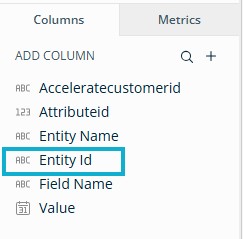
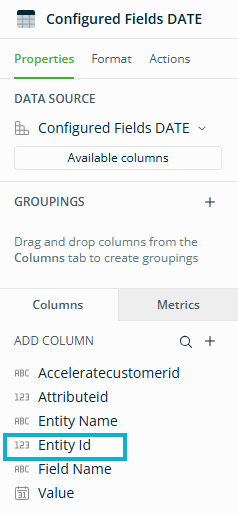
The Entity ID field is often used as a number in other datasets.
In configured field data, it may appear as text (ABC icon). Convert it to a number format (123 icon) so it can be used to join with other ID fields.
Rename columns (optional)
Renaming columns can make your data easier to use when building charts and joining tables.
Examples
- Entity ID to Record ID
- Entity Name to Category
To rename a column, double-click the column header and enter a new name.
Confirm your Results
Your data is ready when:
- Each configured field appears as its own column (no repeated field rows)
- Column data types match the datasets you plan to use
Next steps: Join your data
Your configured field data is now structured and ready to use.
Next, you will:
- Join your configured field dataset with existing datasets
- Use the combined data to build charts and reports
