

Reinstalling and Troubleshooting the Desktop Application (Backup)
If you experience issues using the Chemical Management Desktop Application (Backup), start with the following basic troubleshooting step:
- Open the Backup menu and navigate to Configuration Settings.
- Select Logout to sign out of the application
- Log back in using your VelocityEHS credentials
If the issue persists, try the troubleshooting options below.
Resuming and Re-Downloading
If a download stalls or stops before it completes:
- Close the progress window.
- Select either Update Available or the Wi-Fi icon in the top-right corner.
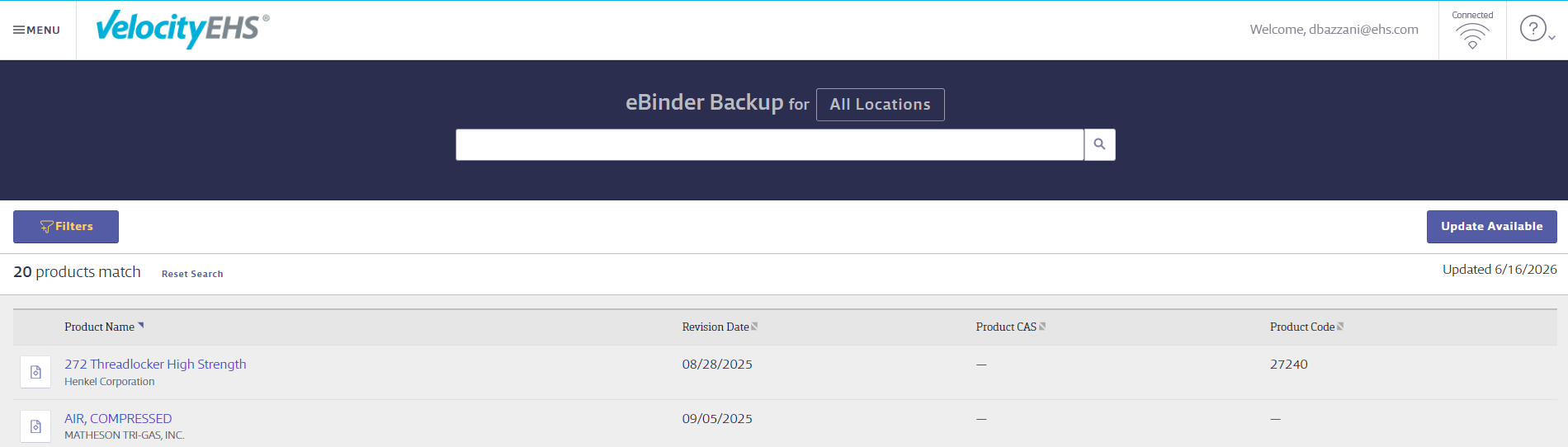
- Wait for the download to resume. The download continues from where it stopped. You do not need to restart or reinstall the application.
Re-Downloading All Data
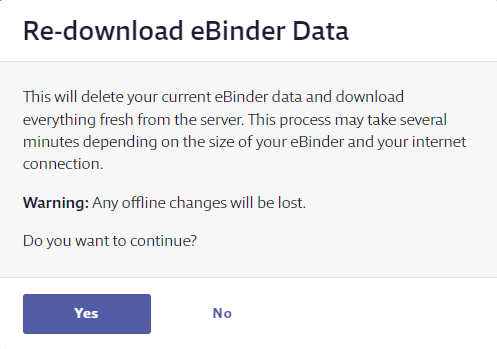
- Select the Wi-Fi icon (left of the question mark in the top-right corner).
- Select Yes in the dialog box that appears to re-download all eBinder data.
Redownloading a Failed Document
If an individual document fails to download, an error icon appears next to the SDS.
To retry the download:
- Select the error icon.
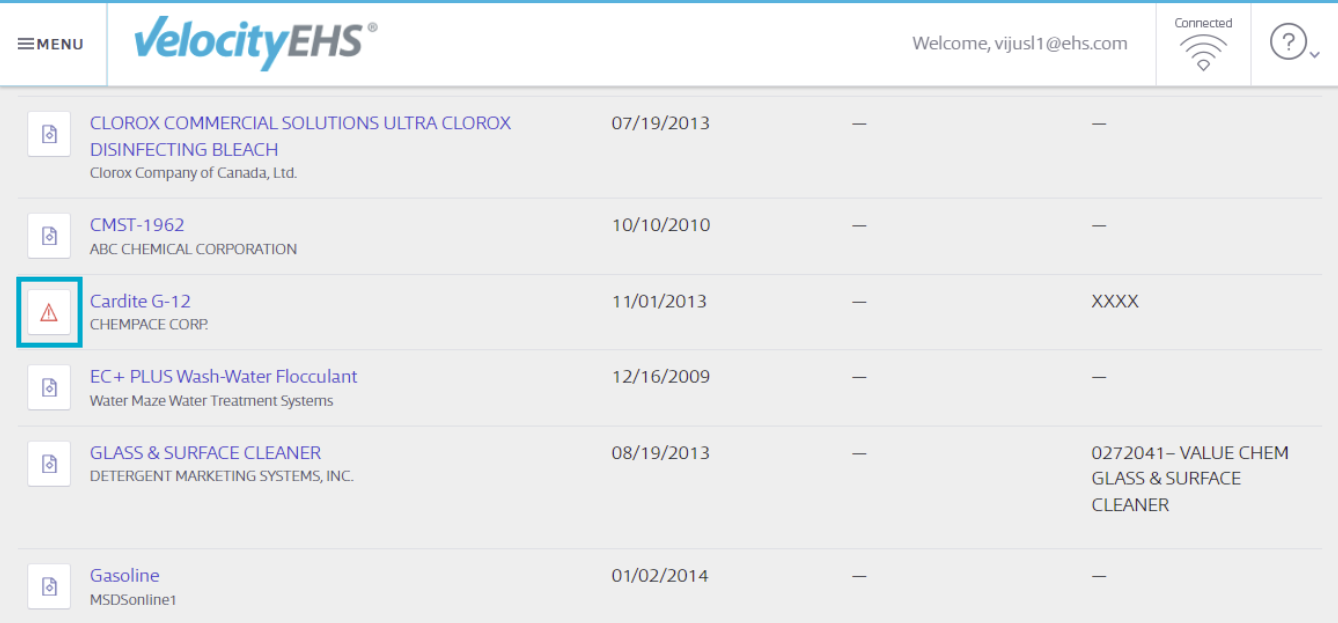
- Select Retry Download in the dialog box that appears.
Reinstalling the Desktop Application
If the previous troubleshooting steps do not resolve the issue, reinstall the Desktop Application.
Reinstalling can resolve issues caused by outdated files, dates, corrupted application data, or cached information.
Uninstall the Application
- Open the Windows Control Panel.
- Uninstall the VelocityEHS Desktop Application (Backup).
For more information on uninstalling programs via the Control Panel, see these instructions from Microsoft.
Remove Remaining Application Data
In some situations, uninstalling the application from your Control panel might not be sufficient. In some cases, uninstalling the application is not sufficient. To remove all locally stored application data.
- Open This PC in your computer.
- Open your C: Drive.
- Navigate to: Users > [Your Username] > AppData > Roaming
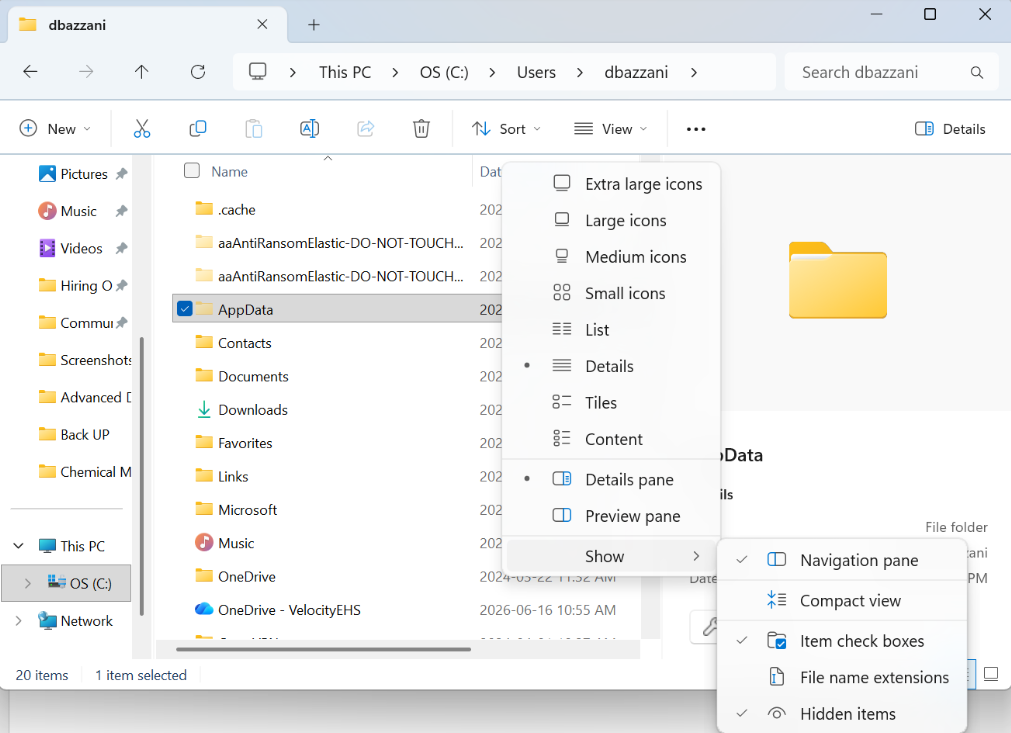
- If the AppData folder is not visible:
- Select View.
- Enable Hidden items.
- Delete the following folders from the Roaming folder
- MSDSonline
- MSDSonline Desktop
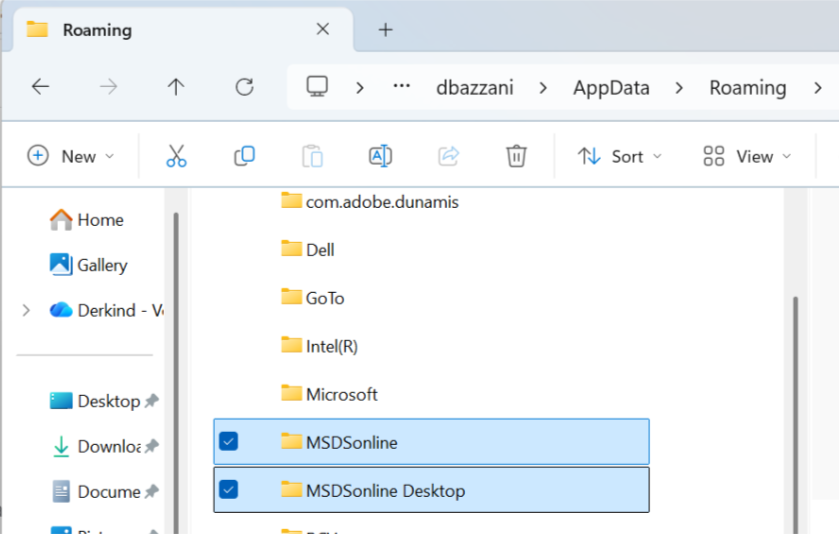
Reinstall the Application
After removing the application and related folders, download and install the latest version from the Backup page in Chemical Management. For instructions, see Backup/Desktop Application.
Troubleshooting Login Errors
If you can sign in to your Chemical Management Online but receive an “Unable to Login” error when signing in to the Desktop Application, your organization’s network security settings may be preventing the application from connecting to the internet.
Important
If you are entering the correct credentials and continue to receive login errors, contact your IT department and ask them to verify the following:
- The Desktop Application is allowed to access the internet.
- Firewall and proxy settings permit communication with:
- https://*.msdsonline.com
- https://*.ehs.com
- The IP addresses listed by Cloudflare are allowed:
- https://www.cloudflare.com/ips/
For further instructions on downloading the Backup, visit Backing up your account.
