

Resolve Two SDSs That Didn’t Version Together
Occasionally, two SDSs may look like they should have combined when viewed side by side but appear as separate products in the eBinder. When this happens, the correction must be completed within your eBinder.
When SDSs do not version as expected, location assignments may not transfer correctly. This can create compliance gaps if a product appears without assigned locations.
To reduce this risk, we recommend copying location information while the upload is still being processed or selecting the correct location directly from the upload page whenever possible.
Step 1: Copy Indexed Data
- Locate the SDS you do not want to appear in your eBinder.
- Open its Product Summary page by either:
- Selecting the product name
- Selecting the product card and selecting Go to Product Summary
- Once in the Product Summary, select Data Copy.

Selecting the Product to Copy To
Choose the SDS you want to copy data to.
If another version of the same product exists, select the checkbox next to that version.
If you want to copy data to a completely different product:
- Click Select Another Product
- Search for the product
- Select the checkbox next to the product
- Click Select
To remove a selection, select Remove.
To choose a different product, click Select Another Product again.
Selecting Product Details to Copy
By default, the following indexed data copies over:
- Synonyms
- UN/NA #
- CAS #
- Product Code
- UPC Code
- Custom 1 and Custom 2 fields
- Any edits made in the Product Summary header
- Approval status (Approved or Not Approved)
- Attached files
If you do not want a specific field copied, clear that checkbox before continuing.
Selecting Indexed Modules to Copy
By default, data from enabled indexing modules will copy to the selected product.
If you do not want a module copied, deselect that checkbox before proceeding.
Step 2: Copy Location Data (Optional)
You can also copy location data from one SDS to another. This ensures the correct SDS version maintains the same location assignments.
Choose one of the following options:
- Copy all locations where a product is “In Use”
Copies locations from the prior version where the product is currently marked In Use. - Copy all locations
Copies all locations from the prior version where the product is assigned, including locations marked In Use and Not in Use. - Copy aggregate
Combines all locations where an active (not archived) version of the SDS exists across both the Copy From and Copy To documents.
- Copy all locations where a product is “In Use”
Once you’ve made your selections, click Copy.

Step 3: Archive the Unwanted SDS
After confirming the data has copied successfully, archive the SDS you no longer want to appear in your eBinder.
Archiving removes the SDS from active searches and reports while maintaining it for compliance and historical recordkeeping.
Archive an SDS
Archiving a Safety Data Sheet removes it from active use while keeping it in your records.
Archived SDSs:
- Become read-only
- Do not appear by default in searches or reports
- Remain available to meet OSHA’s 30-year employee exposure recordkeeping requirement
Steps to Archive an SDS
- Locate the SDS you want to archive in your eBinder.
- Open the Product Summary page by clicking the product name or using the summary panel.
- In the upper-right corner, select the More menu.
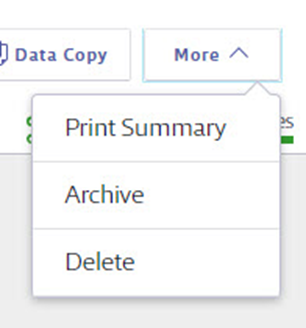
- Select Archive.
- If the Archive option is grayed out, the SDS is still marked In Use at one or more locations. Before archiving, mark the product as Not in Use at all assigned locations.
- After selecting Archive, confirm your selection.
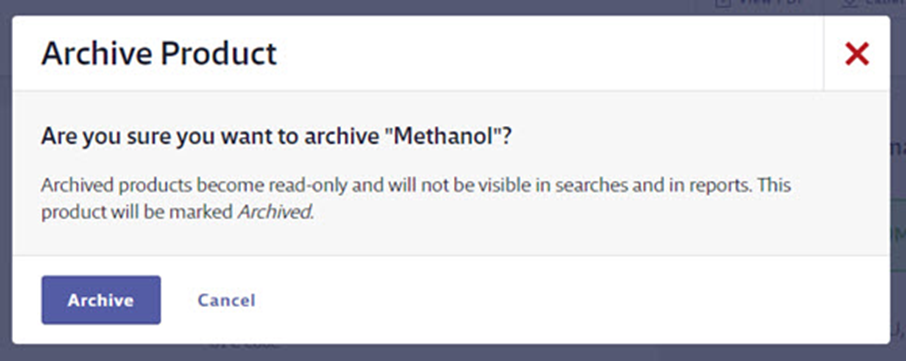
- Click Archive to finalize.
The SDS will move to the archive and become read-only.
Unarchiving an SDS
If you need to restore the SDS later:
- Open the Product Summary page
- Select the More menu
- Click Activate
This will return the SDS to active status.
