

Accessing the PFAS Indicator
Company-Wide Setting
Use the company-wide setting available in Product Summary Settings to manage access to the PFAS Indicator across your organization. This setting controls whether the PFAS Indicator is visible within the eBinder for your entire company.
To configure this setting:
Go to System Settings > Product Summary Settings > Ingredients.
Find the option Should PFAS Indicator be available for your organization?
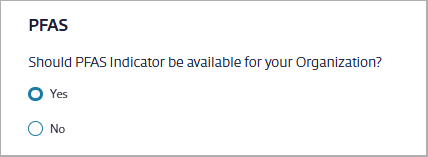
Choose one of the following:
Yes – enable the PFAS Indicator details for all users in your organization
No – disable the PFAS Indicator details across the organization
User Access
Non-Advanced Integrated Users
To view the PFAS Indicator, users must be assigned a role with the appropriate permission enabled.
To update this permission:
Go to System Settings > Manage Roles > Product Summary section.
Locate the setting Ability to View PFAS Indicator.
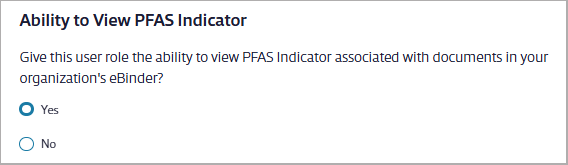
Set the permission:
Yes – Users assigned this role will see the PFAS Indicator in Product Summary > Ingredients.
No – Users assigned this role will not see the PFAS Indicator in that section.
Advanced Integrated Users
To access the PFAS Indicator, users must be assigned a role with the appropriate policy applied. These policies define whether a user can view or fully manage PFAS Indicator functionality across the platform.
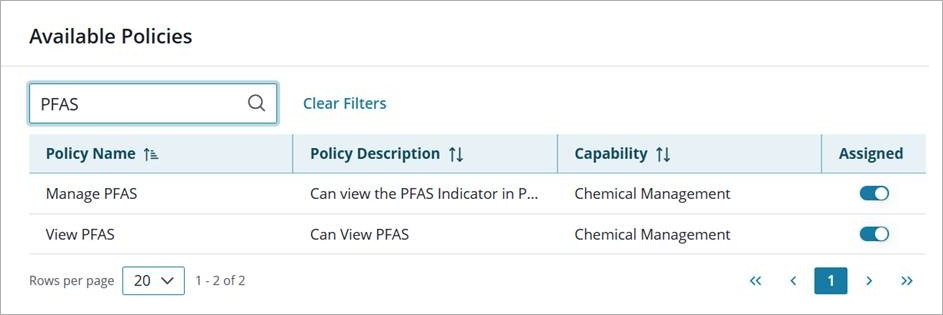
Access options include:
View Only Access – If users should only be able to view the PFAS Indicator in the Product Summary > Ingredient Module, assign them a role with the Can View PFAS Indicator policy.
Full Access – If users need the ability to manage the PFAS Indicator, index ingredient data, and access PFAS-related data in reports, assign them a role with the Can Manage PFAS Indicator policy.
