Backing up (Backup) your account
Creating the Initial Backup
The first time you create a Backup you need to download the Chemical Management Desktop Application from your account.
Click on the Global Navigation Menu in the upper left-hand corner of your account and select Backups
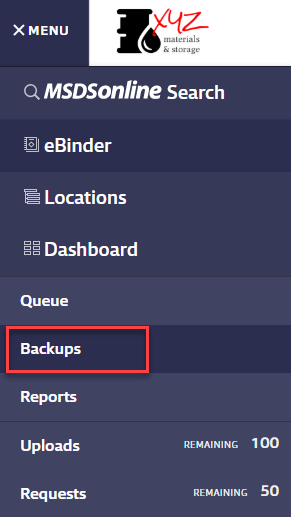
To access the Backup page, you must be assigned a Role that includes the Chemical Management – Manage the Desktop Application policy.
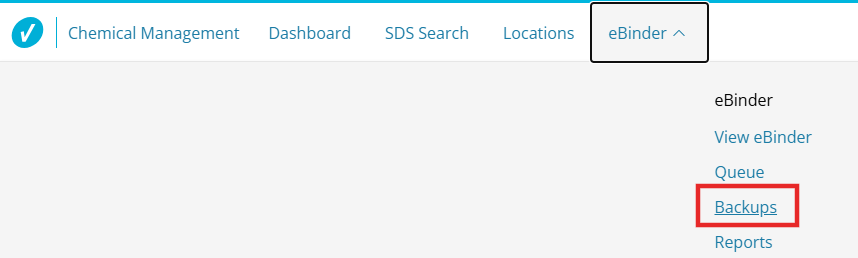
Click on the eBinder Navigation Menu at the top to expand your options and select Backups
Once in the Backup page, click Download Application.
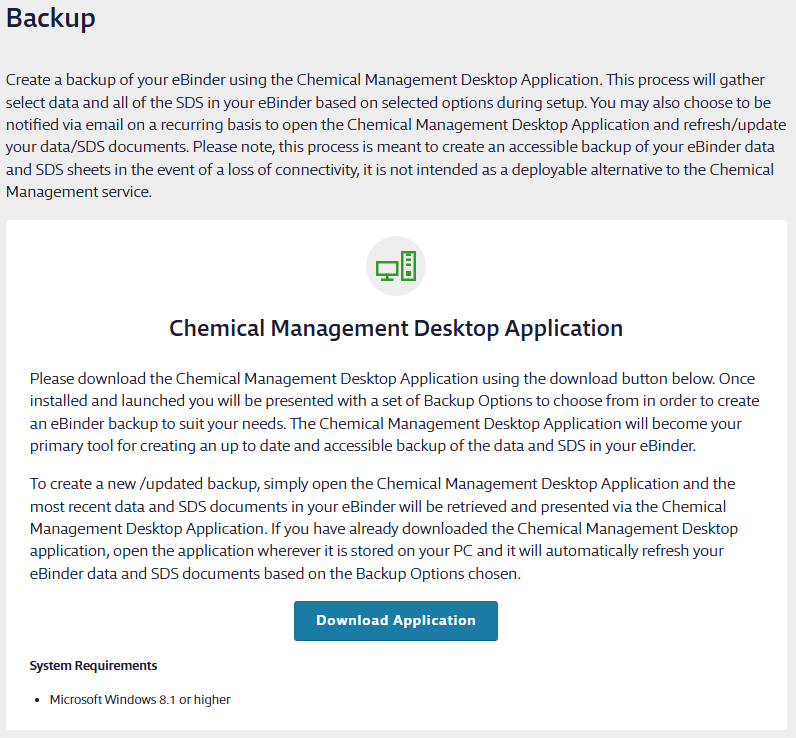
This will download the Chemical Management Desktop Setup.exe file.
If prompted to Run or Save the file, select Run. Depending on your web browser and security settings, the application may download and install automatically without prompting you to choose an option.
If the application did not install automatically or you selected Save, locate the downloaded Chemical Management Desktop Setup.exe file in your device and follow the installation prompts. You only need to download the application once. To use it going forward, simply click the Chemical Management Desktop Setup icon from its saved location on your computer.
eBinder Backup Log In
When launching the backup application, a Log In screen appears, prompting you for credentials.
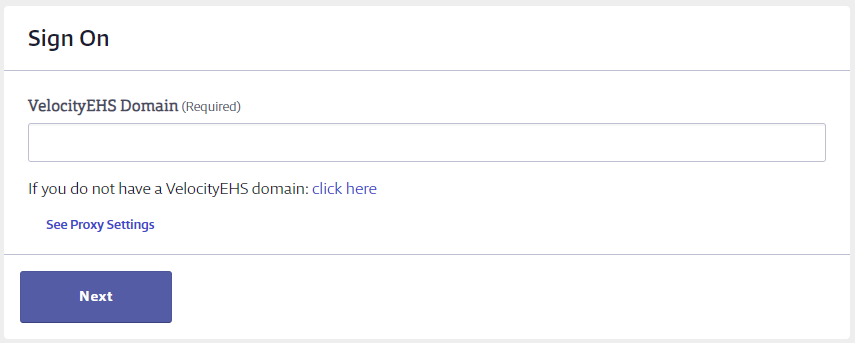
Head to the click here link to skip the Domain Entry (Accelerate Only). Fill the same credentials used when logging into your Chemical Management account.
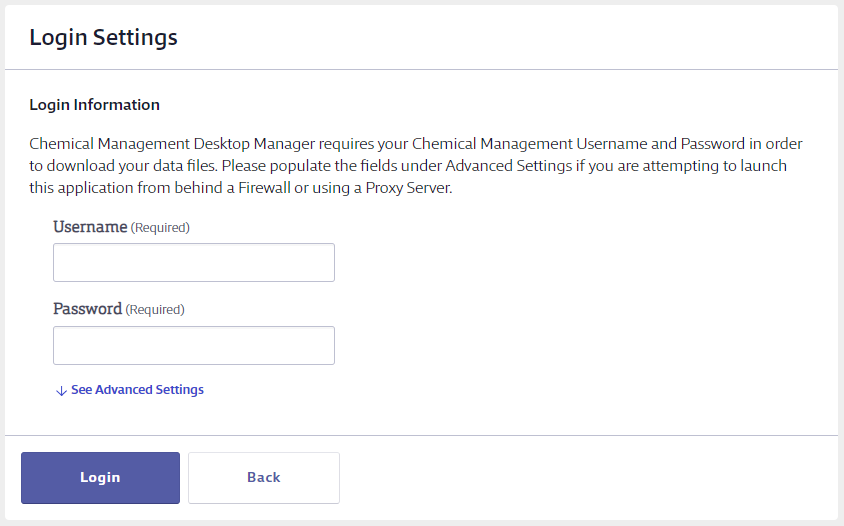
When you launch the backup application, a Log In screen appears, prompting your Accelerate's Company Domain.
Fill the same credentials used when logging into your Accelerate Account.
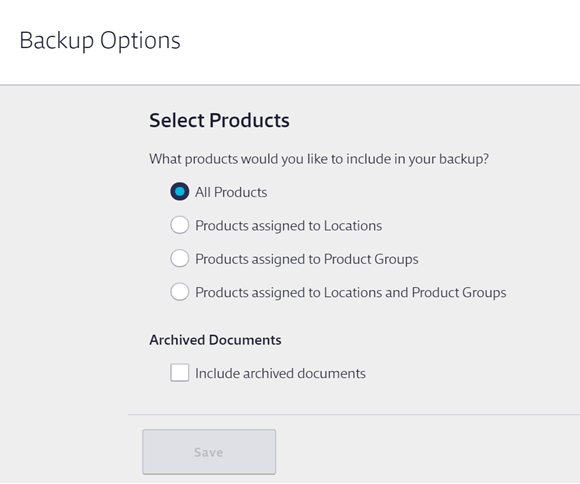
Next you need to select which safety data sheets you want included in your Backup Options.
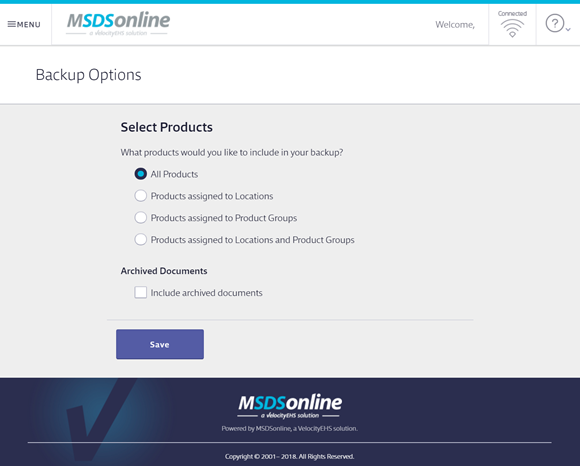
Important: If you want to be able to filter your Backup by locations, you will need to select Products assigned to Locations or Products assigned to Locations and Product Groups. The Location filter is not available for the All Products backup option. You will then get options to select the specific locations or groups you want to include.
Click Save. The Chemical Management Desktop Application will then begin downloading the selected safety data sheets in your desktop application.
Each time you launch the application it will refresh your eBinder data and SDS documents based on your selected Backup Options.
Printing the Backup
All account types have the option of using the Desktop Application to print backup copies of the safety data sheets in the eBinder. See Printing safety data sheets for more information.
eBinder Backup
The electronic eBinder Backup feature is only available to SDS and SDS/Chemical Management accounts or GM accounts that have purchased this option.
The eBinder Backup can be searched by:
- Product Name
- Manufacturer
- CAS #
- Product Code
- Custom 1 field
- Custom 2 field
- Any Custom Module data
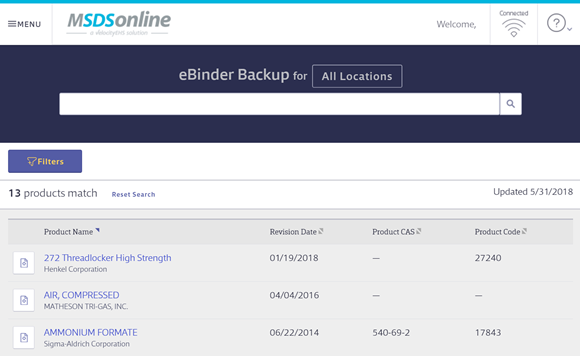
Important: The Location filter is available only when one of the following Backup Options is selected:
Products assigned to Locations
Products assigned to Product Groups
Products assigned to Locations and Product Groups
After selecting one of these options, choose the locations or product groups to include in the backup.
The No Location designation is not available in the Chemical Management Desktop Application.
You will then get options to select the specific locations or groups you want to include.
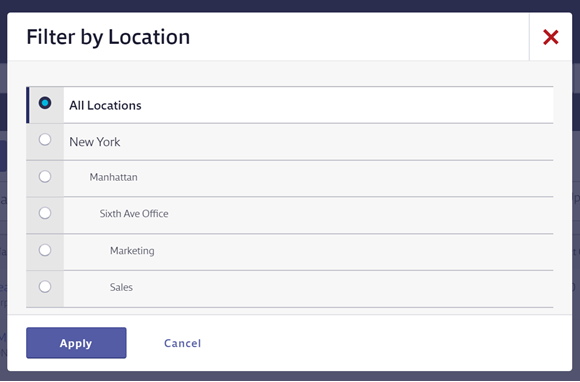
When applicable, you can also use the Filter button to
- Filter by In Use or Not In Use products.
- Filter by Product Groups
- Filter only Archived Products.
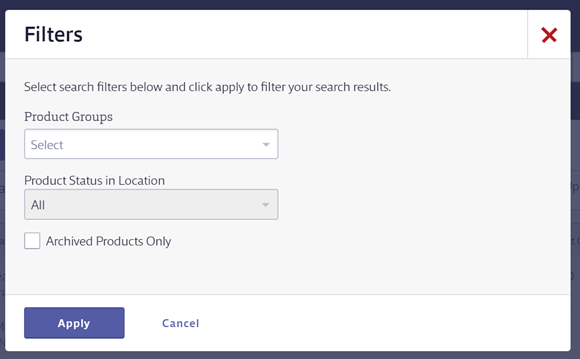
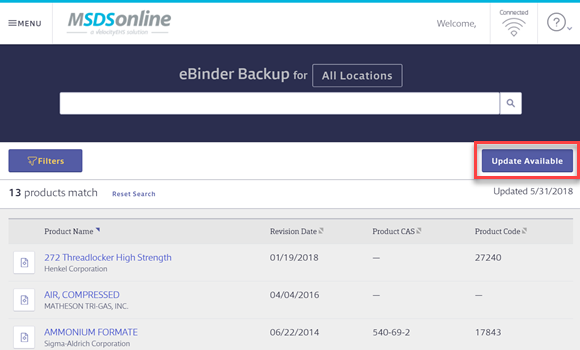
The eBinder Backup includes the date when it was last updated. If you are connected to the Internet when you open the Chemical Management Desktop Application it will check your online eBinder and determine if any safety data sheets were added or removed since the last time you opened the Desktop Application. If there were changes to your eBinder you will see an Update Available button in the Desktop Application. Click this button to download an updated Backup.
Creating a Backup Copy
The Create Copy feature is only available to SDS and SDS/Chemical Management accounts or GM accounts that have purchased this option.
The Create Copy feature allows you to put your eBinder Backup onto a portable storage device such as a USB flash/thumb drive, CD or DVD. This allows you to save a copy of your Backup that could be accessed off-site or using a charged laptop in the event your facility loses power. Note that backup copies are not designed as a compliant deployment method.
To create a copy of your Backup, click the Global Navigation menu in the Chemical Management Desktop Application and select Create Copy.

Click Select Destination and then select the folder or device where you want to save the copy.
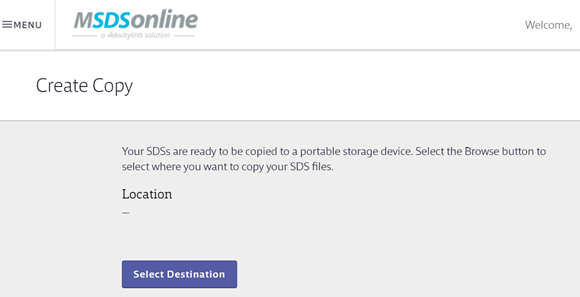
Once the destination is selected, the Chemical Management Desktop Application creates an Chemical Management Portable application file and saves it to the portable storage device.
Users, even those without usernames and passwords, can then insert the storage device and double-click on the Chemical Management Portable file to open the eBinder Backup.
If you receive an error when you click Copy to your USB flash/thumb drive, CD or DVD, we recommend that you take the following steps:
- Create a new folder on your computer’s desktop and select this folder as the destination.
- Click Copy in the Desktop Application. This will start copying your backup file to the folder you just created.
- Once the copy is complete, click Close.
- Next, you will need to navigate to your computer’s desktop and locate the folder you just created.
- Open File Explorer or similar folder navigation location and locate your DVD, CD, or Flash drive. Click and drag the folder you created on your Desktop onto the DVD, CD, Flash drive.
Creating Additional Backups
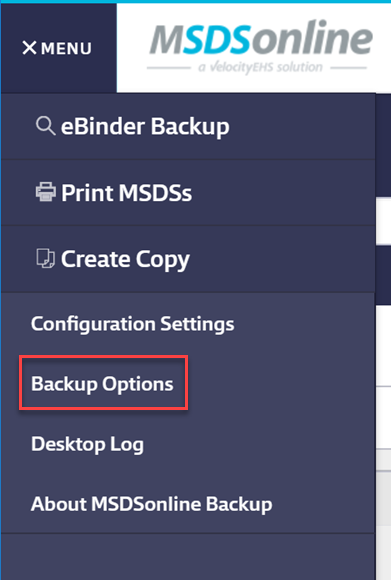
To create a Backup that includes different products or locations, open Chemical Management Desktop Application on your computer and click the Global Navigation Menu in the upper left-hand corner. Select Backup Options.
Select the products, locations and/or groups you wish to include in your Backup. Click Save.
The Chemical Management Desktop Application will then begin downloading the selected safety data sheets and updating your Backup. Note that you can only have one Backup in the Chemical Management Desktop Application at a time. Downloading a new Backup will replace the one you currently have in the Application.
Scheduling a Backup Reminder
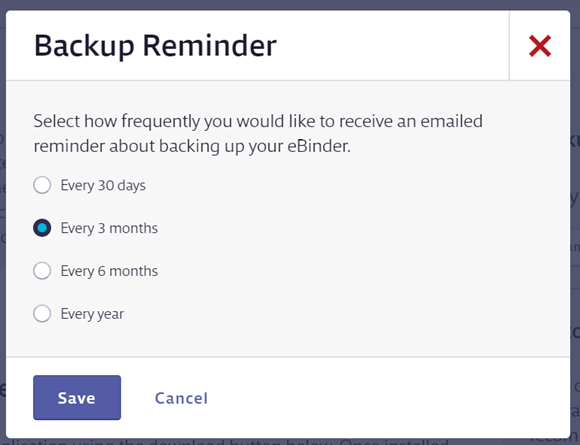
By default, the Chemical Management system sends you an email every 30 days to remind you to refresh your Backup. If you prefer to receive these emails at a different interval you can change the frequency in your account.
To change the Backup Reminder frequency, log into your Chemical Management account and click Menu in the upper left-hand corner. Select Backups.
To access the Backup page, you must be assigned a Role that includes the Chemical Management – Manage the Desktop Application policy.
Click on the eBinder Navigation Menu at the top to expand your options and select Backups
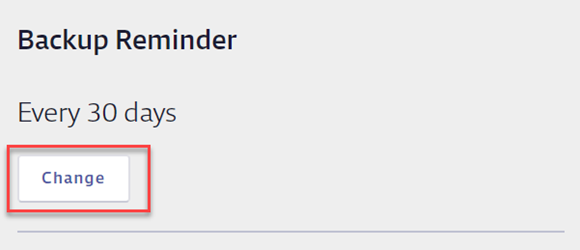
On the Backup page, click Change in the Backup Reminder section.
Select the radio button for your chosen frequency and click Save.