

If you are unable to locate the safety data sheet you need using SDS Search and you have a PDF copy of it saved on your computer, you can use the Upload feature to submit the document for addition to your eBinder.
How to Upload a Single Safety Data Sheet
- Click Menu in the upper left-hand corner > Uploads. Note that you must have Uploads remaining to use this feature; the number of remaining Uploads is listed next to the Uploads menu option.

- Click Learn more about our quality standards to ensure that the document you’re uploading meets the Chemical Management quality standards.
- Uploaded safety data sheets that are eligible to be added to the SDS Search database are eligible for Upload Credits. To see how many previous Uploads were eligible for a credit, hover over More Information in the Uploads Remaining section.
- To upload the PDF, click Select File and then choose the file from your computer. Note that all uploaded files must be in PDF format and 8MB or less.
- You can provide product details, including Product Name (required), Synonyms, Product Code, Supplier, Product CAS# and Regulatory Format/Country/Region. Custom Fields and UPC are also available for you to add organization-specific data. This upload will then be available in your eBinder as Pending while it is undergoing the Chemical Management quality assurance review.

Any details you include here will also be the exact details included in your eBinder when processing is complete. For example, if you upload a safety data sheet for Windex but enter “Blue Stuff” in the Product Name field, the Product Name will be Blue Stuff in your eBinder.
- If you prefer not to complete these fields, check Upload without document details. Note, though, that if you choose not to provide any details, then the safety data sheet will not be available in your eBinder until after it has completed the quality assurance process. Also, only safety data sheets in ASCII languages (such as English, Spanish, French, and German) can be uploaded without document details. See Non-English Uploads for more.
- If you want to assign the upload to Locations, choose Select Locations to display your available locations. Select the appropriate ones and choose Assign. This means that, once your upload is processed and added to your eBinder it will be assigned to the location(s) you selected here.

- You can also mark a single upload as Private. This function is available only for GM Pro, SDS, and SDS/Chemical Management accounts.
- Click Submit at the bottom of the page.
- Click Menu in the upper left-hand corner > Uploads. Note that you must have Uploads remaining to use this feature; the number of remaining Uploads is listed next to the Uploads menu option.
What’s next?
Once the safety data sheet is submitted, it goes through the VelocityEHS quality assurance review. You can view its status in your Queue.

- Safety data sheets that are currently being reviewed will be listed as “In Progress” in the Queue.
- By default, all safety data sheets that pass the quality assurance process will be placed in your Queue with a status of “Ready for eBinder” and VelocityEHS will notify you via email that they are ready to be added. If you prefer to have uploads placed directly in your eBinder, see Configuring Queue and Approval Processes for information about editing your document routing settings.
- If the document does not pass the quality assurance review, it will be in your Queue with a status of “Incomplete.” Select the product row to see more information.
Note: If an uploaded document already exists in your eBinder, it will be automatically removed from the Queue during the quality assurance process because it is considered a duplicate.

Contact Customer Support if you have additional questions about Incomplete documents.
How to Upload Multiple Safety Data Sheets
Multiple file uploads are available only for GM Pro and SDS Management/Chemical Management accounts.
Note: Multiple file or batch uploads can be done for documents in any ASCII language.
- Click Menu in the upper left-hand corner > Uploads. Note that you must have Uploads remaining to use this feature.
- Click Select File on the Upload page. In the file select window, hold down CTRL on your keyboard (or Command for Mac) and choose each file that you would like to upload, and then click Open. Note that all uploaded files must be in PDF format and 8MB or less.
The files you selected will be listed with their file names above the Select File button. To remove a file, click the orange X.
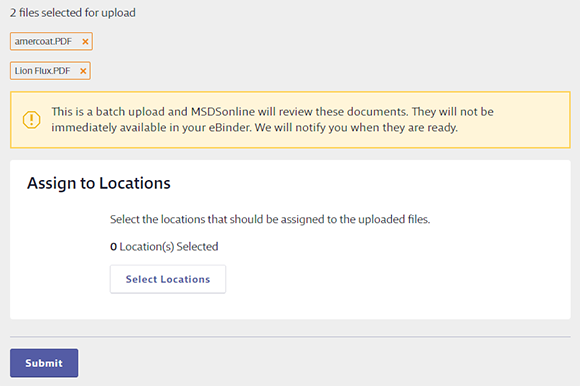
- If you wish to have these safety data sheets assigned to a location(s) once they pass the quality assurance review process, choose Select Locations. Note that all of the files uploaded in a batch must be assigned to the same location(s).
- Click Submit at the bottom of the page.
What else should I know?
- You cannot enter any product information or mark any of the safety data sheets Private when uploading multiple files. Chemical Management will take care of entering the product name, manufacturer, supplier, revision date, regulatory format/country/region and language for each of the safety data sheets you uploaded.
- Multiple file uploads are not available in the eBinder until after they go through the quality assurance review (see above). While they are undergoing review, they will appear in your Queue by the PDF file name and will be listed with an “In Progress” status. See How do I get an upload credit? for more information about the quality assurance review.
- To determine which of your uploads received an upload Credit, use the SDS Documents Uploaded Rep
