

Creating Portable Backup Copies
Creating a Portable Backup Copy
After creating a backup in the Chemical Management Desktop Application:
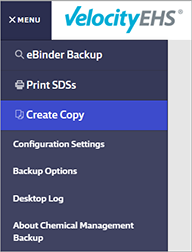
- Open the Global Navigation menu.
- Select Create Copy
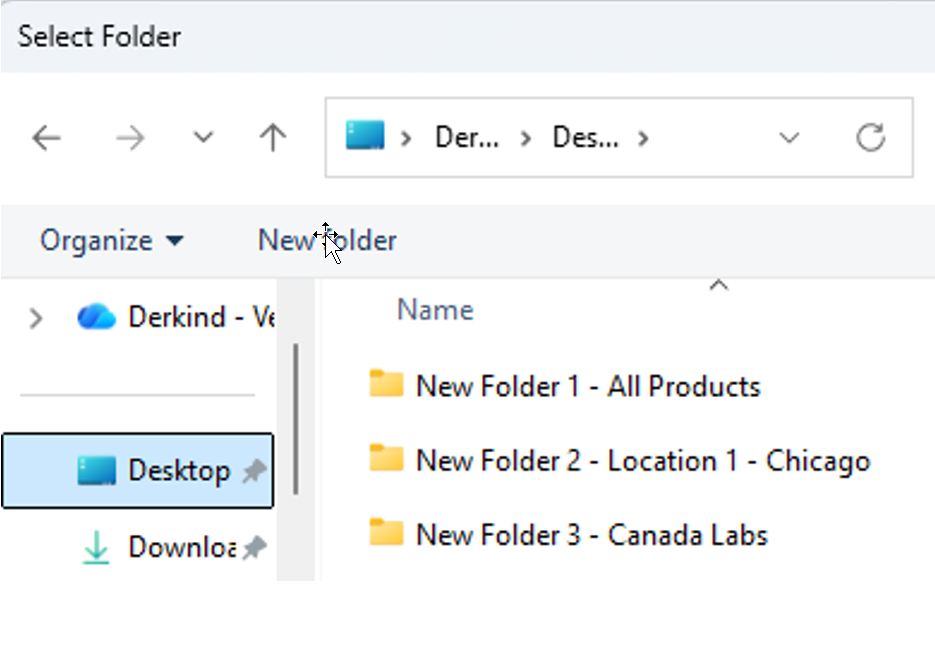
- Create a new folder on your computer.
- Select the folder as the destination for the backup copy.
Important: Do not save the backup directly to a USB drive, network drive, or CD. Save it to a local folder first.
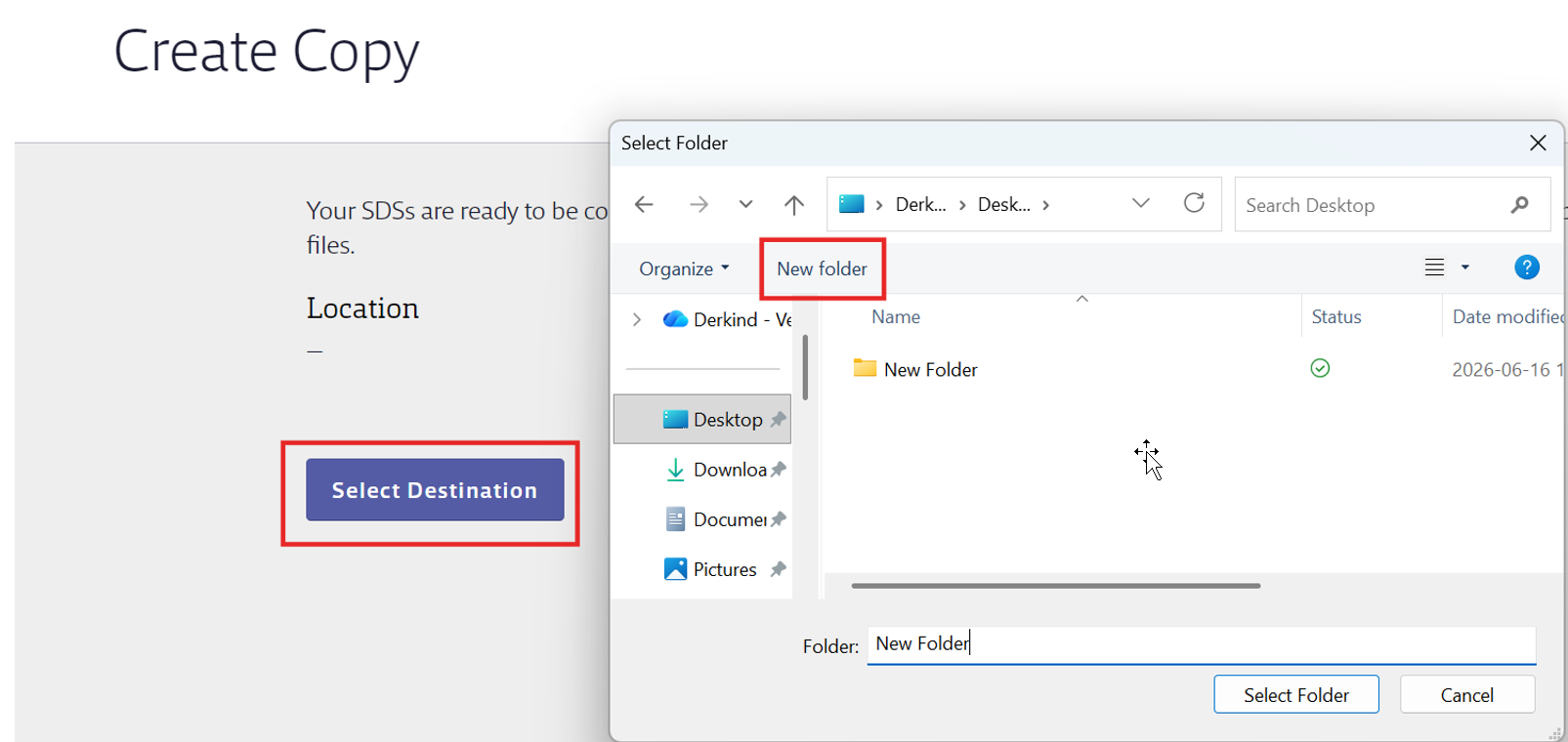
The Desktop Application creates a portable version of your eBinder and saves it in the selected folder.
Understanding Backup Copy Files
The backup folder contains three items required to access your SDS inventory offline.
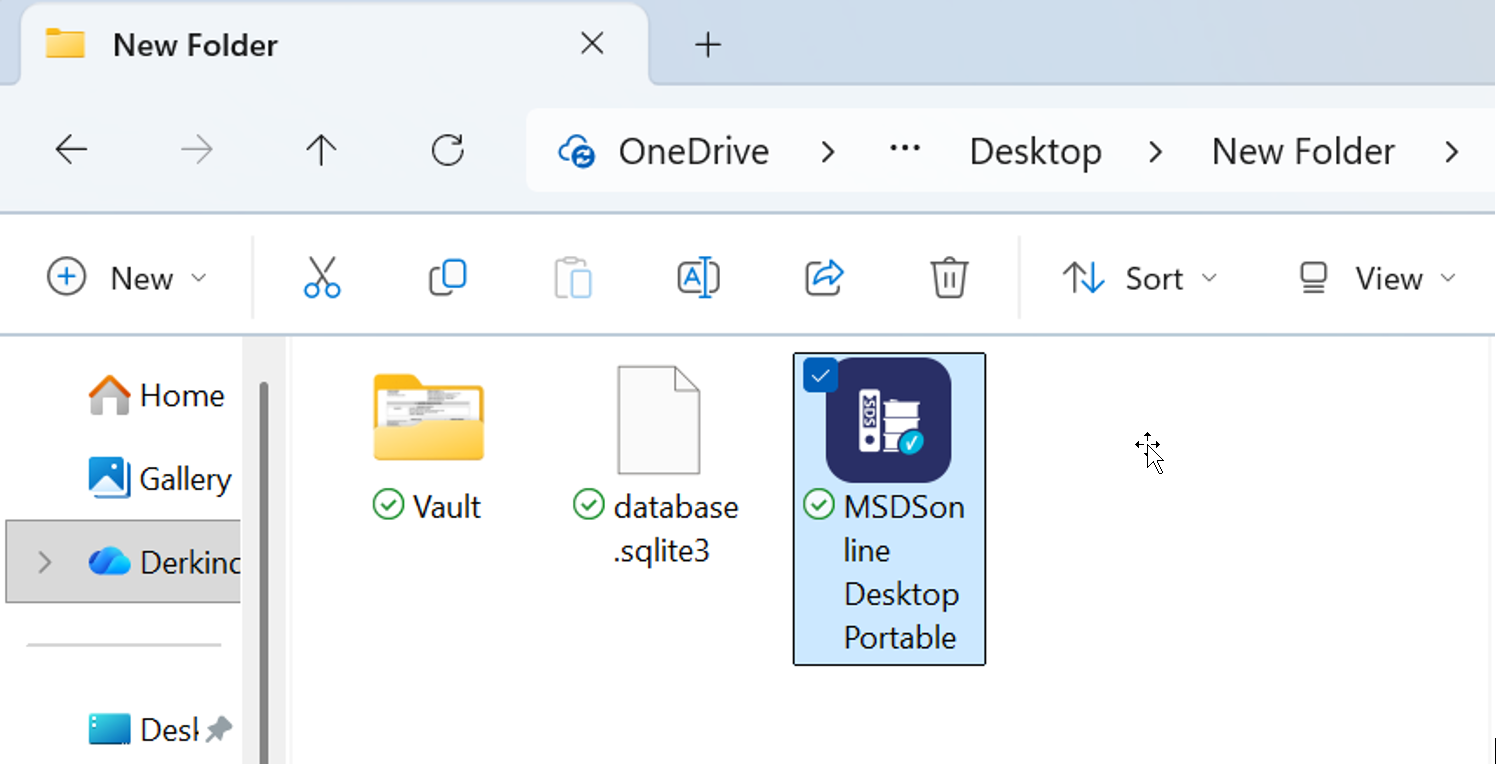
1. MSDSonline Desktop Portable
This executable file launches the portable version of your eBinder. Double-click MSDSonline Desktop Portable to access SDSs without an internet connection.
- Users do not need VelocityEHS usernames or passwords to access a portable backup copy.
2. Database.sqlite3
This file contains SDS data used by the portable application.
- Do not modify or delete this file.
3. Vault Folder
The Vault folder contains SDS PDF files used by the portable application.
- Do not modify or delete files in this folder.
Important:
- Keep all three items in the same folder. The portable backup will not function correctly if files are moved, renamed, or separated.
- Do not modify the sqlite3 file or any files stored in the Vault folder. These files are required for the portable application to function properly.
Anyone openning the MSDSonline Desktop Portable file will be able to search for SDS by using the search bar within the backup copy.
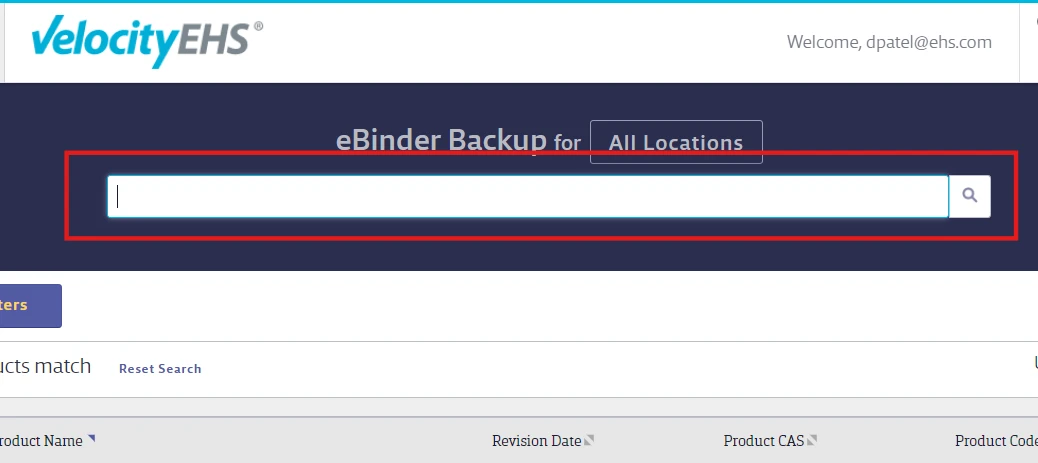
Users can either click on the pdf icon before the product name or the name of the product itself to open the SDS file offline.
Creating Multiple Backup Versions
You can create multiple backup copies with different settings.
To create another version:
- Open the Chemical Management Desktop Application.
- Select Backup Options.
- Update the backup settings as needed.
- Create a new backup copy in a separate folder.
Store each backup version in its own folder to avoid overwriting files and to make version management easier.
If you experience issues creating or accessing portable backup copies, see Reinstalling the Desktop Application (Backup)
