

Printing Multiple Safety Data Sheets
Creating a backup of the safety data sheets in your eBinder is an important step in staying compliant with many regulations that may require safety data sheets to be readily available even if your users do not have Internet access. The Backup feature in your account provides tools to quickly and easily print multiple safety data sheets if you choose to use paper as your backup method.
Downloading the Initial Backup File
The first time you create a Backup you need to download the Chemical Management Desktop Application from your account.
Click on the Global Navigation Menu in the upper left-hand corner of your account and select Backups
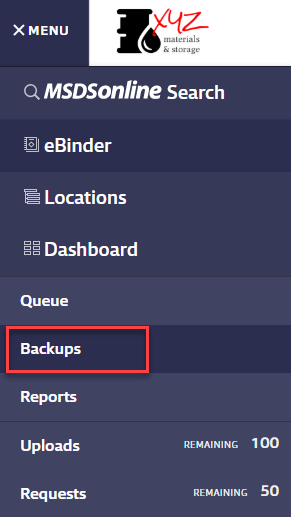
To access the Backup page, you must be assigned a Role that includes the Chemical Management – Manage the Desktop Application policy.
Click on the eBinder Navigation Menu at the top to expand your options and select Backups
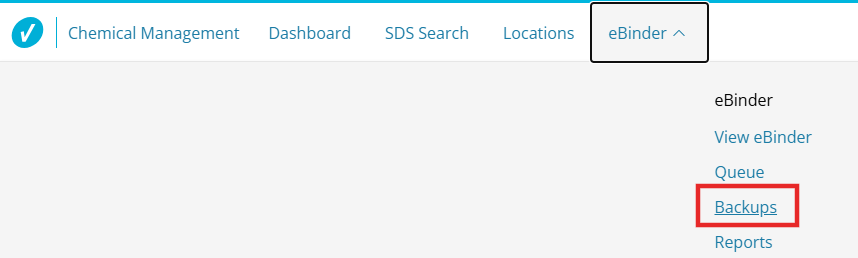
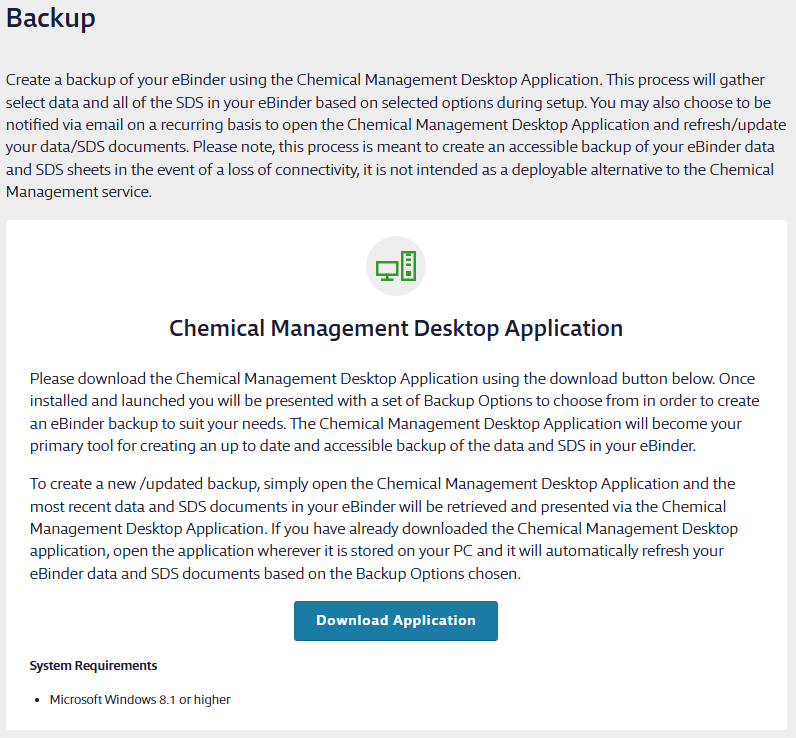
Once in the the Backup page, click Download Application.
This will download the Chemical Management Desktop Setup.exe file.
If prompted to Run or Save the file, select Run. Depending on your web browser and security settings, the application may download and install automatically without prompting you to choose an option.
If the application did not install automatically or you selected Save, locate the downloaded Chemical Management Desktop Setup.exe file in your device and follow the installation prompts. You only need to download the application once. To use it going forward, simply click the Chemical Management Desktop Setup icon from its saved location on your computer.
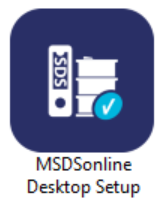
eBinder Backup Log In
When launching the backup application, a Log In screen appears, prompting you for credentials.
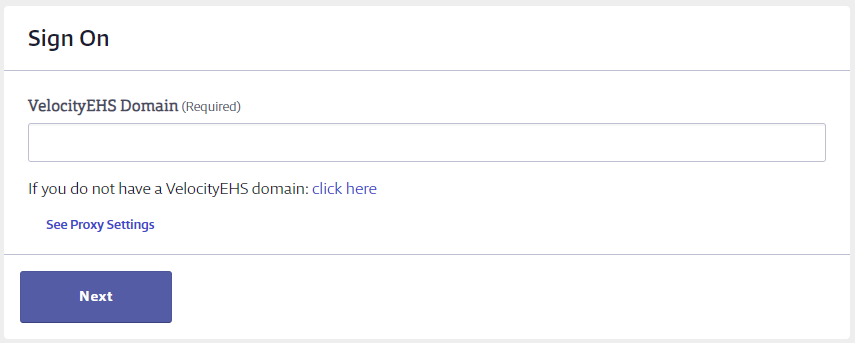
Head to the click here link to skip the Domain Entry (Accelerate Only). Fill the same credentials used when logging into your Chemical Management account.
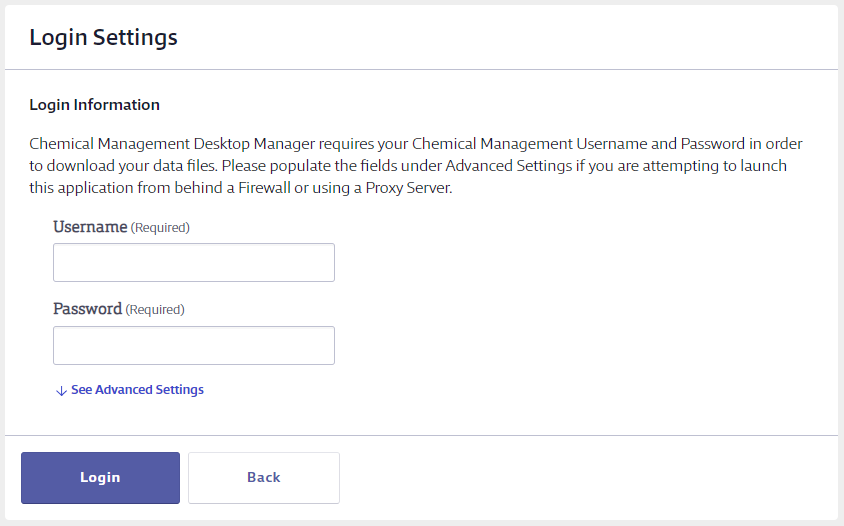
When you launch the backup application, a Log In screen appears, prompting your Accelerate's Company Domain.
Fill the same credentials used when logging into your Accelerate Account.
Next you need to select which safety data sheets you want included in your Backup Options.
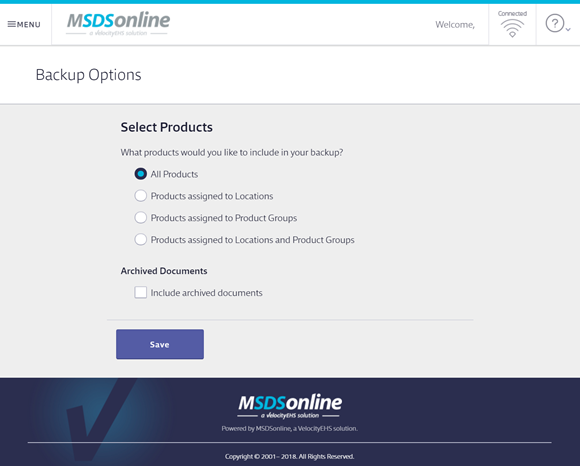
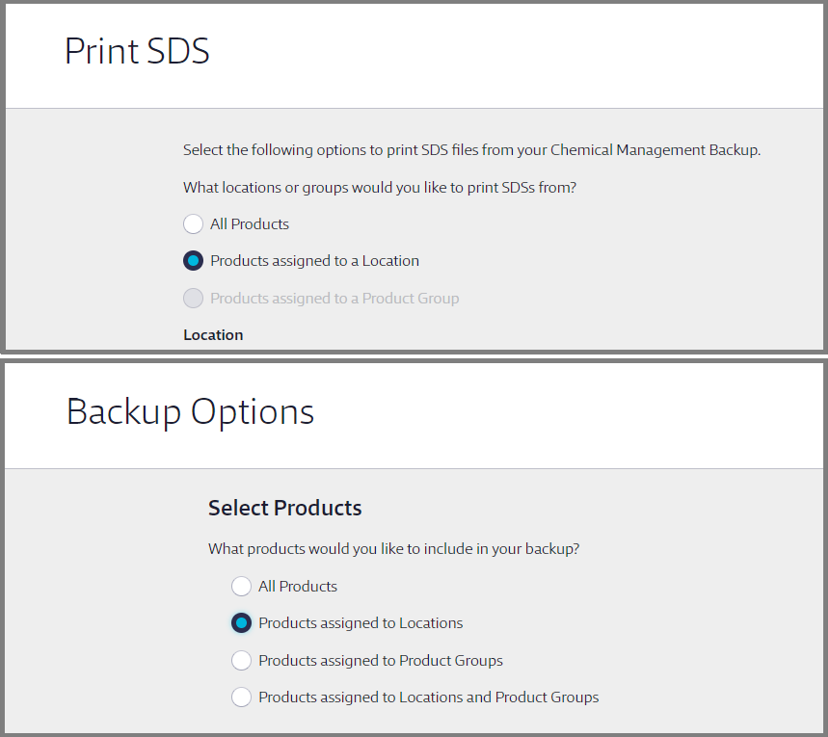
Important: If you want to be able to filter your Backup by locations, you will need to select Products assigned to Locations or Products assigned to Locations and Product Groups. The Location filter is not available for the All Products backup option. You will then get options to select the specific locations or groups you want to include.
Click Save. The Chemical Management Desktop Application will then begin downloading the selected safety data sheets in your desktop application.
Each time you launch the application it will refresh your eBinder data and SDS documents based on your selected Backup Options.
Printing Multiple Safety Data Sheets
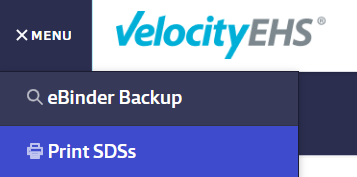
Once in you Chemical Management Desktop Application, click the Global Navigation Menu in the upper left-hand corner and select Print MSDSs.
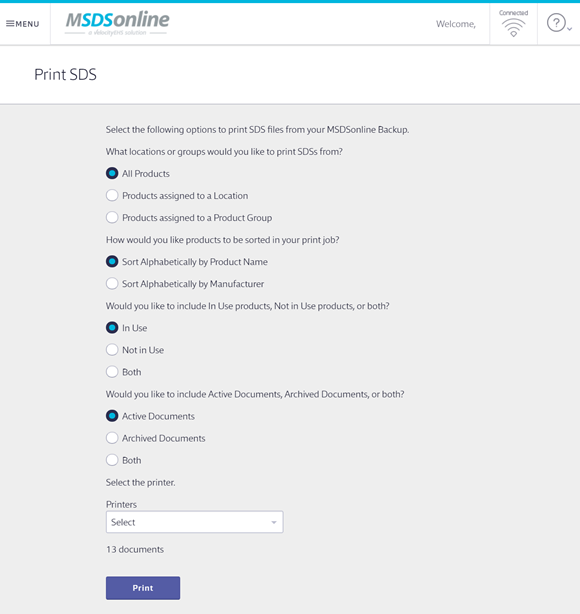
Once on the Print SDS screen, select which safety data sheets you want to print. Note that you can print safety data sheets for
- All products in your eBinder
- Products assigned to a Location
- Products assigned to a product group
These will become available based on your Back up options selection when creating your back up for the first time. If any of these options are greyed out, click on your Backup Options in your menu and select the option matching your printing preference.
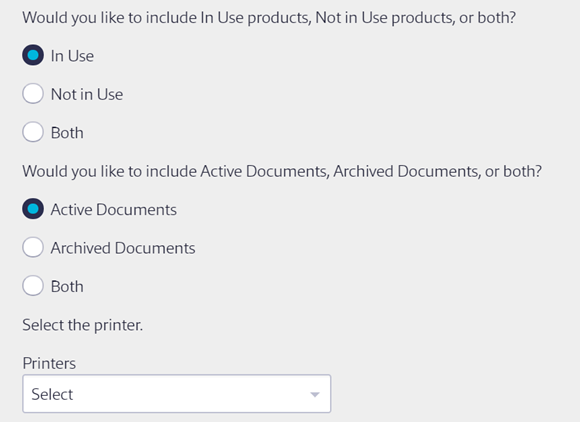
Select the sort order for the safety data sheets.

Select whether you want to print the safety data sheets for products that are In Use, Not In Use, or Both.
Select whether you want to print Active safety data sheets, Archived safety data sheets, or Both.
Select your printer using the Printers drop-down menu.
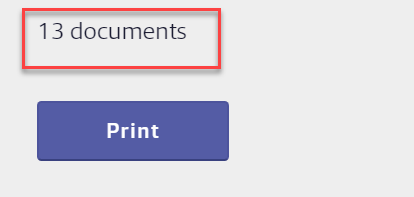
The Chemical Management Desktop Application indicates how many documents will print based on your selections. Once you’re ready to print, click the Print button.
Once the printing has started, each individual PDF file will open in your PDF reader, print, and then document will close. This process will automatically repeat for each document that is being printed. There is currently no way to pause or change this process once it has started. All selected safety data sheets will print out single-sided from start to finish.
The next time you need to print multiple safety data sheets, open the Chemical Management Desktop Application and follow the same steps above.
