Edit a JSA Using AI (Ask Vēlo)
Meet Vēlo, your AI task assistant
Vēlo is your AI task assistant that guides you through the JSA hazard and control identification process and provides validation and feedback where and when you need it. Throughout this process, the final decisions as to whether to accept Vēlo’s suggestions and recommendations remain with you.
You can find Vēlo at the top of the Job Safety Analysis page:
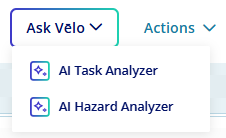
There are four points at which you may interact with Vēlo during JSA entry:
- Task description analysis
- Hazard analysis
- Control recommendations
- Action suggestions
Why use Vēlo?
The AI features in Advanced Job Safety Analysis help you analyze task descriptions, and proactively identify hazards, context-specific controls, and appropriate actions. They reduce data entry time and ultimately improve both the quality and consistency of JSAs across teams. You can expect less reliance on individual user experience and memory, leading to higher quality JSAs that ultimately reduce frontline risk.
Step 1: Task description analysis
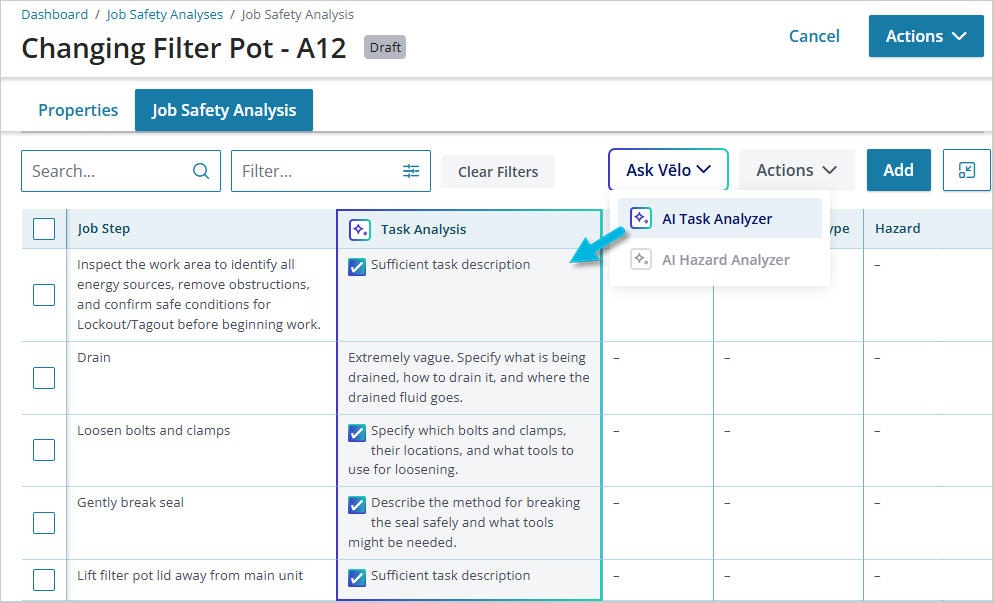
Once you’ve entered task descriptions, you can use AI to analyze them for you: select Ask Vēlo > AI Task Analyzer from the dropdown at the top of the page. This function
- evaluates the task descriptions to determine if they meet basic detail, completeness, and clarity criteria, and
- creates a (read-only) Task Analysis column that provides feedback to help you refine the descriptions to improve their quality.
This step ensures that Vēlo has enough information about the tasks to identify potential hazards in the next step. A check mark indicates that, although the descriptions may still need improvement, Vēlo has determined that they meet the basic quality requirements.
Note that tasks may also be called job steps, activities, etc. (defined in Admin > Terminology).
Things you can do:
- Modify the description(s) in the Job Step column according to the Task Analysis suggestions, and then re-run AI Task Analyzer to reanalyze them.
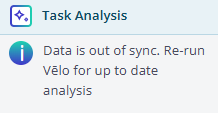
Note that you can make changes and re-run the analysis as many times as you like, for one task at a time, or for all of them at once. When it’s time to re-run it, you’ll see this message in the Task Analysis column:
- If all descriptions have a check mark and you’re satisfied with the level of detail and quality, you can leave them as they are and continue to hazard analysis.
Remember, as long as they meet Vēlo’s basic quality criteria, it’s still up to you to decide whether you want to accept or decline any further modifications that Vēlo suggests. However, the more complete and detailed your task descriptions are (the more information Vēlo has about the tasks), the more accurate and effective the potential hazards, controls, and actions Vēlo can suggest in the remaining steps.
Step 2: Hazard analysis
Once you have solid task descriptions, you’re ready to identify potential hazards that may exist for each of them. Select Ask Vēlo > AI Hazard Analyzer to use AI to help you get started.
This step uses your organization’s current global list of hazards (Principal Hazards, Hazard Types, Critical Risks, etc., defined in Admin > Terminology) to recommend the most appropriate and relevant ones for each task.
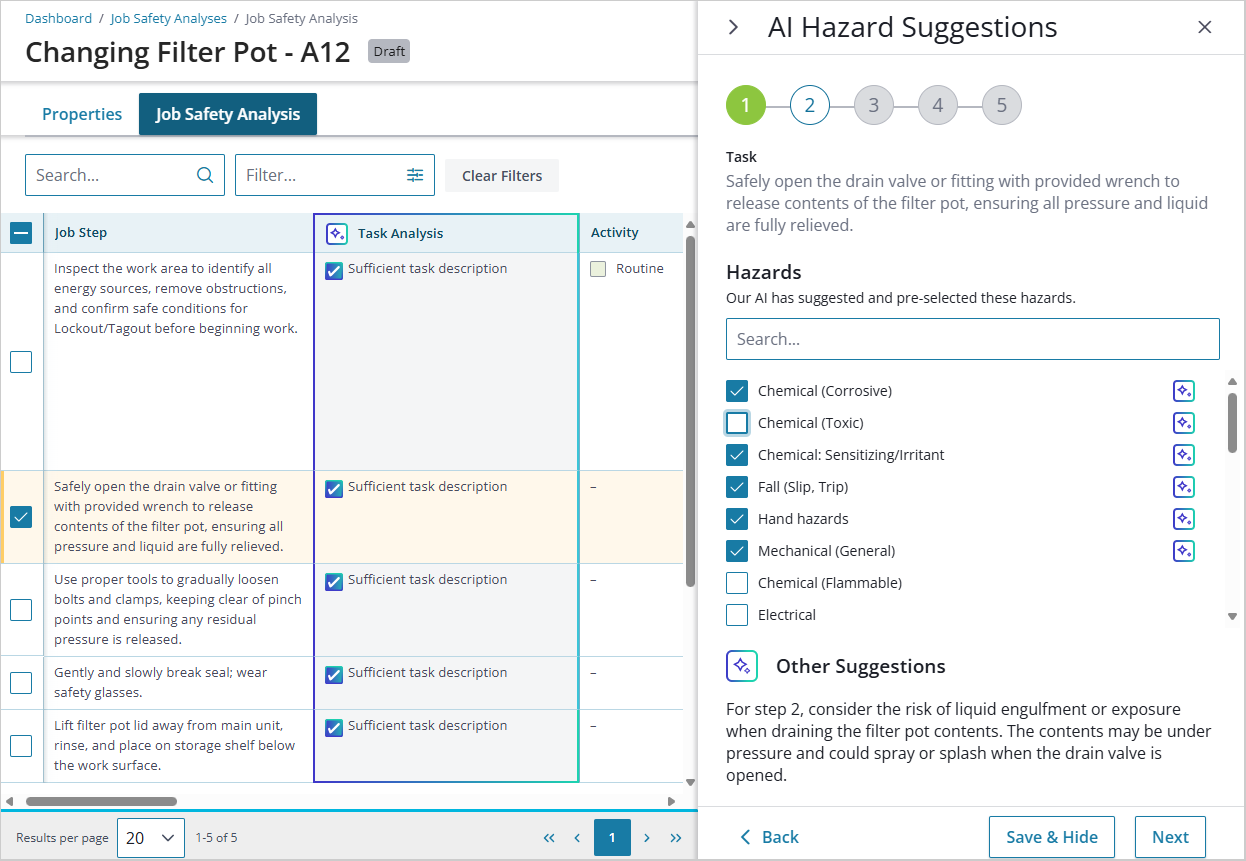
Things you can do:
- View the list of recommended hazards (indicated by the check mark) and select any additional hazards that apply or deselect those you don’t want to include.
- Use the Search field to quickly find hazards in your organization’s list that you think may apply beyond those that Vēlo has suggested.
- Consider Other Suggestions Vēlo provides; these are potential hazards that are not in your organization’s current list of hazards but that may provide additional context. You can work with someone in your organization who has sufficient privileges in the software to add these later.
- Choose either Save & Hide to save the current hazard selections for this task and go back to the worksheet, or Next to save the hazard selections for this task and continue hazard analysis for the next task on the list.
- As you select hazards for each task, you can add more information about the hazard and rate the risk based on your organization’s defined risk factors.
While working through your task list, the indicators at the top of the page show your progress. In the example above, you’ve completed hazard identification for one task and are working on the second one of five. Choose Save at the bottom of the page when you’ve addressed them all.
Step 3: Control recommendations
When tasks and potential hazards are complete in the worksheet, Vēlo has what it needs to use your organization’s list of controls (Base Controls, Critical Controls, Global Controls, etc., defined in Admin > Terminology) to help you document those that are currently in place for each task/hazard.
After filling in Cause and Consequence information, double-click in the Global Controls field for each task to see Vēlo’s recommendations.
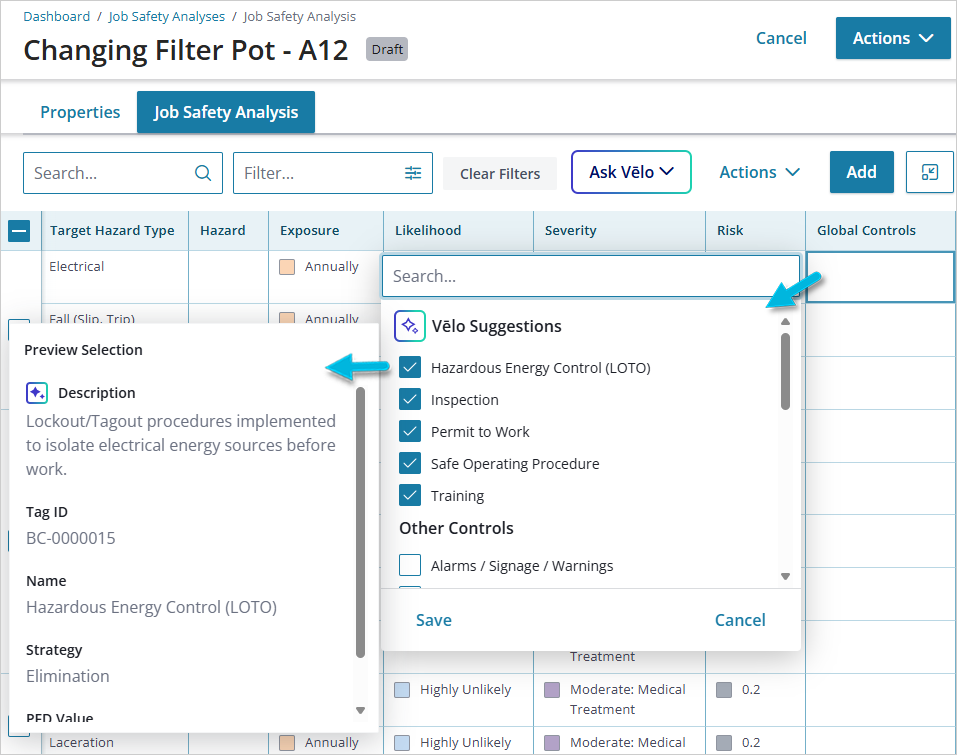
Things you can do:
- View the list of recommended controls from your organization’s list (indicated by the check mark). Deselect any that do not apply.
- Use the Search field to quickly find additional controls that are currently in your organization’s list.
- Select Other Controls that may apply; controls listed here are also in your organization’s list of controls. While they’re not among the recommended controls, they may still be effective in certain situations.
- Hover over a control to see more details about it.
- Save your selections to add them to the worksheet.
- Review the contextual job descriptions that have been added for you in the JSA Control Description column for each task/hazard, and make any necessary updates.
This step is entirely optional and there are no additional requirements now that task descriptions and potential hazards have been identified and evaluated.
Step 4: Action suggestions
Once you’ve identified controls, you can choose specific action items that represent additional controls to help you improve the safety of each task.
To get Vēlo’s help with this step, double-click in the Action Title field for each task to see Vēlo’s suggestions.
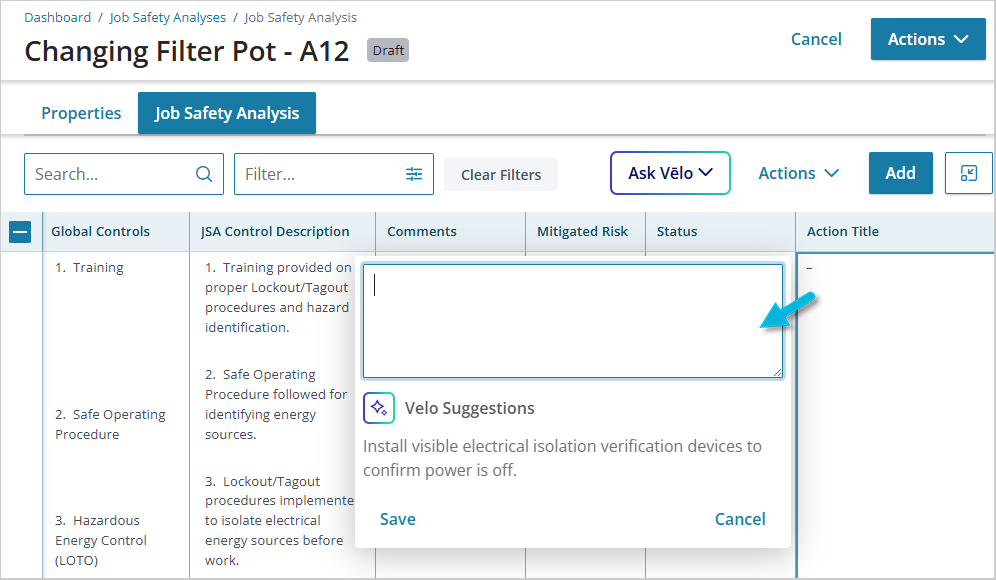
This step is entirely optional, and action suggestions are for inspiration only. You can choose from these suggestions, or you can enter your own in the text box. Save your selections to add them to the worksheet.
Reporting
To help you track the AI suggestions, and the changes you make as a result, there are three reports available:
- JSA Step Task Analysis – Reflects AI-suggested task descriptions so that you can see the original descriptions, what was suggested, and the subsequent changes made as a result.
- JSA Step Hazard Analysis – Reflects AI-suggested hazards that are outside your organization’s hazard list. Over time, if there are some that are suggested repeatedly, you may consider adding them to your own list.
- JSA Step Action Analysis – Reflects AI-suggested actions to show which ones are suggested often so that you can monitor their accuracy and validity.
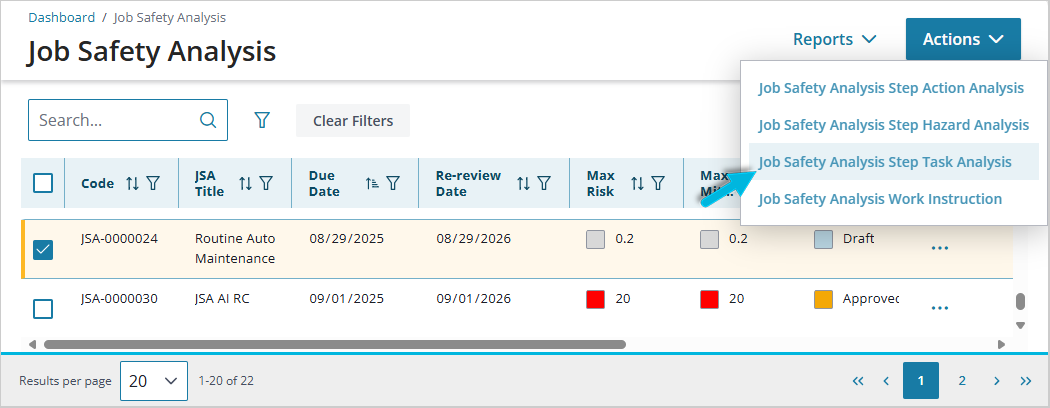
To run the reports, select the JSA(s) you want to include on the Job Safety Analysis page, and select Actions > (report name).