

Physical Hazard Indexing
Physical Hazards indexing options are available only for GM Pro, SDS Management and Chemical Management accounts.
If you want to print secondary container labels or run reports with Physical Hazards included, you must first index this information in the Product Summary.
Before you can index Physical Hazards, ensure the module is enabled in your account and turned on in the Product Summary. See Indexing Safety Data Sheet Information for more information.
Once the module is turned on, click Manage Physical Hazards at the top right of the module.

On the Manage Physical Hazards page you can review the safety data sheet on the right-hand side. Use the toggle buttons at the top right to show or hide the PDF.
You have the option to select a language in which to index the Physical Hazards. By default, the indexing language in the drop-down menu will be the same as the default language you’ve set for your account.
Selecting a language will translate the prepopulated list of Physical Hazards into your selected language.

Note that if you have already indexed information and then change the language it will remove any indexed information.

Additionally, indexing modules can only be indexed in one language; ensure the correct language is selected before you begin indexing.
If there are Physical Hazards listed on the safety data sheet you can use the checkboxes for the Physical Hazards options on the left to make your selections. Your Chemical Management account comes standard with a prepopulated list of Physical Hazards options from which you can choose. You can use the Filter Physical Hazards field to search for a specific item.
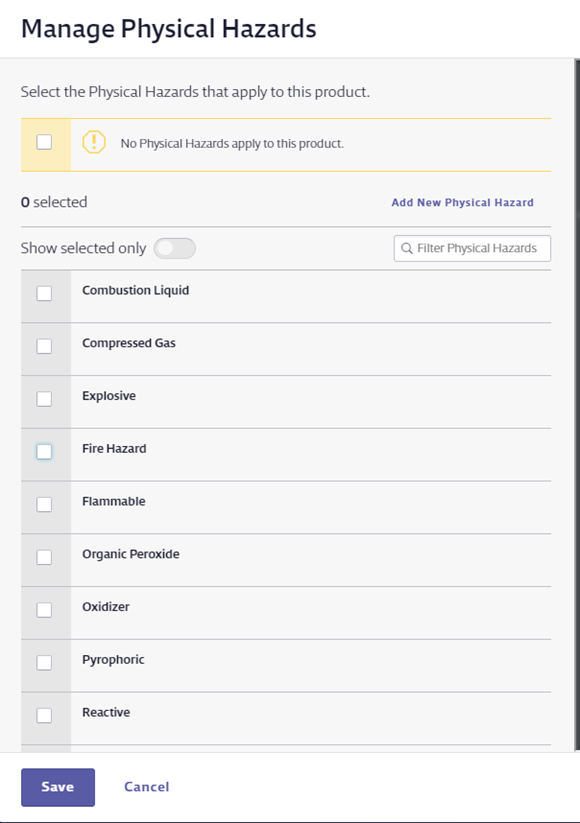
If the Physical Hazards option you want to use is not listed, click the Add New Physical Hazard link and enter the physical hazard’s name. User-added options are managed in the Product Summary settings. See Product Summary Settings for more information.

If the Physical Hazards name you entered is already in use in your account, you will get a message indicating that it already exists and prompting you to enter a different name.
Any new Physical Hazard you enter will be flagged with the language selected in the drop-down menu. This means it will only appear as an option for your account when that same language is selected in the indexing module.
Once you’ve entered the Physical Hazards name, click Add.
Select the Physical Hazards options you need to index, and then click Save. You will see the name of the Physical Hazards in the Physical Hazards module.

If there are no Physical Hazards listed on the safety data sheet and you want to indicate this in the Product Summary, select the checkbox for No Physical Hazards apply to this product. This lets users know that you reviewed the safety data sheet and determined that no Physical Hazards were listed.
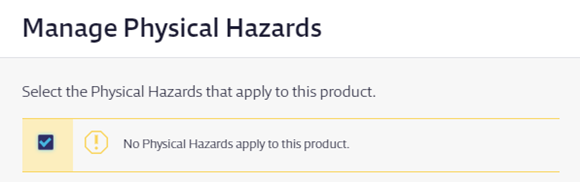
Click Save.

