
Inspection/Audit Module
Adding a Template
Adding a template enables you to:
- Conduct audits, inspections, and observations to provide insight into our management systems, processes, and programs
- Provide a consistent way to evaluate these systems, programs, and processes at each location
- Compare results in a meaningful way
Templates are added when a new form of evaluating systems, programs, and processes is needed.
To add a template
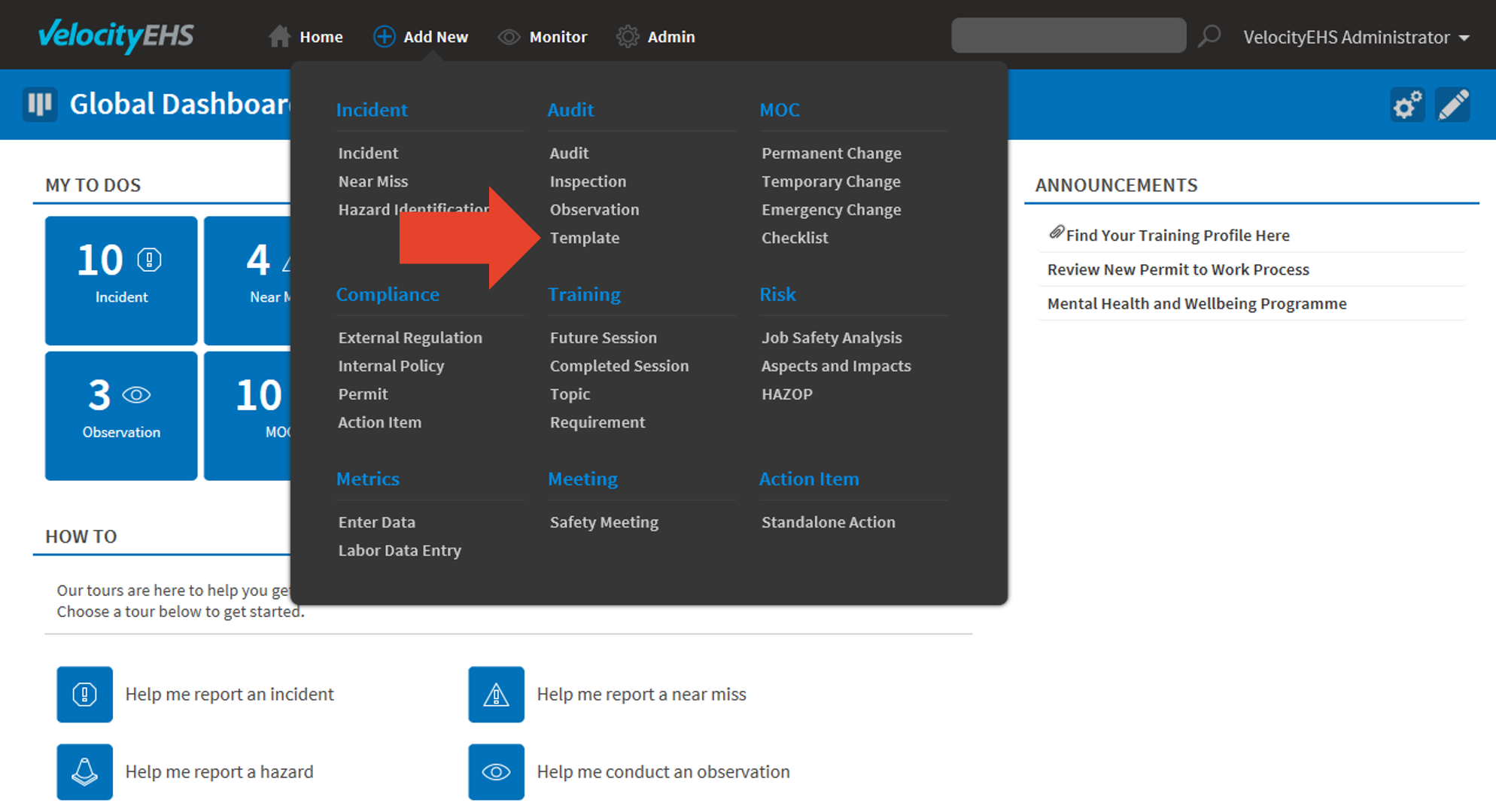
- Select Template from the Add New menu.
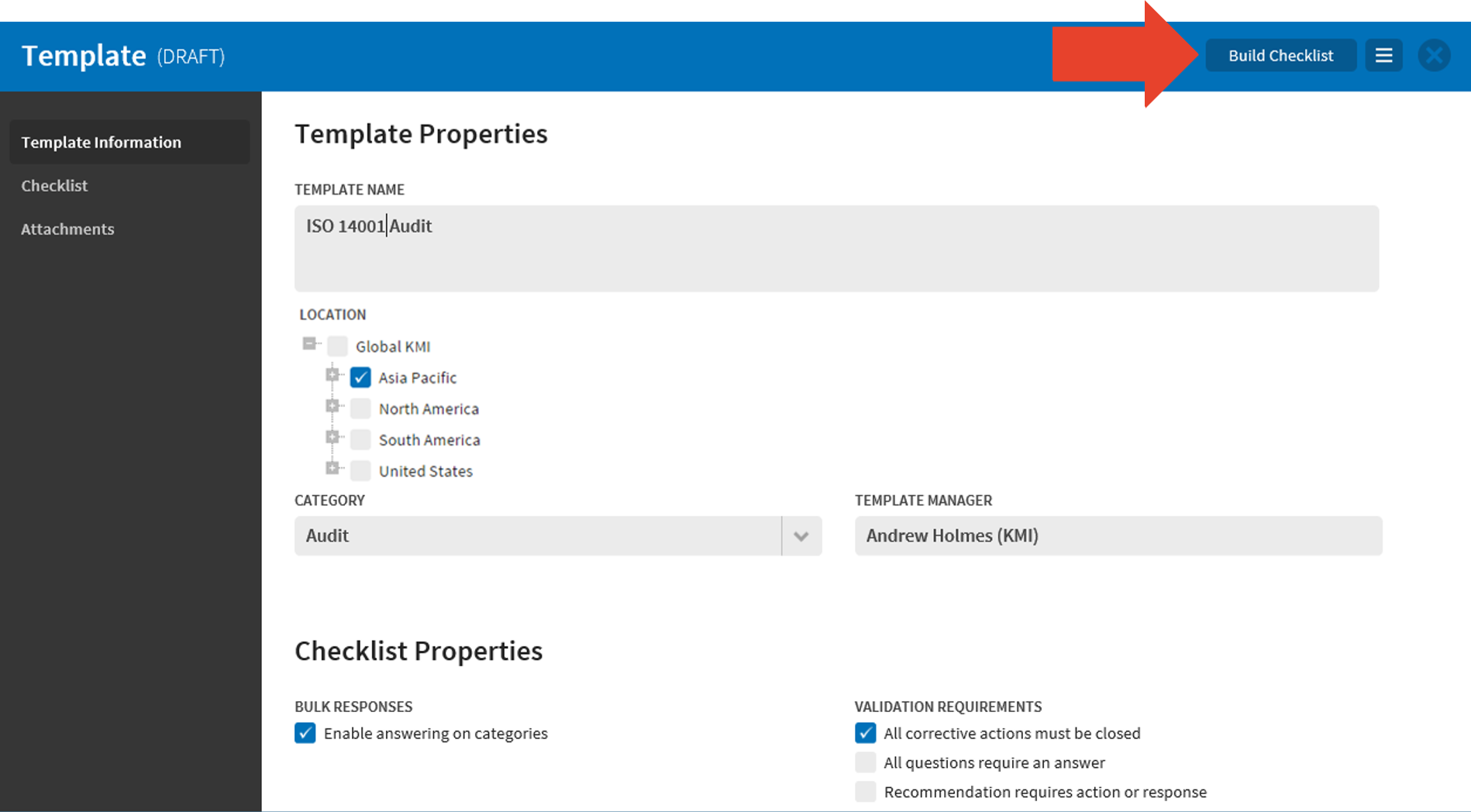
- Include all relevant information about the template including which location(s) it will be used for. Remember, the template will only be available at the locations and location levels below the selection(s) you’ve made. Define the parameters to manage desired responses, keeping in mind that you can have multiple response types in one template. When you’ve finished defining the response parameters, click Build Checklist.
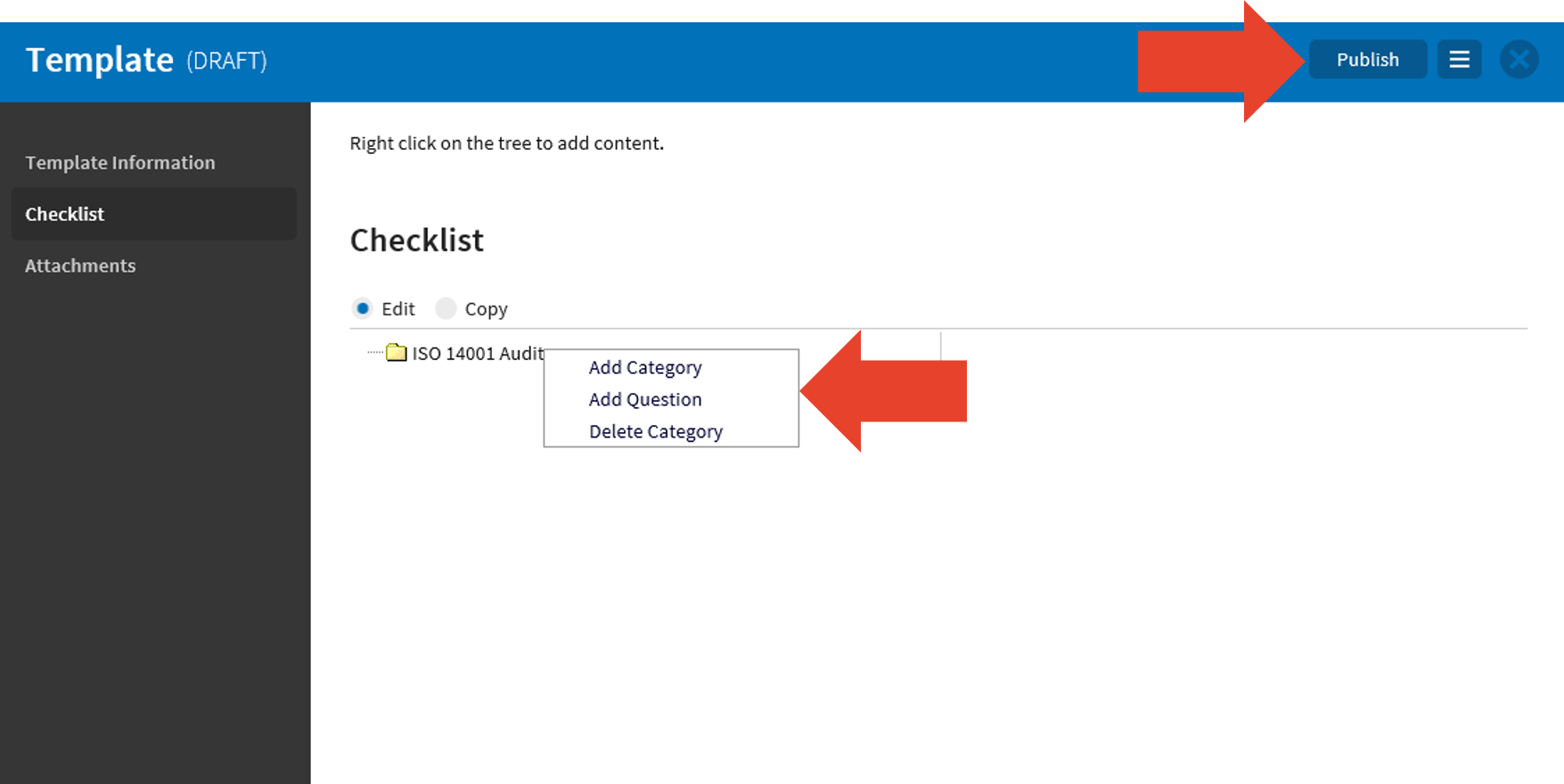
- To create your own questions for the template, select Edit. Select the name of your template and right-click to add a new category of questions or an individual question. On the right side of the page, you will be able to define the name of your new category or type your new question. You can add reference information and help text and define what answer type should be provided for the question.
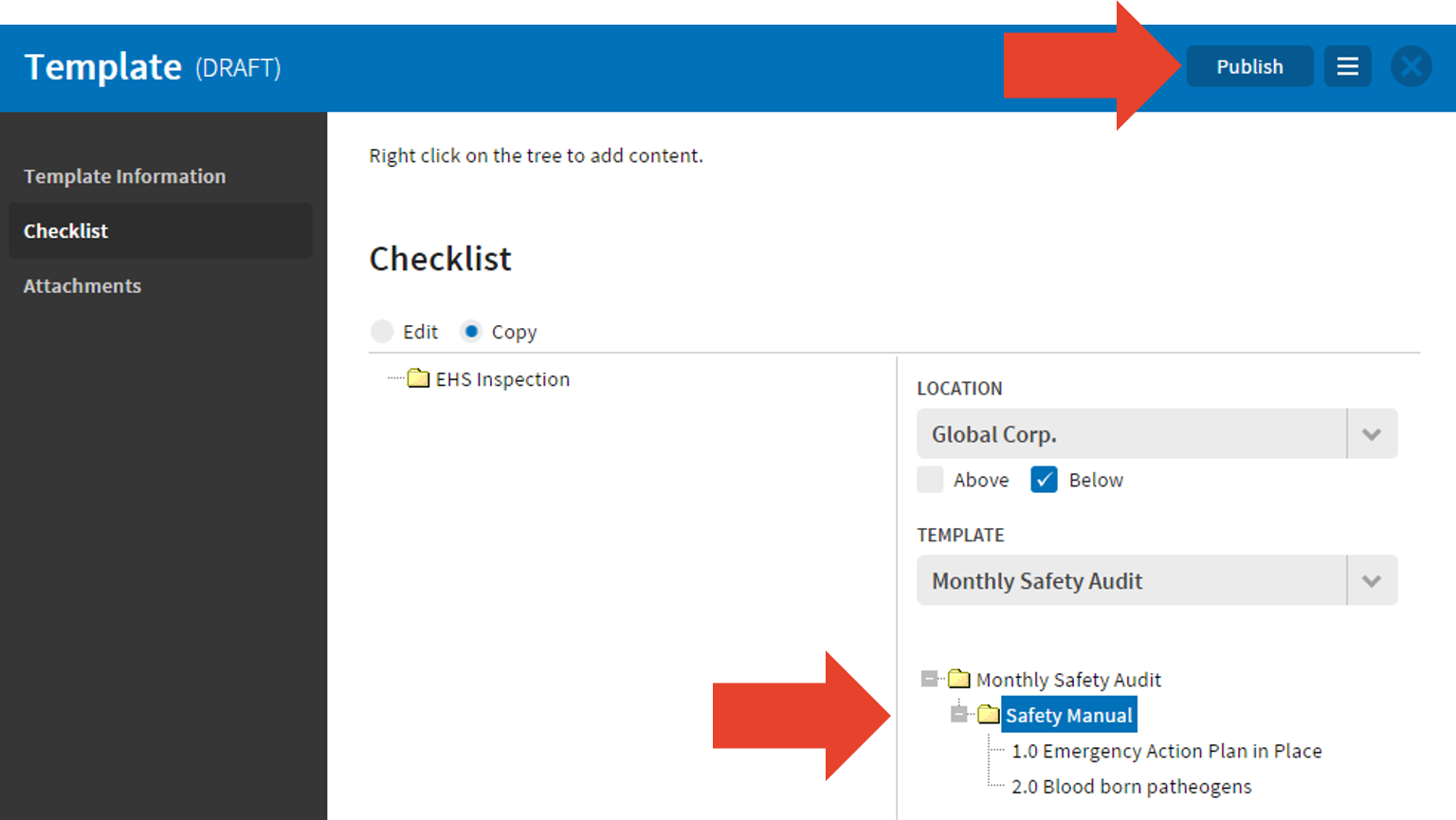
- To copy questions from existing templates, select Copy. Select a location to help locate the existing template and select it from the available matches. Select the question or category of questions you’d like to copy over and drag it to the template you’re building on the left side of the page. Be sure to place it in the appropriate section. Questions can now be modified as in Step 3 if needed. Click Publish when you’re ready to release the new template for use.
- Select Template from the Add New menu.
The new template can be used immediately at the locations for which it has been made available. Remember, modifications to a published template will impact your ability to compare results over time. However, you will still be able to compare results from one location to another if the same template was used.
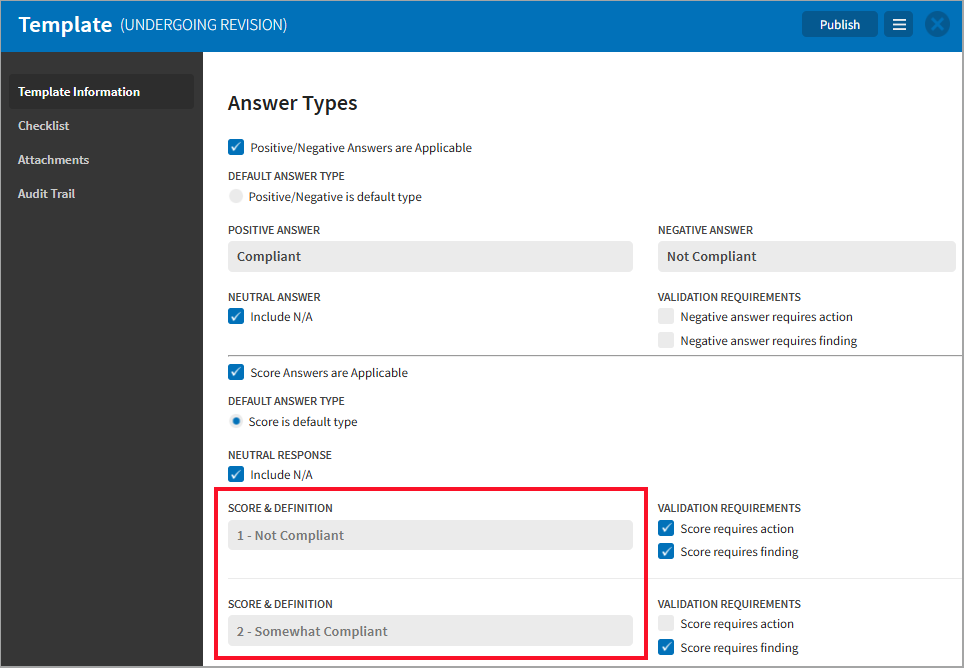
Note: If a published template has been associated with an inspection or audit record, you can’t edit the Score & Definition fields after moving it back to the Undergoing Revision stage. This helps preserve the integrity of the associated record(s).
Was this helpful?
Thanks for your feedback!
