
This document covers where to download the EHS Management (V5) Mobile App, how to log in, and an overview of its key features and functionalities. This guide will help you get the most out of the app for efficient environmental, health, and safety (EHS) management on the go.
Where to Download the Mobile App
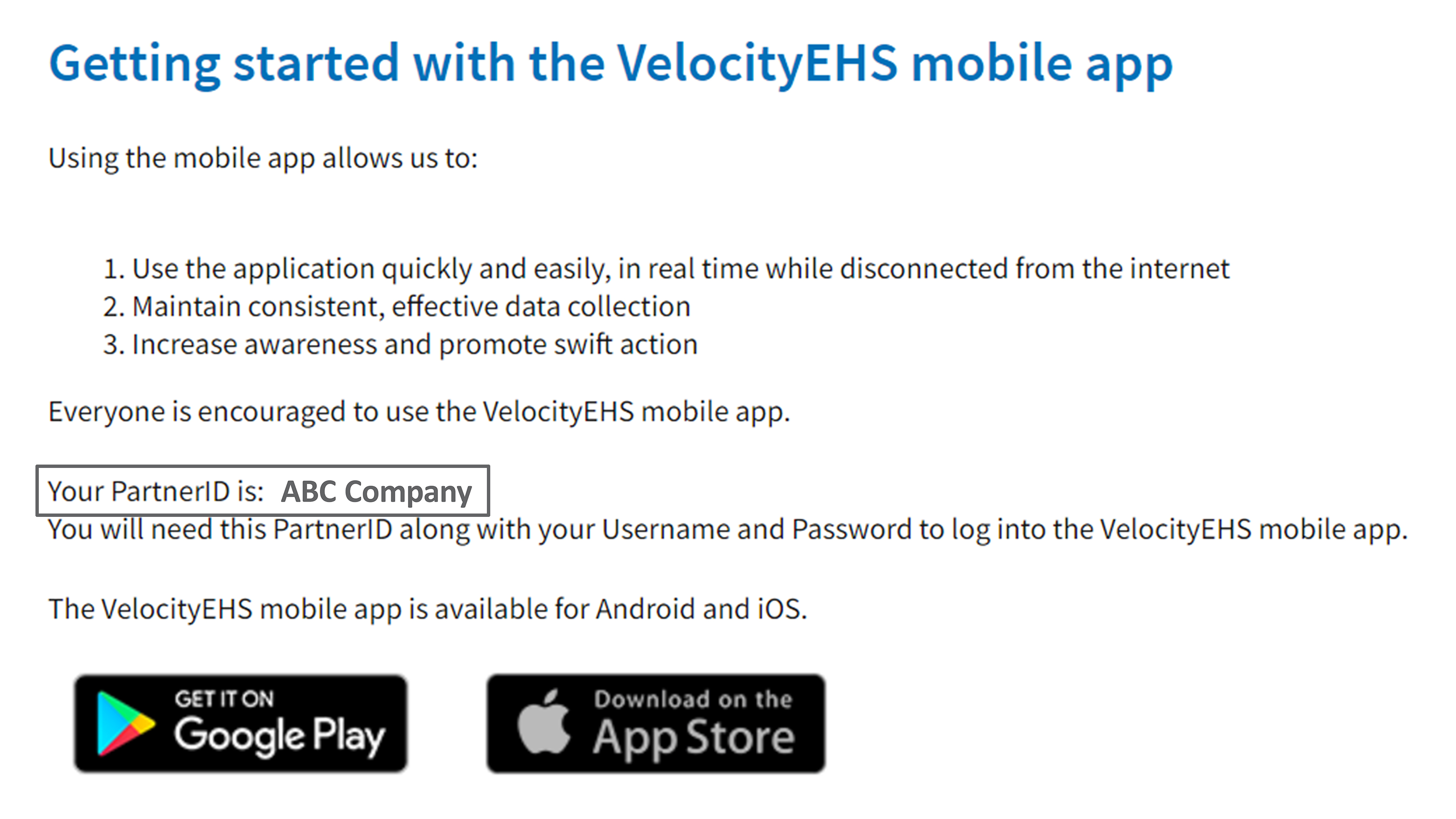
The EHS Management (V5) Mobile App is available for download on both Google Play and the Apple App Store.
Important
If your company uses SSO, you must set your default browser to Safari on iOS or Chrome on Android to log in.
How to Log into the App
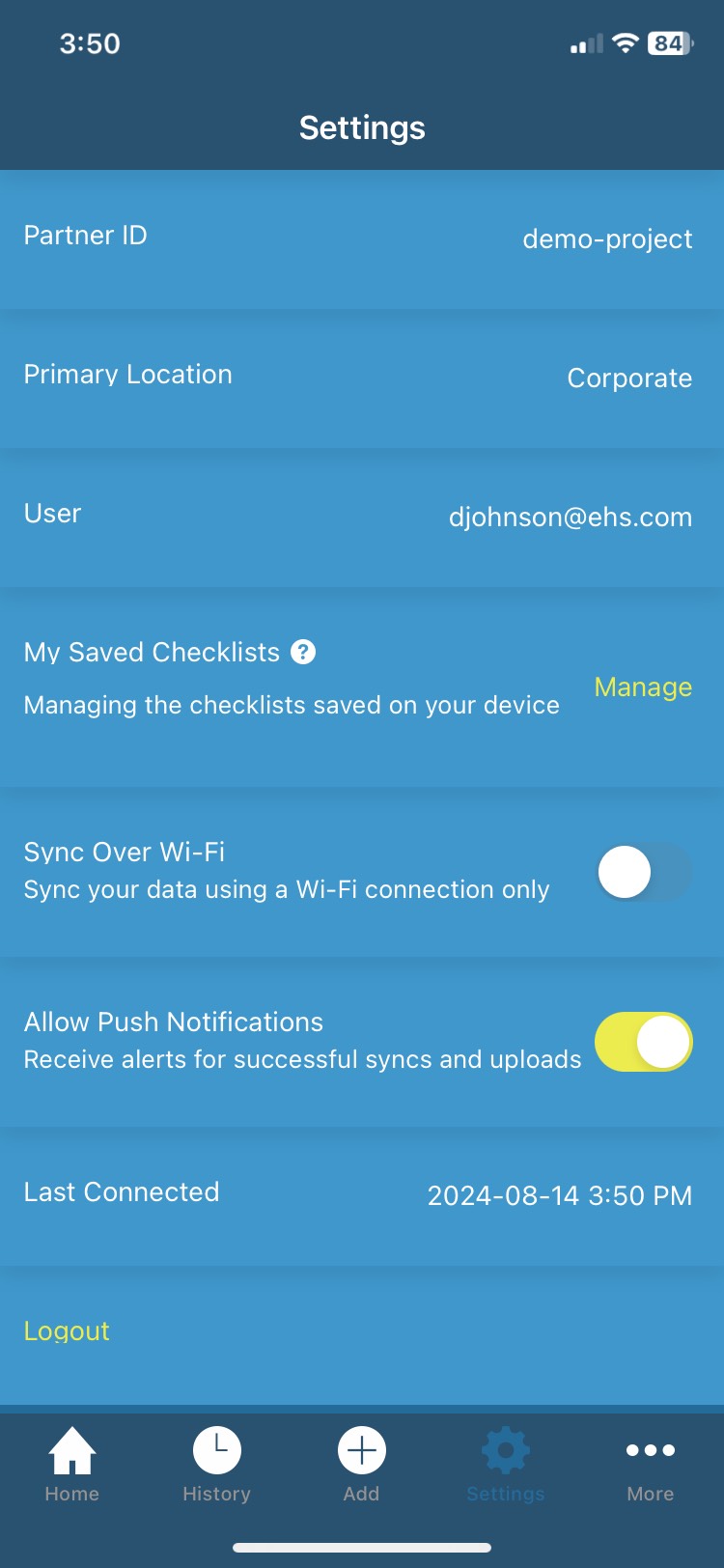
To access the app, you’ll need your username, password, and your company’s Partner ID. Follow these steps to find your Partner ID:
- Log into the EHS Management system from your desktop or laptop computer.
- Select your name in the top right corner of the page.
- Select Training Toolkit from the dropdown menu.
- In the GUIDES section, select Mobile.
- Locate your company’s PartnerID.
Note
This Partner ID is the same for all users within your company.
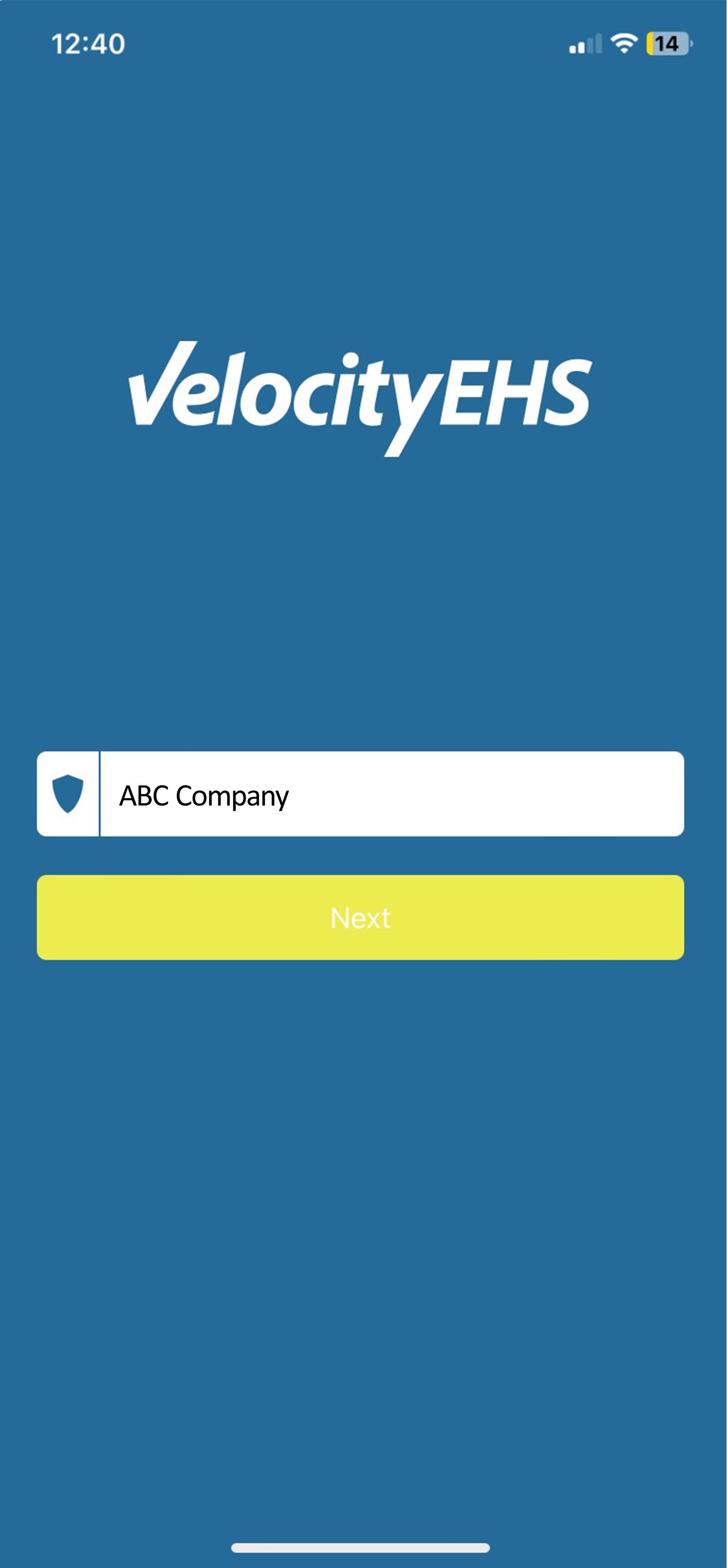
6. Open the mobile app on your mobile device. Enter your company’s Partner ID > Next.
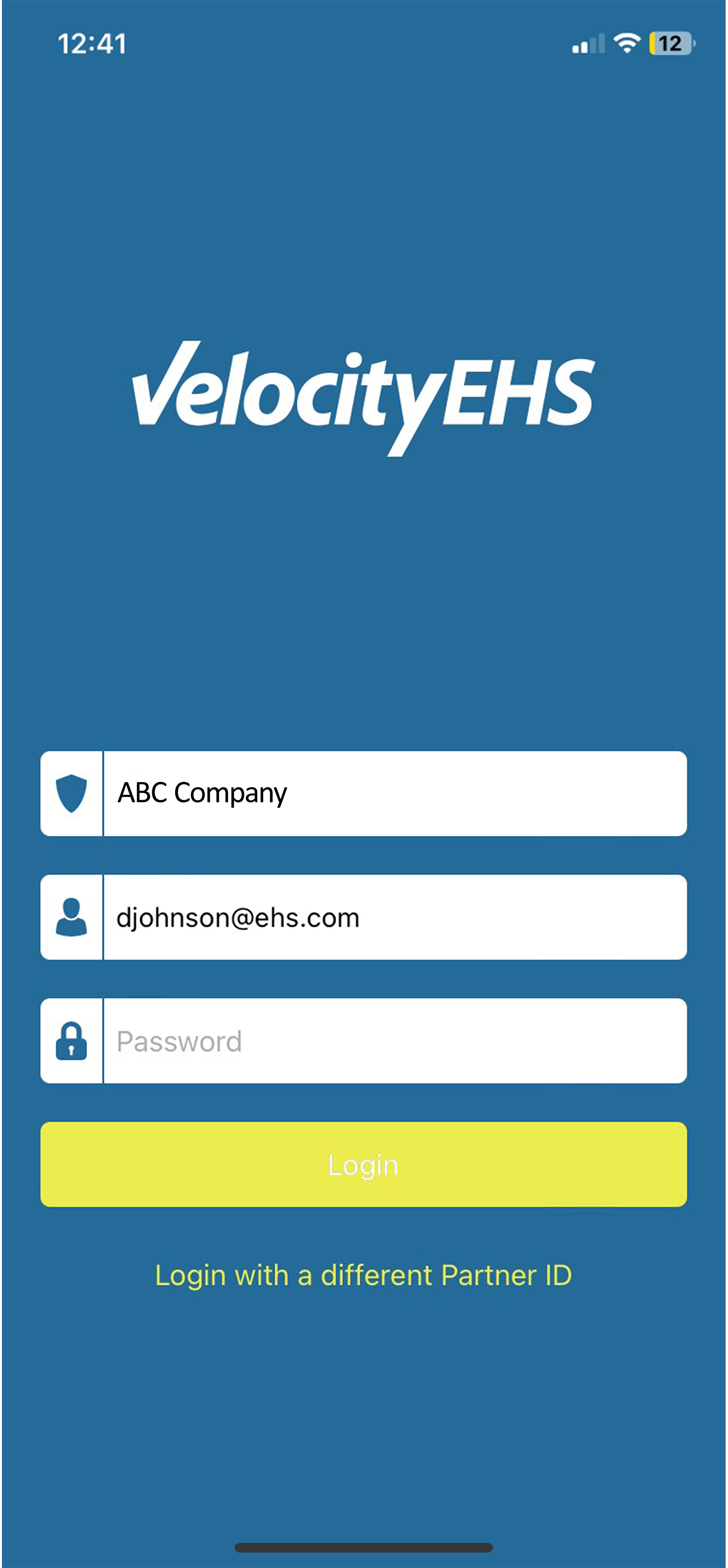
7. Enter the login information you use for the desktop platform. Select Login.
Mobile App Overview
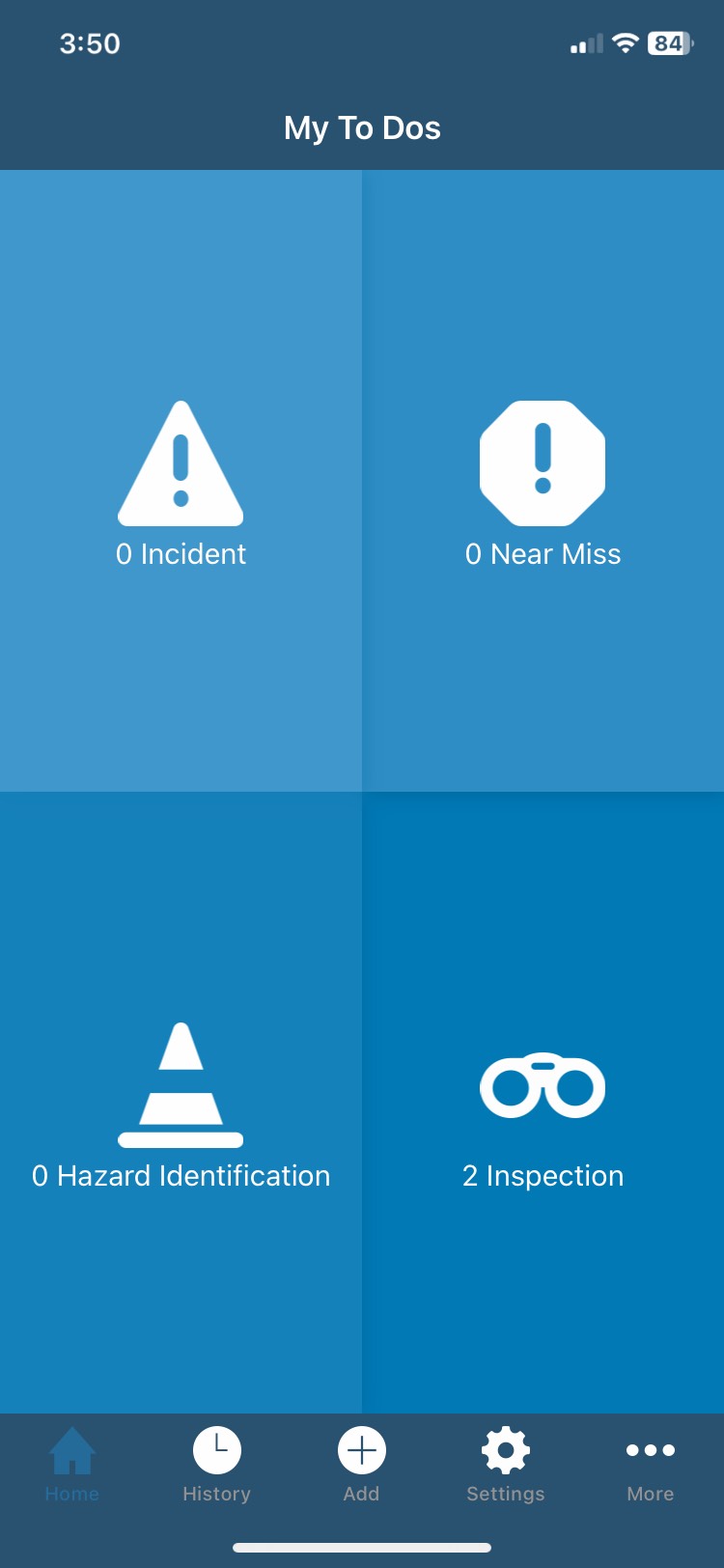
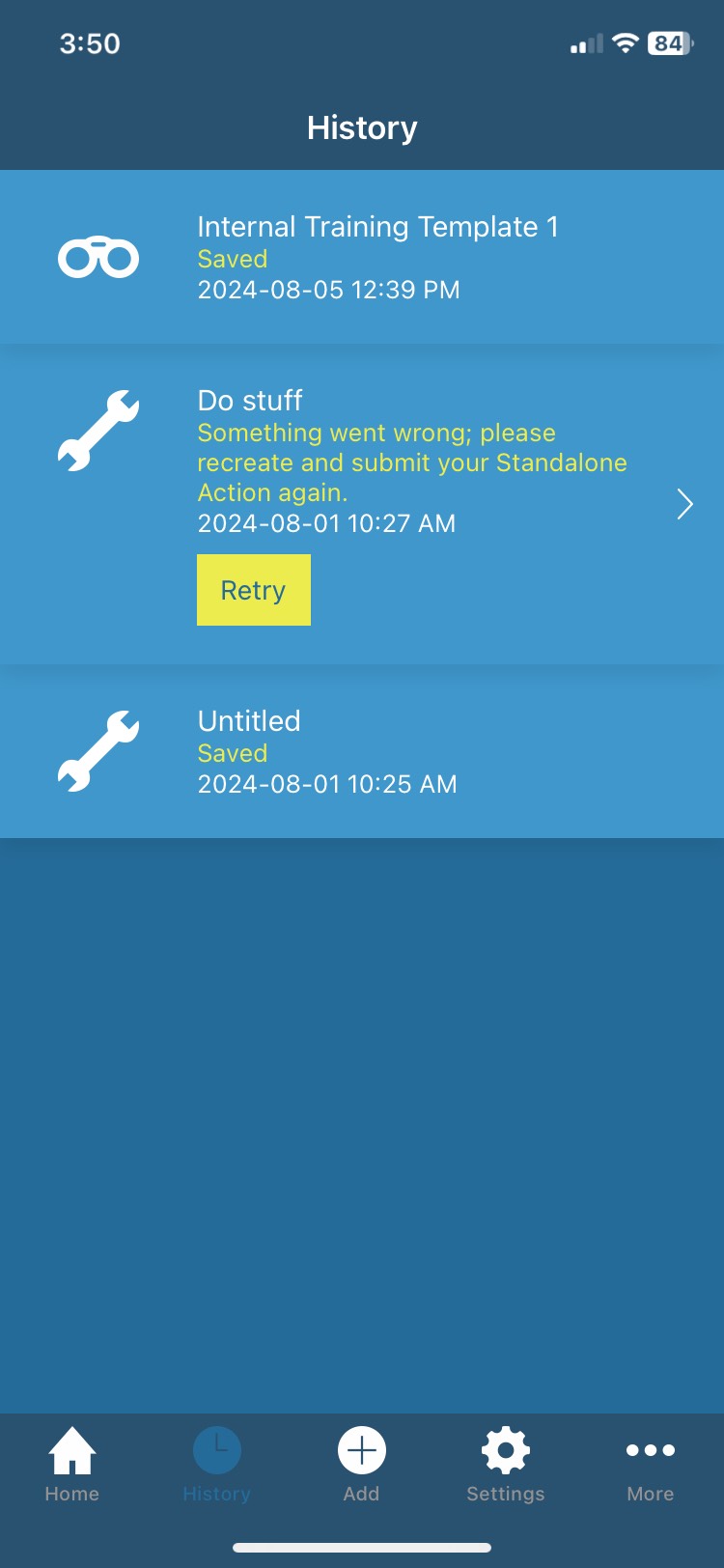
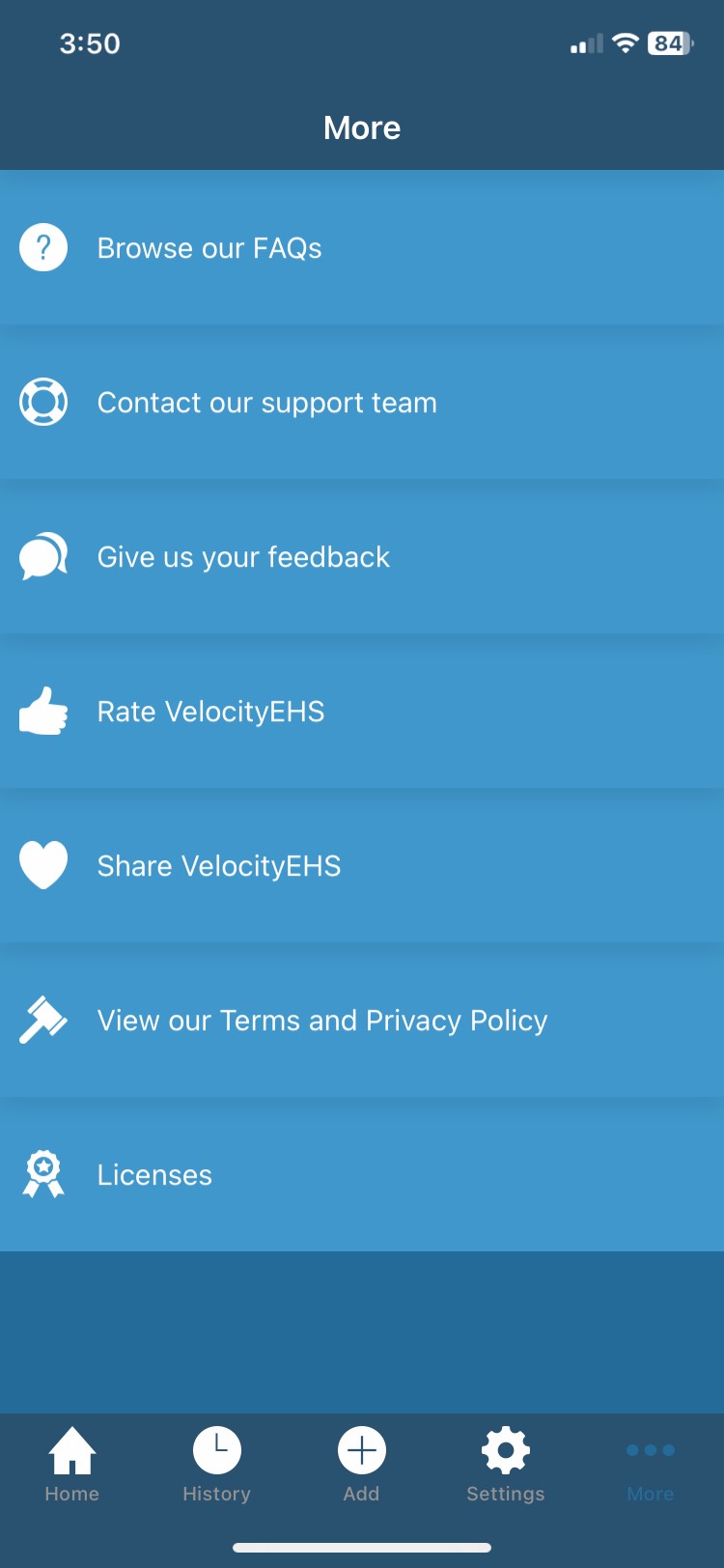
After logging in, the home screen displays your to-dos that you can complete in the mobile app. At the bottom, you’ll see the navigation bar, which includes the following options:
Something not working? Let’s troubleshoot.
If you encounter an issue while using the EHS V5 mobile app, please contact Customer Support.
To help our development team troubleshoot the issue, use the Debug Report option in the app to send VelocityEHS relevant data via email. The information in the email will include your device model, app version, and an encrypted copy of the app’s internal logs.
To send a Debug Report:
- Open the mobile app.
- Tap Settings > Send Debug Report to load an email in your default email program configured on your phone.
- Review the email and add your Customer Support case number.
- Send the email to [email protected].