

Risk Verification via the Mobile App
Performing a Verification Activity
When you log into the Operational Risk mobile app, you’ll see a list of verification activities assigned to you on the Verifications tab. You can choose to sort by Name or Progress rather than the default Due Date.
- Use the Filters icon at the top right to narrow down the items you want to see by status (Closed, In-Progress, Pending, Being Performed).
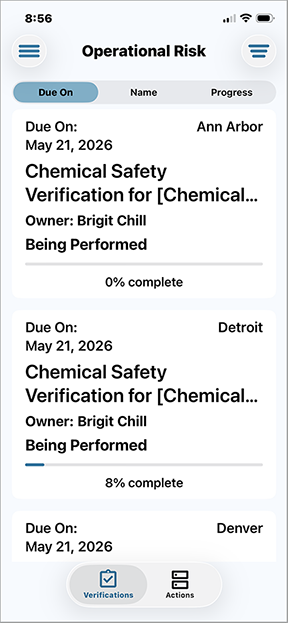
- Tap on the verification activity you want to start. To complete the verification, you’ll be following the same steps used to complete verifications using the web application.
- Review the Introduction and Overview tabs.
- If this is a Pending verification, tap the Actions button at the top right and tap Perform. Select the cloud icon to sync the record with the Operational Risk web application. To refresh the mobile app, “pull down” from the top of the screen (under the Name tab). When you see the status change to Being Performed, continue to the next step.
Note: At any time during this process, you can sync the current record with the Operational Risk web application (or refresh the mobile app with the latest updates). To save changes locally, tap Keep when prompted with Discard Changes? - Select the Performance Standard (aka “Checklist”) tab to see the list of questions associated with this verification record. Tap on a question to begin.
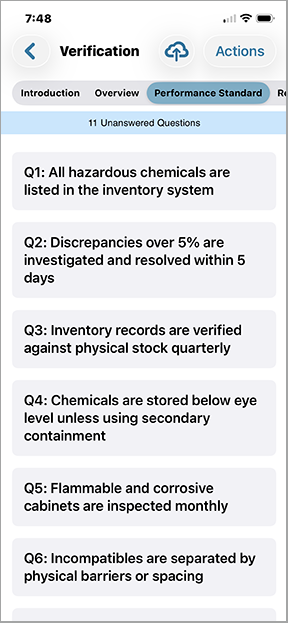
- Answer each required question in the verification record with appropriate responses.
Note: Once you have selected an answer you can modify it, but you cannot undo the selection altogether.
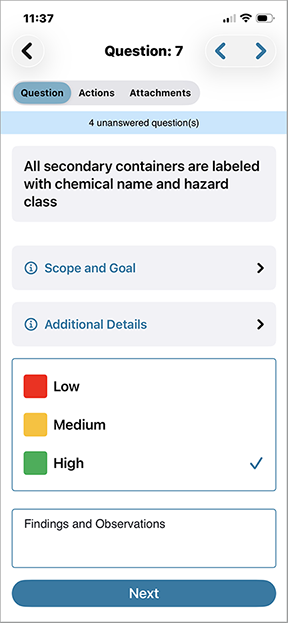
- The Scope and Goal for the Performance Standard are available to view for each question, and the progress counter at the top of the screen indicates your progress through the questions.
- Tap Actions at the top of the screen to add an action item related to this verification activity. For details, see Adding and Completing Action Items.
- Tap Attachments to add a file or link. For details, see Adding Attachments.
- Tap Next at the bottom of the screen to move to the next question.
- Tap Done on the last question to return to the question list. Any questions that still require attention are marked with the ! symbol; tap on the question to return to it and complete it.
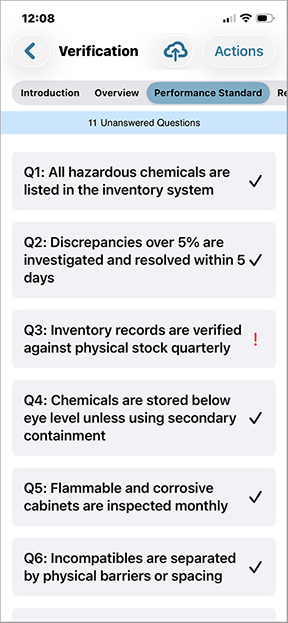
- Tap the cloud icon to sync/save the verification.
- Use the Filters icon at the top right to narrow down the items you want to see by status (Closed, In-Progress, Pending, Being Performed).
What’s next?
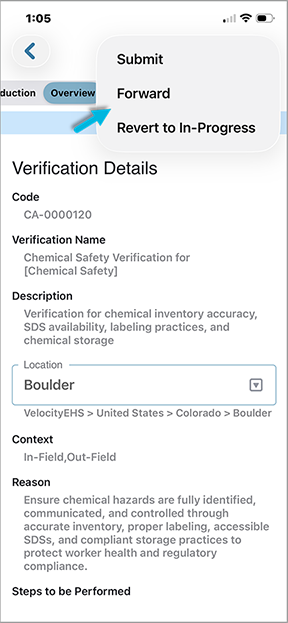
The Actions button at the top right presents the following options:
- Submit the verification when all required information for a verification activity is complete and you’ve provided a final summary comment. All action requests raised as part of this verification activity will be automatically sent out.
- Forward the verification to someone else to review or complete, for example during a shift change. Verifications can be forwarded at any time, in any state. To forward a verification, tap the Review tab at the top of the page, enter the user you’re forwarding it to, and provide comments. Then tap the Actions button and tap Forward.
- Revert to In-Progress, if further changes are needed.
Was this helpful?
Thanks for your feedback!
