

Analytics for Training and Learning
Use Training and Learning analytics in Accelerate to review training completion, identify overdue assignments, and examine learner progress. The Advanced Dashboard provides an overview of training activity, while the Advanced Reports provide detailed records for follow-up and further analysis.
This article describes the Training and Learning dashboard and reports and how to access them. For background on Analytics, see Getting Started with Analytics.
Training and Learning Advanced Dashboard
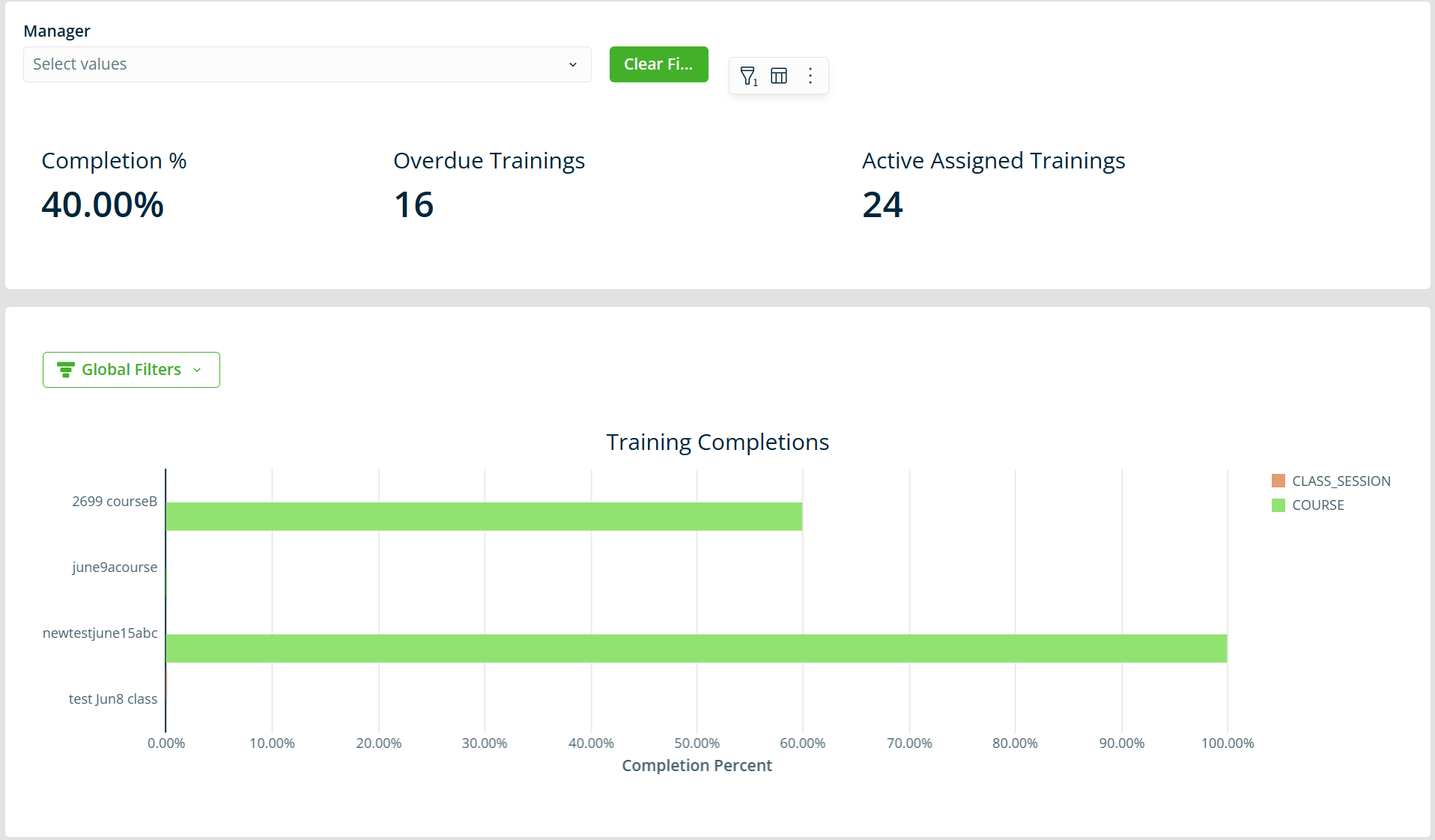
The dashboard gives managers and administrators an at-a-glance view of training activity and completion across the organization. Use the summary metrics to identify areas that need attention, then open the reports to review individual training records.
Benefits of the Dashboard
Use the dashboard to:
- Review completion — monitor the Completion % metric and training completion activity.
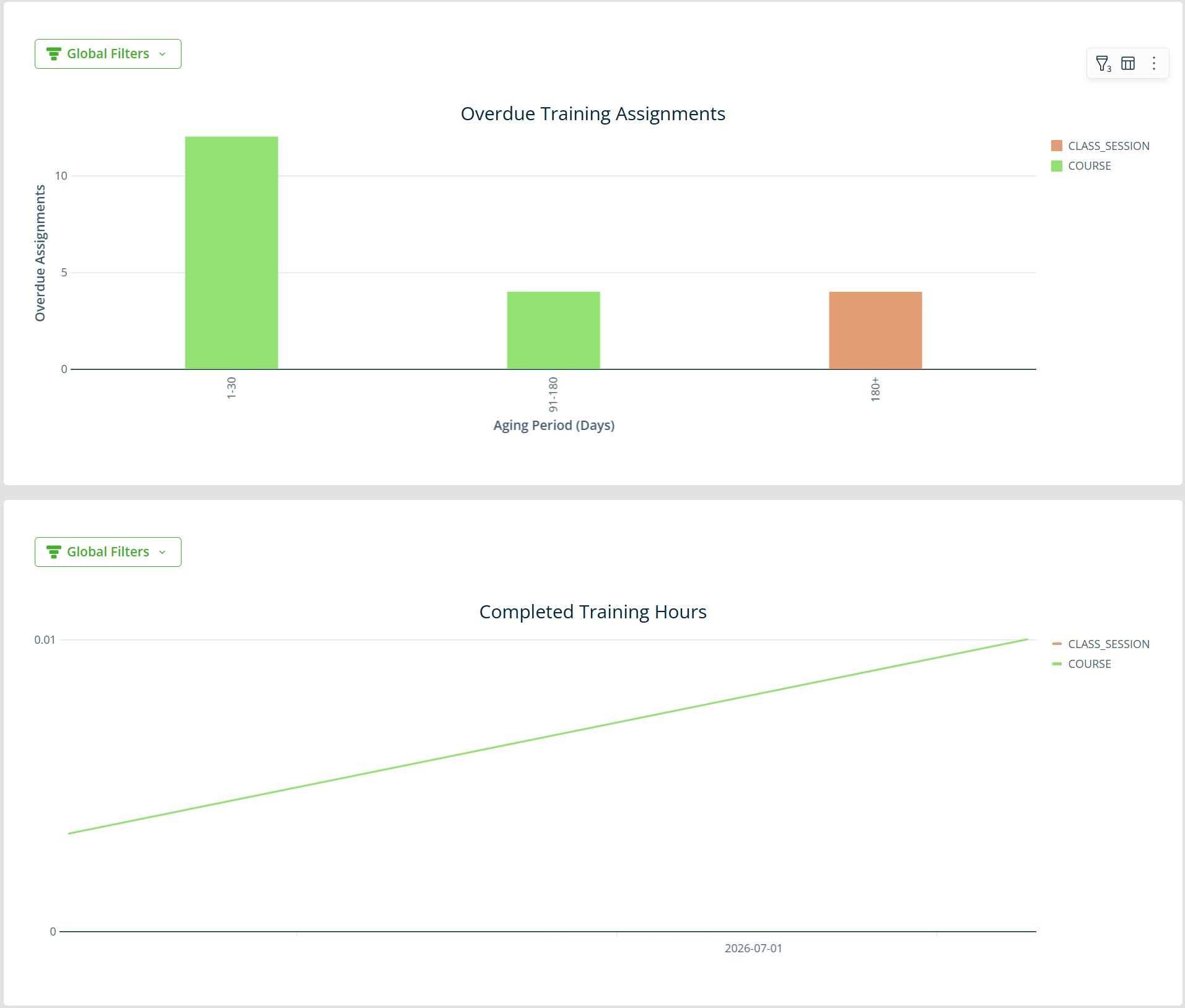
- Identify overdue training — review the Overdue Trainings metric and assignments that have passed their due date.
- Review assigned training — monitor Active Assigned Trainings and use the Manager filter to focus on users associated with a particular manager.
Default Data Sets
The dashboard includes Training Completions, Overdue Training Assignments, and Completed Training Hours. Additional global filters let you narrow the information shown in individual visualizations.
Training and Learning Advanced Reports
Advanced Reports provide detailed training records in tables. Use these reports to investigate the completion and overdue activity shown on the dashboard, review learner assignments, and examine training by location, program, or role.
The available report tabs include:
- Learners Progress — review learner progress and assignment details, including the learner, assigned manager, enrollment date, required training status, learning content, and program information.
- Overdue Trainings — identify overdue training assignments. Use the Days Overdue range to narrow the results.
- Completion Rates — review assigned and completed training totals and completion percentages. Use the Date Range filter to focus on a specific period.
- Location Groups — review information organized by location or group.
- Programs and Content — review training programs, learning content, and associated learner information.
- User Roles — review users and their associated roles.
Filter the Reports
Use the common filters to narrow results by User, Username, Role, Managers, Learning Content, Programs, Group Name, or Location Name. For example, select a manager and learning content to focus on training assignments for that manager’s learners. Select Clear Filters to remove the common filter selections.
For more information about navigating and customizing reports, see Advanced Reports.
How to Access Training and Learning Analytics
Use the workspace menu in Advanced Dashboard or Advanced Reports to open the Training and Learning analytics available to you.
- Go to Platform > Advanced Dashboard to open dashboards, or Platform > Advanced Reports to open reports.
- Expand the folder icon at the bottom left of the page and select Workspaces.
- Open the workspace that contains your Training and Learning analytics.
- Select the Training and Learning dashboard or report to open it.
- Optional: Hover over the dashboard or report and select the star icon to add it to your Favorites for future access.
For more information about navigating and customizing dashboards, see Advanced Dashboards.
FAQs
Which view should I use to review training completion?
Start with the dashboard for summary metrics and training activity. Open Completion Rates to review assigned and completed training totals and completion percentages. Use Learners Progress for detailed learner assignment and progress information.
How can I review training for a specific manager?
Use the Manager filter on the dashboard. In Advanced Reports, use the Managers filter to narrow the tables to learners associated with the selected manager.
How can I identify overdue training assignments?
Review the Overdue Trainings metric and Overdue Training Assignments visualization on the dashboard. Open the Overdue Trainings report to see the detailed records and narrow the Days Overdue range as needed.
Why is the dashboard or report showing no data?
Your filter selections may exclude the available records. Review the selected manager and other filters, then broaden or clear them. If the view still shows no data, confirm that training records are available for the population you are reviewing.
