
Re-enrolling a Learner in a Course or Program
Automatic Re-enrollment
Creating a New Auto Re-enrollment
To set up automatic re-enrollment for a specific course or program:
- Select Administration > Auto Re-enrollment.
- In the Content type dropdown, select Course or Program.
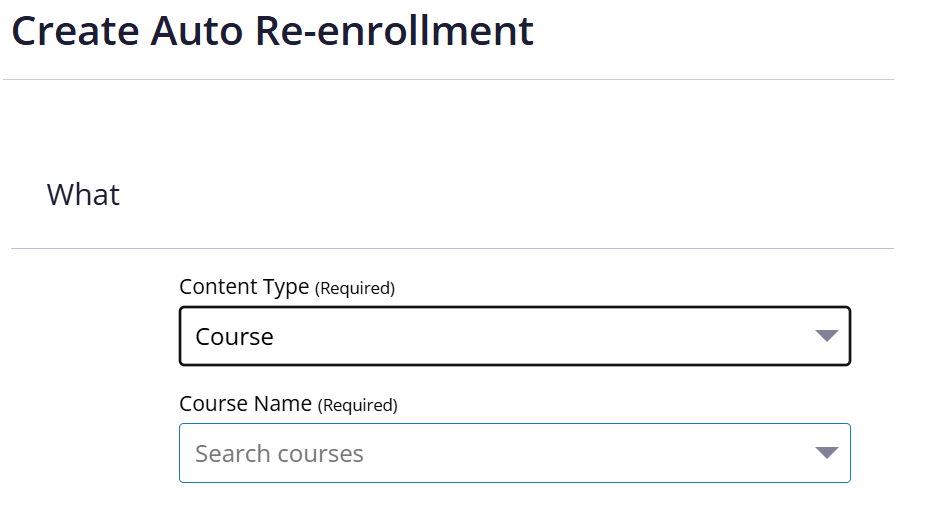
- In Course Name or Program Name, select the training you want to repeat.
- In Assign to, select Group or User.
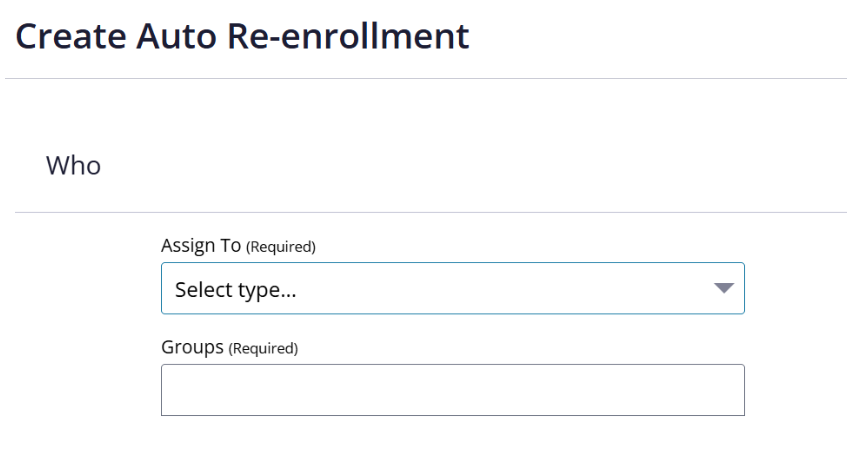
5.Select the group or users you want to include.
6. In Re-enroll Every, select the number and a unit: days, months or years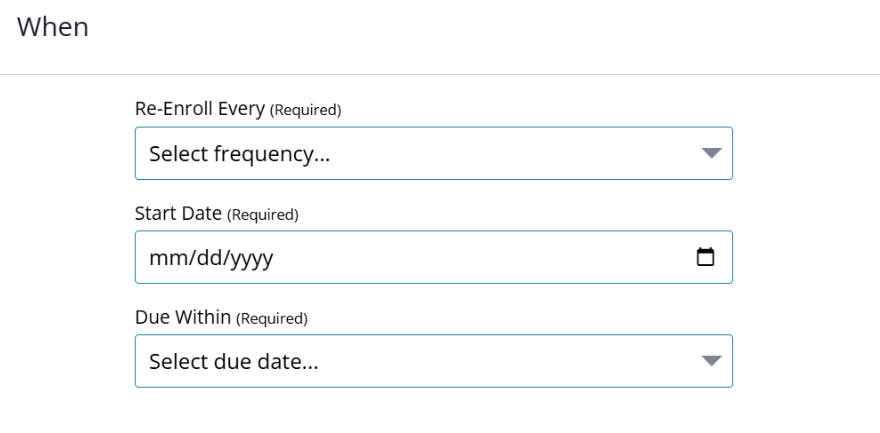
7. Select the Start Date
The schedule follows this date and the frequency you selected. It does not restart when a user completes the training.
8. In Due Within, select how long users have to complete the training after each scheduled re-enrollment: 1-month (30 days), 2-months (60 days), or 3-months (90 days).
For example, a yearly schedule starting October 1 with a 1-month completion timeframe is due October 31. The same completion timeframe applies to each yearly re-enrollment.
9. Select Save.
Once you’ve set up an auto re-enrollment, any user who completes the course or program will be automatically re-enrolled based on the settings above.
Editing an Auto Re-enrollment
To make changes to or delete an existing auto re-enrollment, select Administration > Auto Re-enrollment
Locate and select the Course or Program name to adjust re-enrollment Details and Participants (Users).

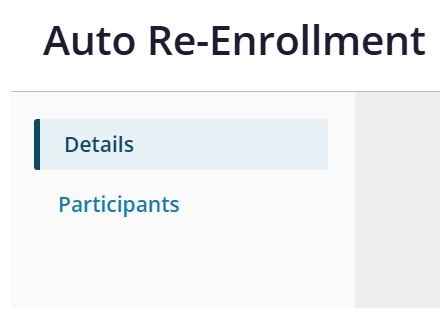
Once updates are complete, select Save
Deleting an Auto Re-enrollment
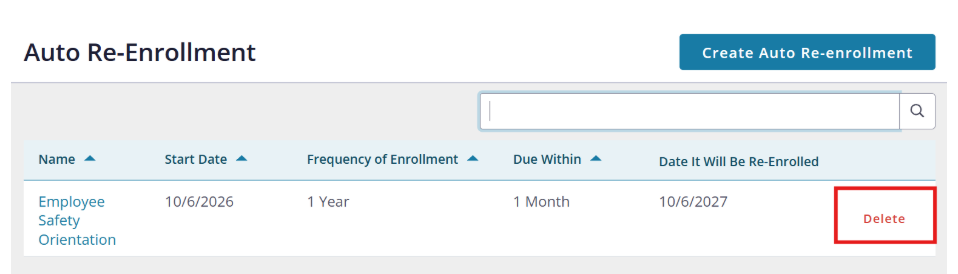
To delete an existing auto re-enrollment, select Administration > Auto Re-enrollment.
Locate Course or Program name and select Delete to remove the auto re-enrollment.
Manual Re-enrollment for User(s)
To re-enroll an individual user in a course or program, select Administration > Users.
Select the user’s name, and then select Re-enrollment at the left side of the page.
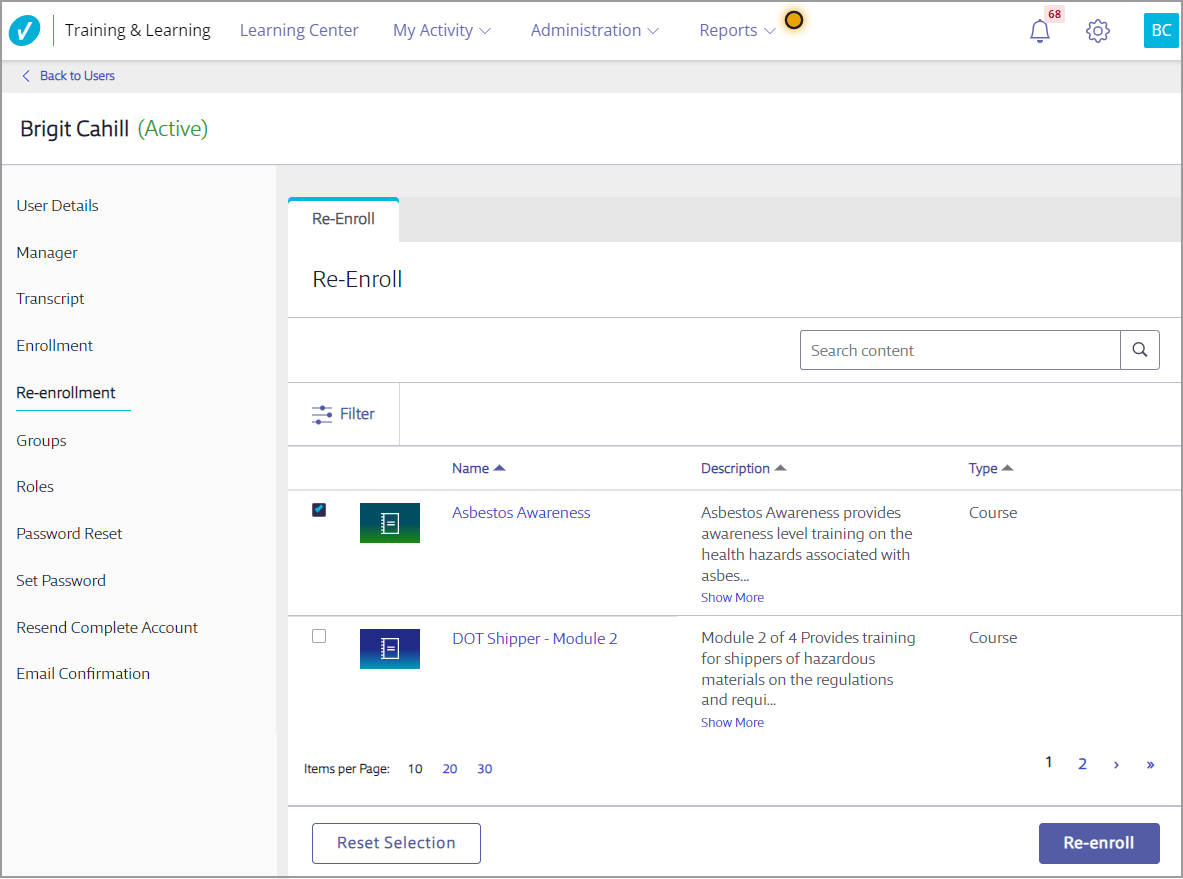
Select the course or program in which you want to re-enroll the user. Only courses or programs they’ve completed will be listed here. Select Re-enroll.
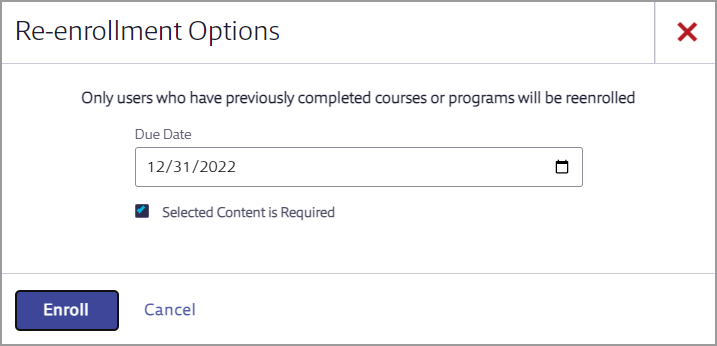
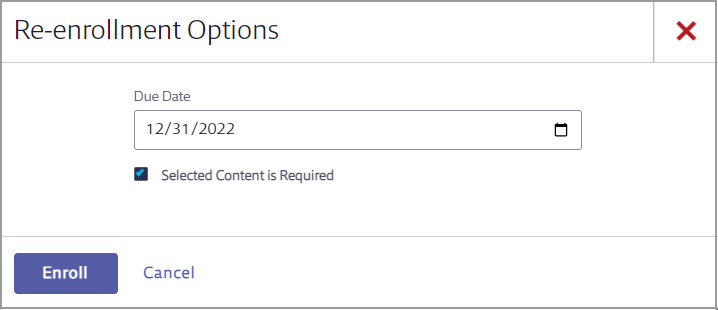
You’ll have the option to set a due date and decide if the course or program is required. Users cannot self-unenroll from required courses or programs once they’re enrolled. Select Enroll.
Manual Re-enrollment for Group(s)
To re-enroll a Group in a course or program, select Administration > Groups.
Select the Group name, and then select Re-enrollment at the left side of the page.

Select the course or program in which you want to re-enroll the Group. Select Next.
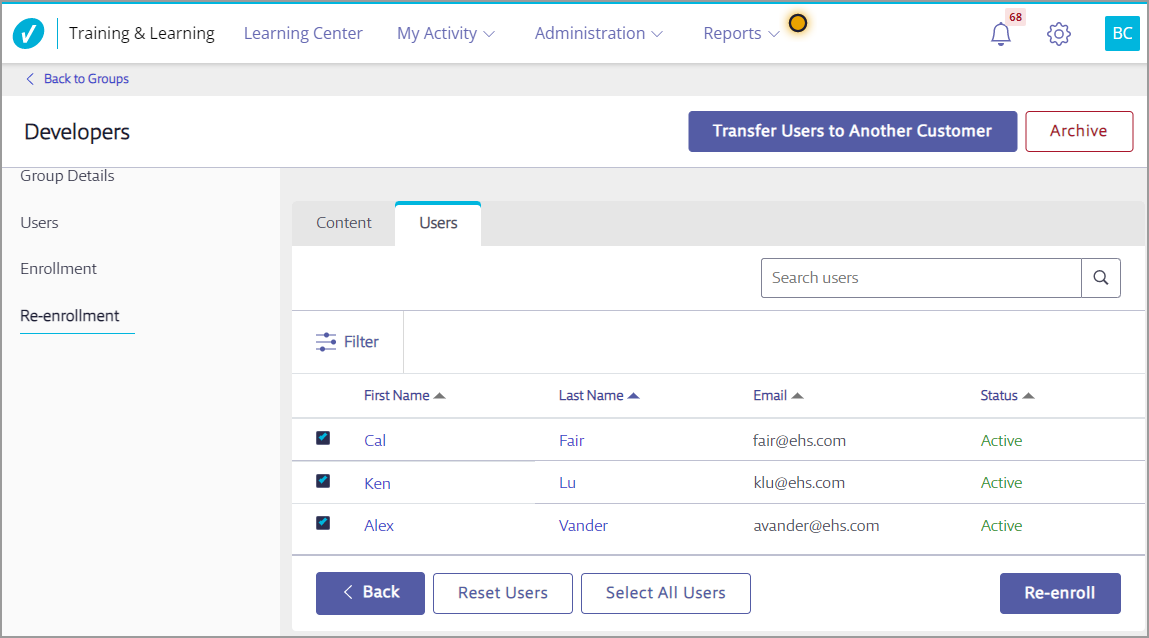
Select the group members who should be re-enrolled in the selected course(s) and/or program(s), and then select Re-enroll.
Note: that only users who have previously completed the selected programs or courses will be re-enrolled.
You’ll have the option to set a due date and decide if the course or program is required. Users cannot self-unenroll from required courses or programs once they’re enrolled. Select Enroll.