

Completing an AI Hands and Wrists Assessment
While a whole-body assessment gives you a “big picture” view of a task, some jobs require a more targeted, close-up view, specifically those that involve high-repetition tasks where the torso and arms stay relatively still, but the hands are constantly moving and gripping objects.
The Vēlo AI Hands and Wrists Assessment is designed specifically for assessing hand-intensive, cyclical tasks. It’s an AI-powered risk assessment tool that focuses on hand and wrist movements that are otherwise difficult to assess with a whole-body assessment. Like the Advanced Whole-Body Assessment, the Hands and Wrists Assessment results in a processed video, but it provides risk scores specifically for the hands and wrists alone. Use this supplemental analysis when a whole-body advanced assessment isn’t able to fully reflect the risk to hands and wrists, due to a lack of focus on the finer hand and wrist movements.
The Vēlo AI Hands and Wrist Assessment is available for purchase as an add-on option for customers with Industrial Ergonomics (Accelerate and non-Accelerate).
How it Works
- Using a standard camera on any mobile device, record and upload a video of an operator performing a hand- and wrist-intensive task, focusing on the upper extremities.
- Enter task details and hand force data.
- Vēlo identifies motion, grip types, forces, repetition, and duration, and then generates a hand/wrist risk assessment, complete with a Hand Intensive risk score for each hand.
This assessment uses two industry-standard methodologies, the Distal Upper Extremity Tool (DUET) and the Composite Strain Index (CSI), to provide detailed results you can use to start reducing risk right away.
The results enable you to:
- Identify and prioritize the highest risk tasks
- Identify root causes, select controls, make and document improvements
- Follow up with an “after” video and assessment, just like you can for a whole-body assessment, to verify that your improvements were effective
What to Consider When Recording a Video of the Hands/Wrists
There are a few things to keep in mind when recording an operator performing a hand/wrist-intensive task:
- Capture the operator from the elbows down, keeping both of the operator’s hands in view at all times
- Strive for high contrast between the hands and the objects being handled
- Maximum video size is 500 MB
- Minimum resolution 720p (1280×720)
- Acceptable video formats are .mov and .mp4
- Video blurring is not available due to the need to verify grips and enter grip forces after the video is processed
- Face blocking is automatically applied for operator privacy
See Recording a Video for an AI Hands and Wrists Assessment for additional guidelines.
To Complete an AI Hands and Wrists Assessment
You must first create a job assessment record to which you’ll add it. The rest is a guided step-by-step process:
- Open the job assessment that requires a hands and wrists analysis.
- In the Vēlo AI Hands and Wrists Assessment section, select Start Vēlo AI Hands and Wrists Assessment > Upload New Video.
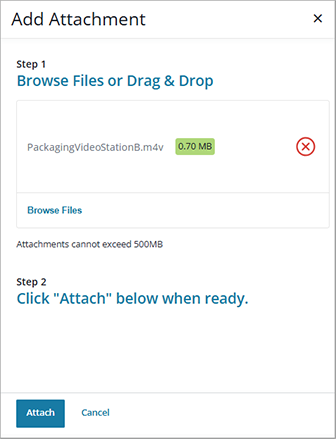
- Find and select the video of the hand- and wrist-intensive task and then choose Attach to begin uploading it.
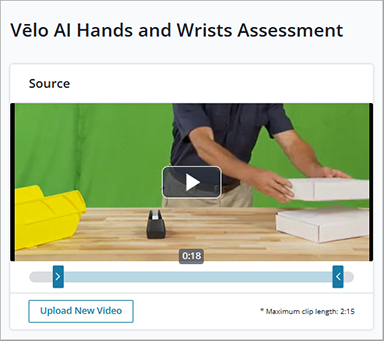
- Once the video is uploaded, the Vēlo AI Hands and Wrists Assessment page redisplays. Move the left and right handles underneath the video to trim it to show only a single cycle of the task from start to finish (maximum length 2:15). Once you’ve trimmed the video, you can click the play button to preview what you’ve selected; this is the portion of the video the system will process.
- Based on the trimmed video, the system calculates two values, both of which you can override:
- Cycles/Shift – number of times the operator completes this cycle in a single shift. This should reflect an estimate for how many units are produced in a single shift.
- Hours/Shift – number of hours in the shift that employees who perform this task work (default = 8). Note that the system assumes this value includes one hour of break time.
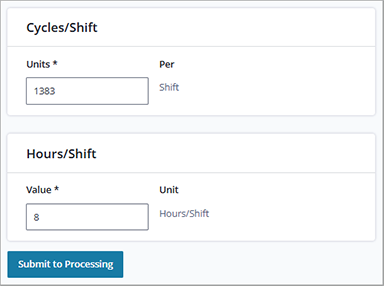
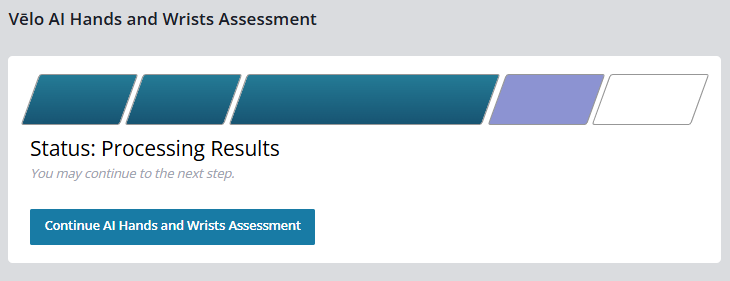
- Once you have confirmed the cycles and hours, click Submit to Processing. You’ll be automatically redirected to the main job assessment page, where you’ll see a progress bar. Select Continue AI Hands and Wrists Assessment when it becomes available.
- On the Timeline showing grips identified for each hand, click on a Grip (Grip 1, Grip 2, etc.) to display its related data in the Details section. Assign a Name that describes the action the operator is taking (for example, “retrieve part” or “tighten bolt”). The Timeline updates with the assigned name. These names will be helpful in identifying exactly which parts of the task require ergonomic improvement when reviewing the results. Note that the timeline also shows intervals of “non-activity,” which do not figure into the risk scoring.
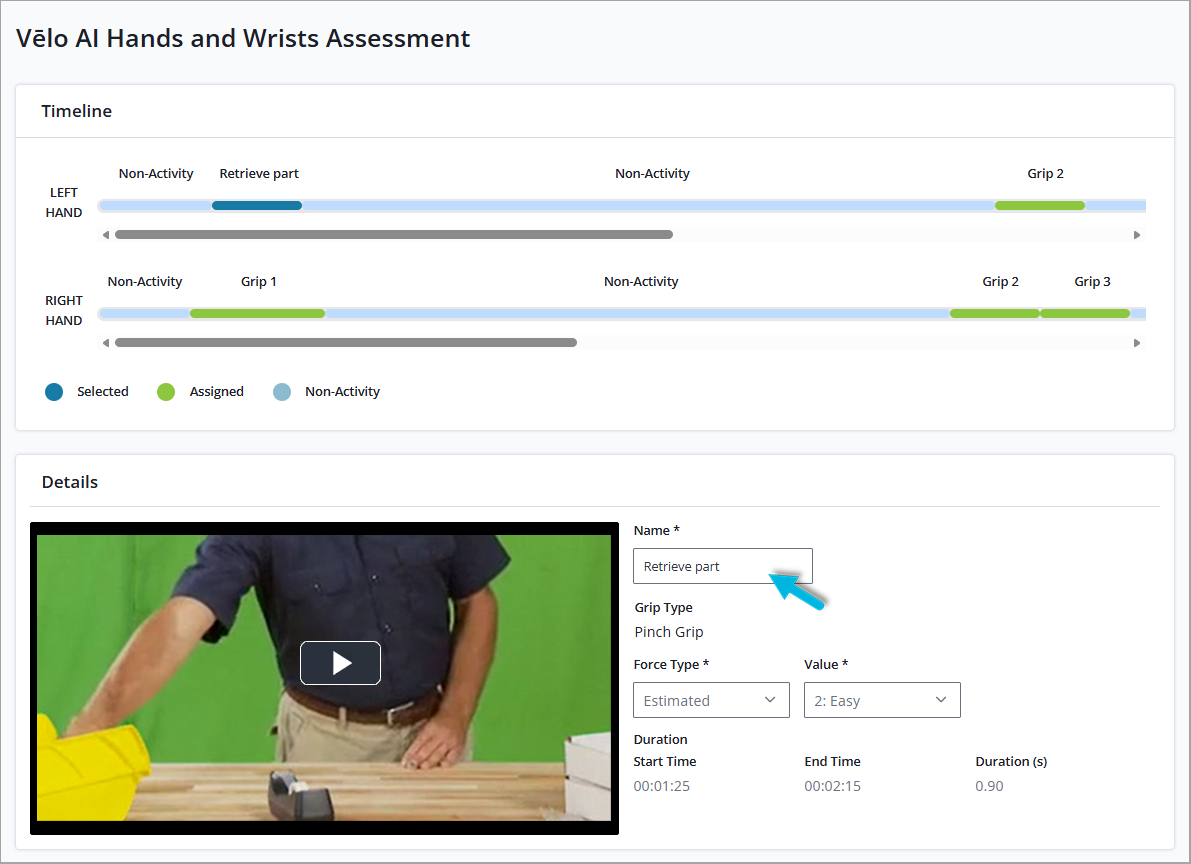
- The AI technology identifies the Grip Type the operator is using for this portion of the task, along with an AI-estimated level of force required. If needed, adjust the Force Type and related Values:
- Accept the default Force Type, AI-Estimated, if you want to use the forces Vēlo AI has generated for you. Note that if you select a different Force Type option, you will not be able to reselect AI-Estimated.
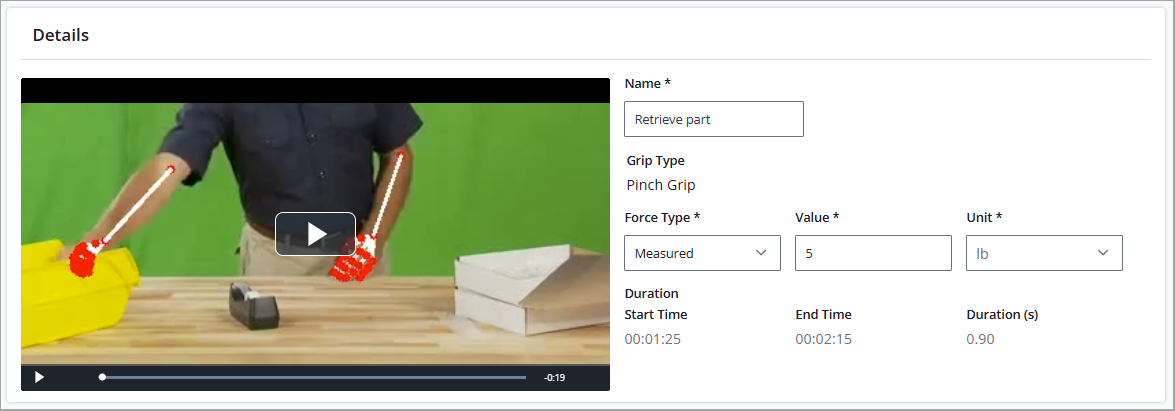
- Select Measured if you’re able to measure the force required. Then add the measured Value and appropriate Unit (lb, kg, N).
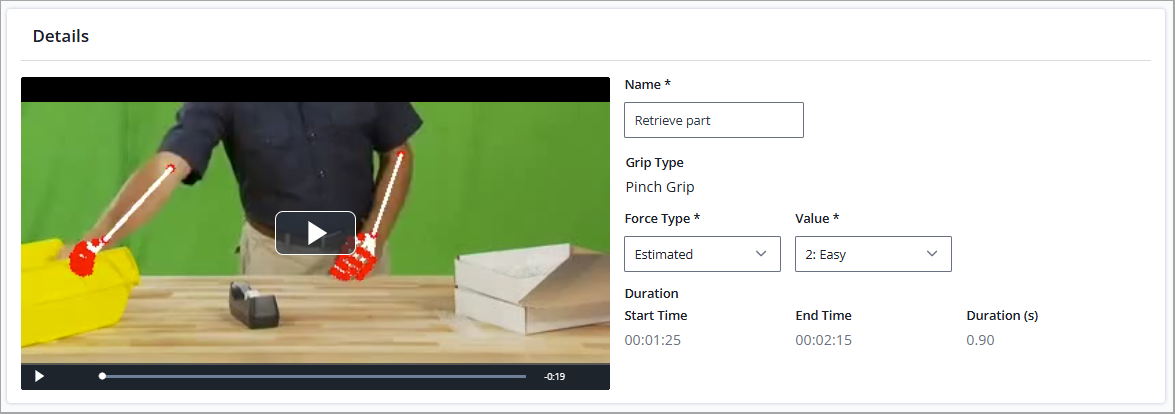
- Select Estimated if, for example, you don’t have the necessary force-measuring equipment, or an accurate measurement is difficult or not safe to obtain. Have the operator estimate the amount of effort required to apply the force based on the provided scale (0 to 10, or Extremely Easy, Easy, etc.) and select the Value that best describes it. For tips, see Best Practices for Collecting Estimated Forces.
- Repeat steps 7 and 8 for each grip in the timeline.
- When you have confirmed force information for all grips, click Calculate Score at the bottom of the page. The Job Assessment page redisplays with the following results:
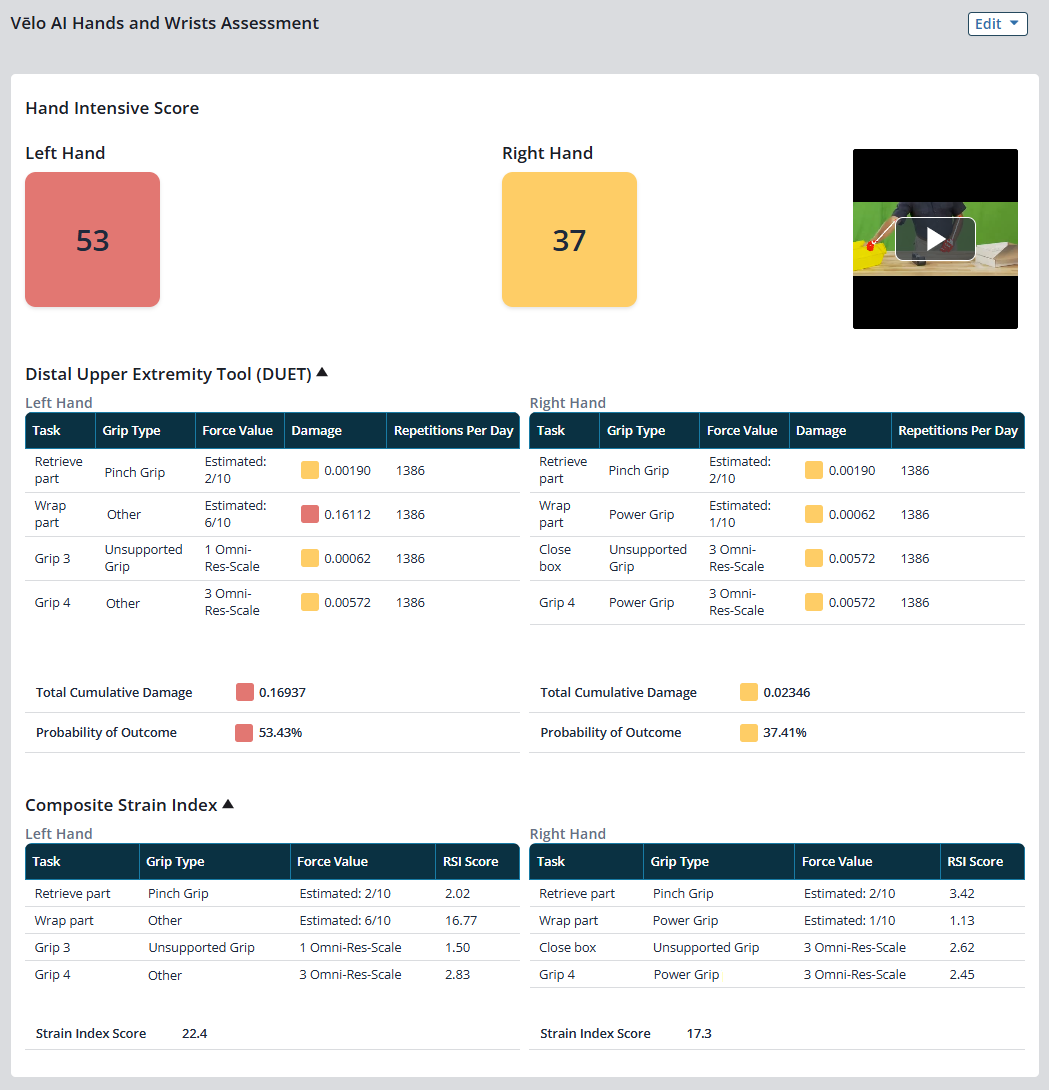
- A Hand Intensive Score for each hand, based on the DUET tool outcome
- Details for the DUET and CSI that provide information about the level of impact for each individual grip (you can hide/expand these results)
What Do the Results Mean?
- The DUET provides a Hand Intensive Score for each hand (0 – 100), which indicates the probability of an adverse outcome (self-reported discomfort or diagnosed MSD) from performing the hand-intensive tasks included in your video. For example, a score of 50 = 50% probability. This is the primary Hand Intensive Score provided for the assessment.
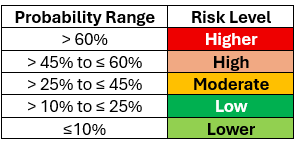
- The CSI reports the Composite Strain Index (derived from the Revised Strain Index, or RSI), which measures the combined impact of all grips in the job cycle, rather than just a single grip. You may find the CSI details useful for comparison with older, paper-based RSI assessments. The CSI scores do not affect the Hand Intensive (DUET) Scores.
- The DUET provides a Hand Intensive Score for each hand (0 – 100), which indicates the probability of an adverse outcome (self-reported discomfort or diagnosed MSD) from performing the hand-intensive tasks included in your video. For example, a score of 50 = 50% probability. This is the primary Hand Intensive Score provided for the assessment.
What’s Next?
- If needed, Select the Edit button > Edit Grip Information to change grip data and recalculate the Hand Intensive Score.
- Use the DUET and CSI detail tables to help you determine which steps in the process are contributing the most to risk exposure.
- Continue to the Direct Causes phase to identify common causes for the identified risk and select controls to address them. Select both the Force Risk and Posture Risk options for the hands and wrists, even if these aren’t indicated as “high risk” on the Direct Causes page. The risk ratings that you see when you open the direct causes workflow are the results from the whole-body assessment. The hands and wrists may score high risk on the Hands and Wrists Assessment, but they may not score this way on the whole-body assessment. Controls entered for the forces will have the biggest impact on the calculated Hands and Wrists scores.
- Once improvements are in place, conduct a Follow-Up Hands and Wrists Assessment, including an “After” video, to verify that the changes lowered the risk scores for the operator.
FAQs
- Do I have to do a whole-body assessment before doing a hand/wrist assessment? No, it’s not mandatory to do a whole-body assessment before doing a hand/wrist assessment. However, ideally, and most commonly, users will complete an advanced WBA before adding a hand/wrist assessment, although that’s not required. Some assessors may choose to complete only a hand/wrist assessment simply because the hands are the only body region affected by the job (i.e., repetitive small-scale assembly work, lab tasks, etc.).
- Can I have a manual WBA and an AI hand/wrist assessment in the same job assessment? While uncommon, there may be times when you’re able to capture a good video of the hands but not the entire body because of environmental restrictions.
- I just want to get an idea of the risk that this hand-intensive task involves, without adding grip names, measured forces, or anything else. Can I do that? Yes. Once you’ve uploaded your video, you can skip steps 7 – 9 above and just choose Calculate Score (step 10).
- I uploaded the wrong video. Can I change it? Currently, once you have submitted a hand/wrist video for processing (step 6, above), you won’t be able to replace or remove it. Instead, you can archive your job assessment and begin a new one with a different video. Or, copy the current job assessment into a new record; the hand/wrist assessment is not included in this process.
- Is hand and wrist assessment data included in Industrial Ergonomics reports? Yes, in the Job Assessment Summary.
- Is this tool available in multiple languages? No, it’s currently available only in English.
