

System Administration
Global List Translation
System administrators can translate user-defined field names used throughout the Operational Risk application so that they appear on-screen in the same language as selected by a user in their Accelerate Profile.
These fields include all terms that administrators can modify via the Operational Risk Admin menu, including:
- Base Controls
- Global Setup items (Asset/Equipment tags, Location tags, Cause Tags, etc.)
- Tag Setup items (Cause tags, MAE tags)
- HAZOP Setup (Parameters, Guidewords)
- Configuration Editor options (Risk Matrix, Register Policies, Lookups, JSA Configuration)
- Terminology (for all areas throughout the system)
By default, these terms remain in English when a user chooses a different language in Accelerate.
To translate these terms throughout the application into other languages, or to modify terms that have already been translated:
- Select Admin > (Configuration) > Global List Translation.
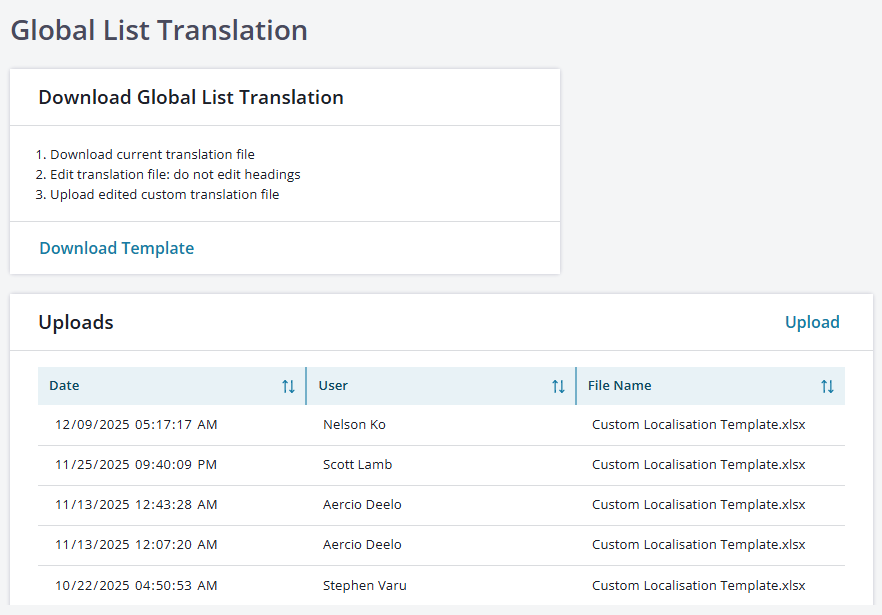
- Select Download Template to download an Excel spreadsheet that reflects each user-defined term that can be translated, and a column for each available language in Operational Risk.
- Edit the spreadsheet with your own preferred translations in the target language(s). Do not change any column headings. Translations for multiple languages can be imported/updated at the same time.
This spreadsheet example shows current JSA Configuration Exposure Settings and Likelihood Settings (as defined in the Configuration Editor), and two language columns (Brazilian Portuguese and Spanish).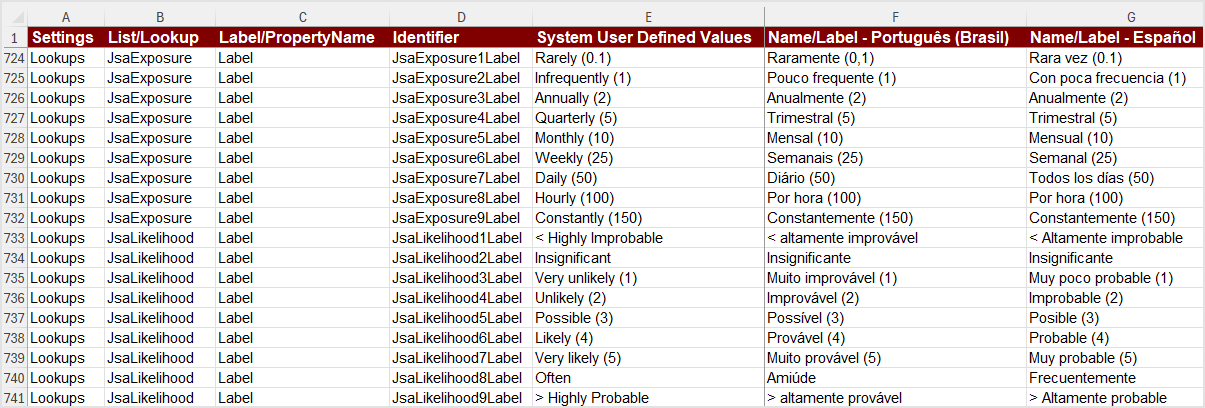
- Select Upload to import the edited spreadsheet back into Operational Risk. The bottom half of the Custom Localization page displays a history of uploads.
- Select Admin > (Configuration) > Global List Translation.
Tips:
- Anytime you want to add or modify translations, download the spreadsheet first; the contents reflect the translations that currently exist in the application, including any newer items recently added to the system.
- Uploading the spreadsheet after updating it will overwrite terms that already exist in the application. Note that if you remove a translated term, leaving the cell blank, that term will revert to English upon upload.
- Getting an error message when trying to import the file? The spreadsheet likely contains a formula. If you’re using formulas for translations, you’ll need to copy/paste the values (the result of the formula, not the formula itself) within the spreadsheet, which will remove any formula.
- Refresh your browser after uploading an updated spreadsheet.
Was this helpful?
Thanks for your feedback!
