

View Permits Awaiting Pre-Approval/Approval
After a new permit has been submitted, it will proceed to either the pre-approval or approval stage.
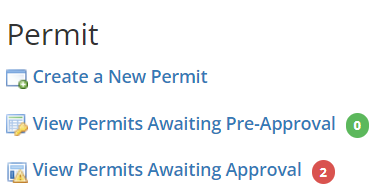
The designated Permit Approver can access the permit by navigating to View Permits Awaiting Pre-Approval/Approval and then selecting Review next to the permit to display the full permit details.
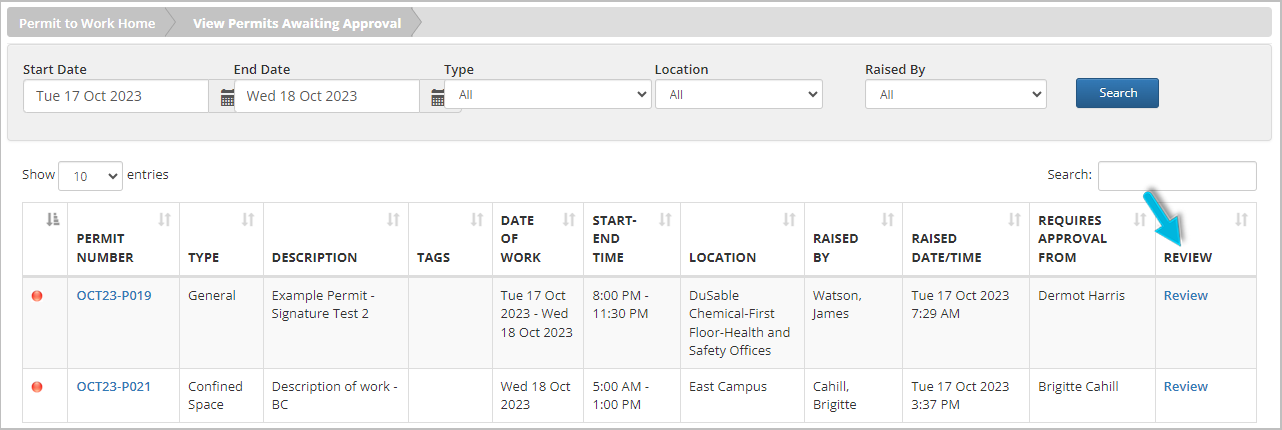
If you’re the approver or backup approver, you have the authority to approve or reject the permit at this stage. The permit creator will receive an email notification detailing the approval status.
Note that, when viewing permits in a list like this one, you can also
- enter a word or phrase in the Search field to narrow down the list, and
- use the up/down arrows in each column heading to sort the data.
Permit Options
This page provides all data on file for the submitted permit, including permit options and status history. Note that certain details may only become visible after permit approval.
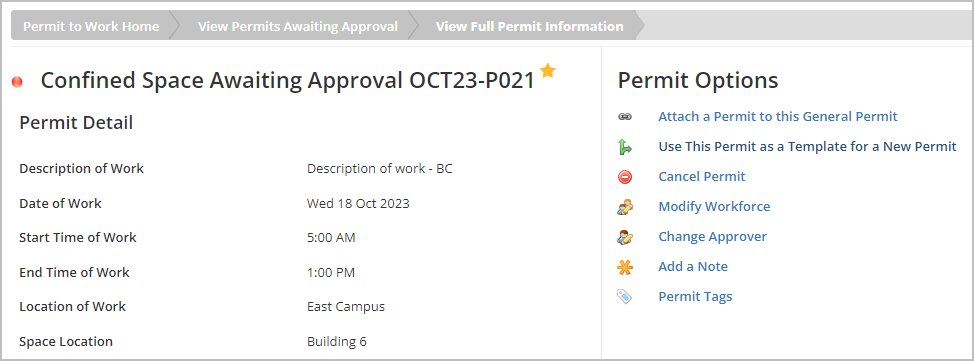
The Permit Options include:
- Attach a Permit to this General Permit: Link another permit to this one.
- Use This Permit as a Template for a New Permit: Start a new permit using this permit’s details.
- Cancel Permit
- Modify Workforce: Add or change the individuals who are responsible for carrying out the necessary tasks for the permit.
- Change Approver: Select a different approver for this permit.
- Add a Note: Attach additional text or any type of file to the permit.
- Permit Tags: Attach permit tags to categorize the permit. If you would like to add tag(s) contact Customer Support.

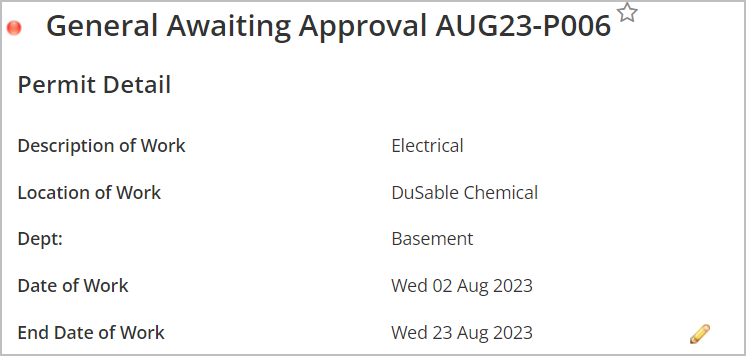
In addition, as an approver, at the top of the permit detail page, you can select the Star icon next to the permit name to add the permit to your “important permit” list.

Approve/Disapprove Permit
As the permit approver, you will find the Review section at the bottom of this page for review and approval.
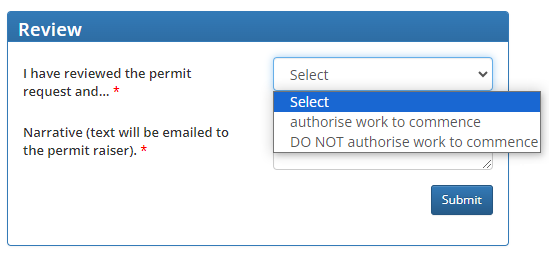
Select an option from the following and a note for the permit raiser, and then select Submit. You may also be required to provide a digital signature in order to complete this step.
- authorise the work to commence (approve)
- DO NOT authorise the work to commence (disapprove)
Extend a Permit
To extend a permit, select the pencil icon next to the End Date field on the permit details page and enter a new date.
Select the Save icon to save your changes.

