

Customizing Dashboards & Reports
Before You Customize a Workspace
Default Dashboards and Default Reports cannot be edited directly. To customize one, you must first save a copy of that workspace.
After the copy is saved, you can update the workbook without affecting the original default version.
To learn how to save a copy of a default workbook, see Default Dashboards & Reports.
Explore Dashboard and Report Content
Explore mode lets you interact with dashboard and report content before making saved changes.
In Explore mode, you can:
- Change chart types.
- Update variables and columns.
- Rename titles and descriptions.
- Modify layouts and formatting.
- Move elements between pages.
- Copy and paste elements.
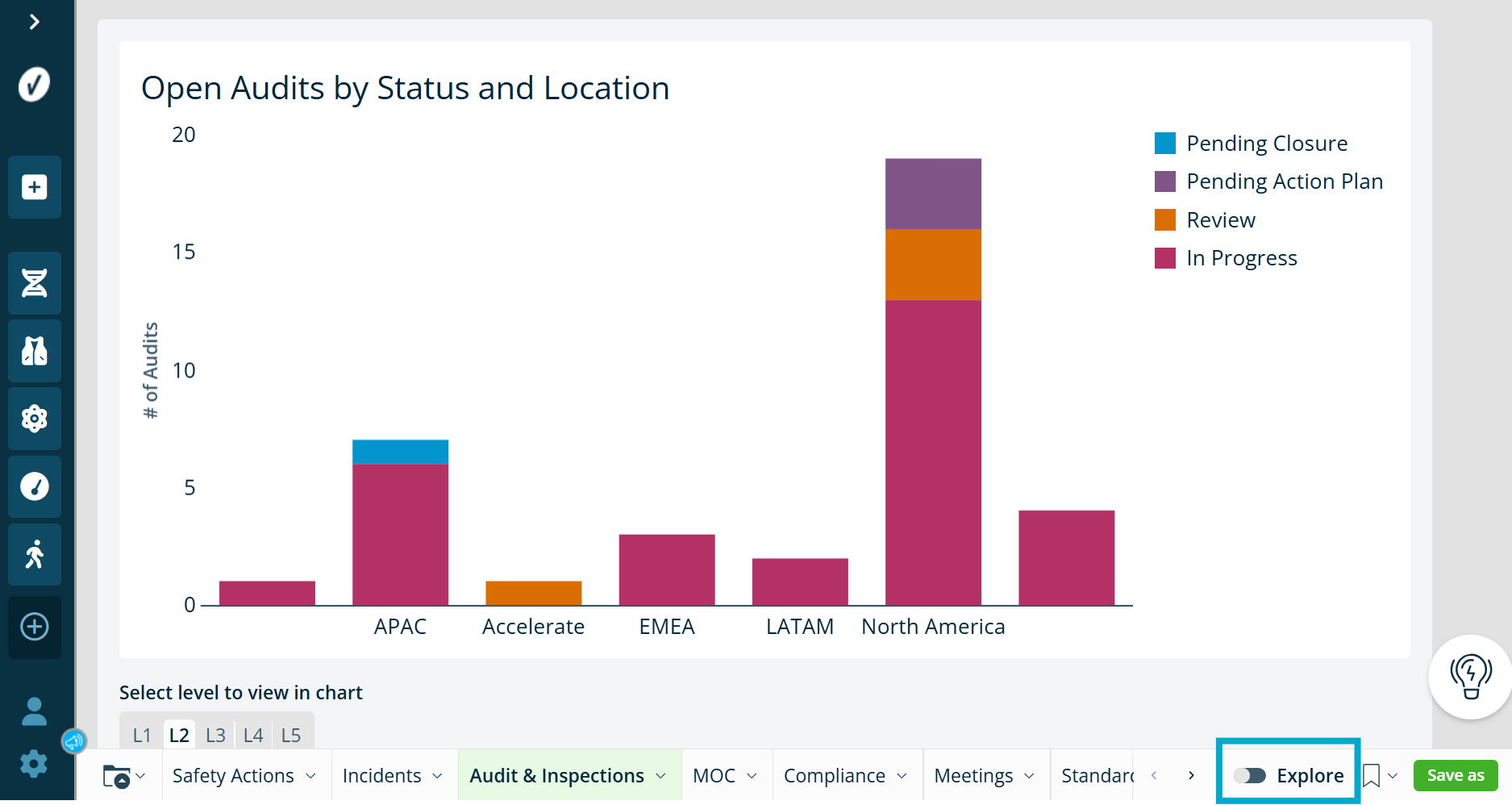
You can use filters, controls, and Explore mode to personalize your view. These changes are temporary unless you save the workbook.
Update Properties and Format Settings
Properties control how a dashboard or report element works.
You can use Properties to update:
- Data sources
- Chart types
- Values shown in columns or X/Y axes
- Filters and conditions
Format settings control how an element looks.
You can use Format settings to update:
- Titles
- Descriptions
- Labels
- Layout
- Visual styling
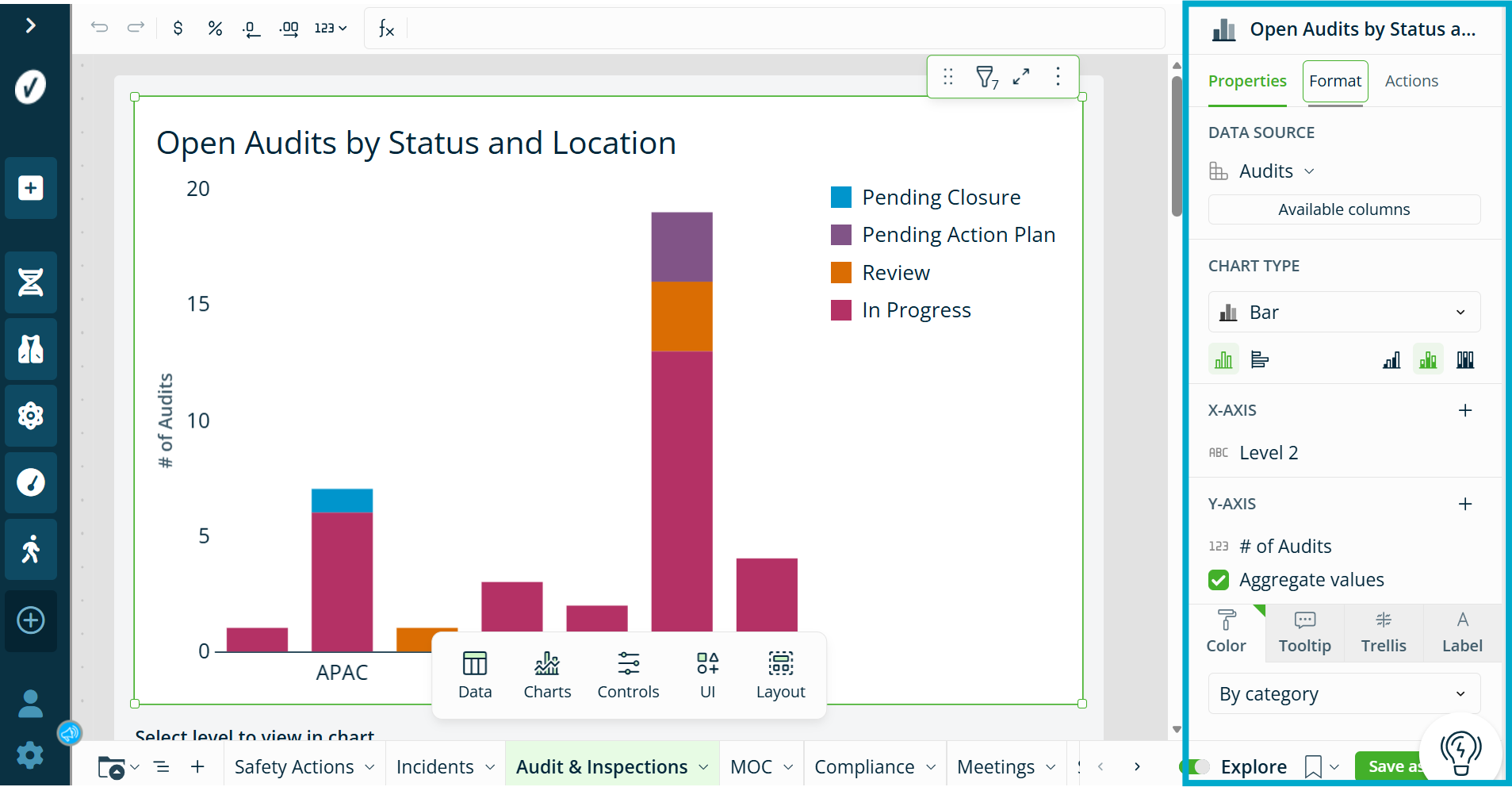
To learn more about user access for Advanced Dashboards and Advanced Reports, see What Analytic Tools are Available to My Organization.
Saving your Work
Default Dashboards and Default Reports cannot be modified directly. Administrators can save changes by creating a copy of the workbook:
- Select Save As.
- Enter a name for the workbook.
- Choose a folder where the workbook will be stored.
- Select Save.
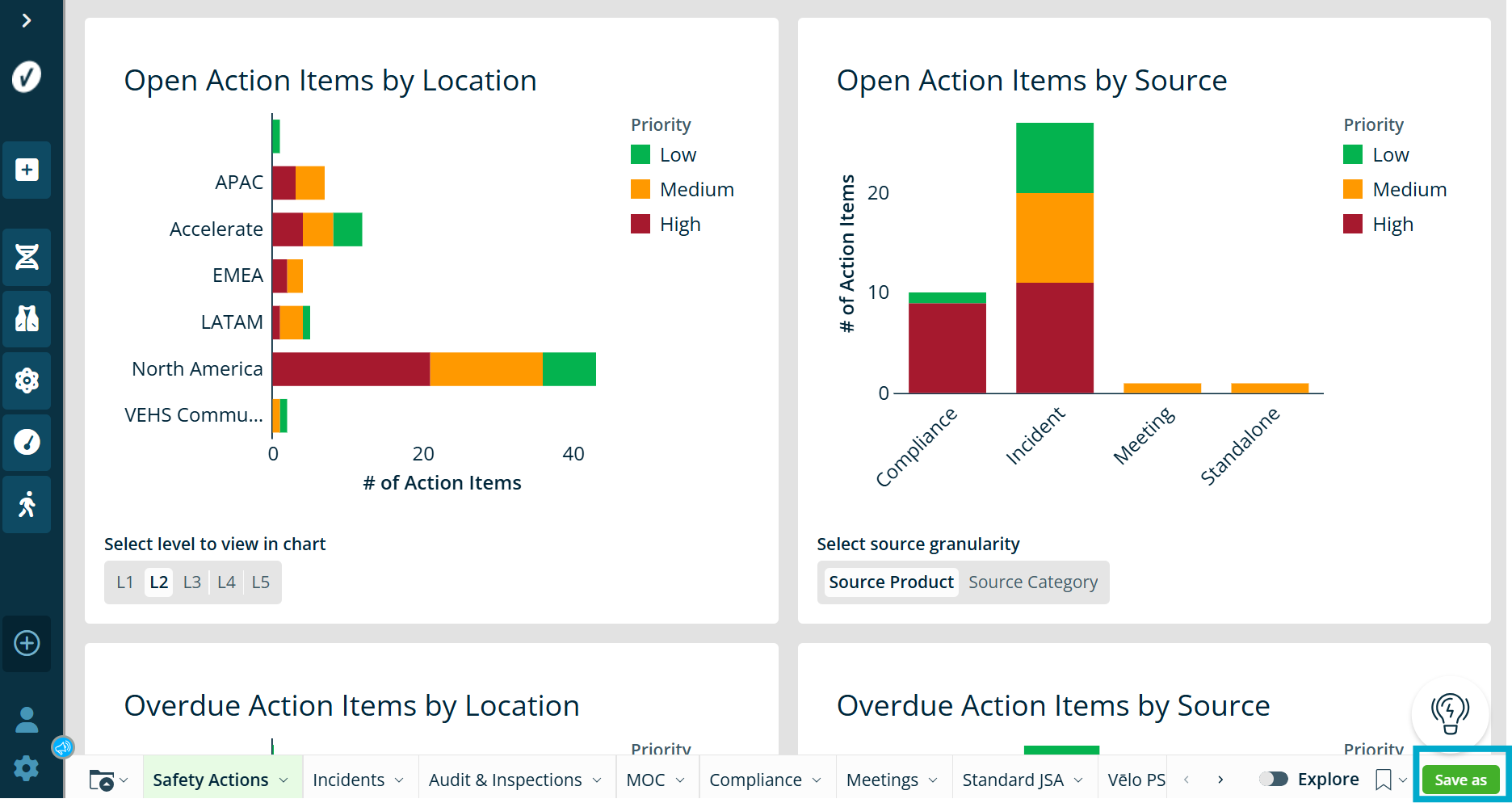
To keep a workbook private, save it in Your Documents. You can move it to a shared workspace later. The default templates remain unchanged and are always available as a starting point.
Edit a Workspace and publish your changes
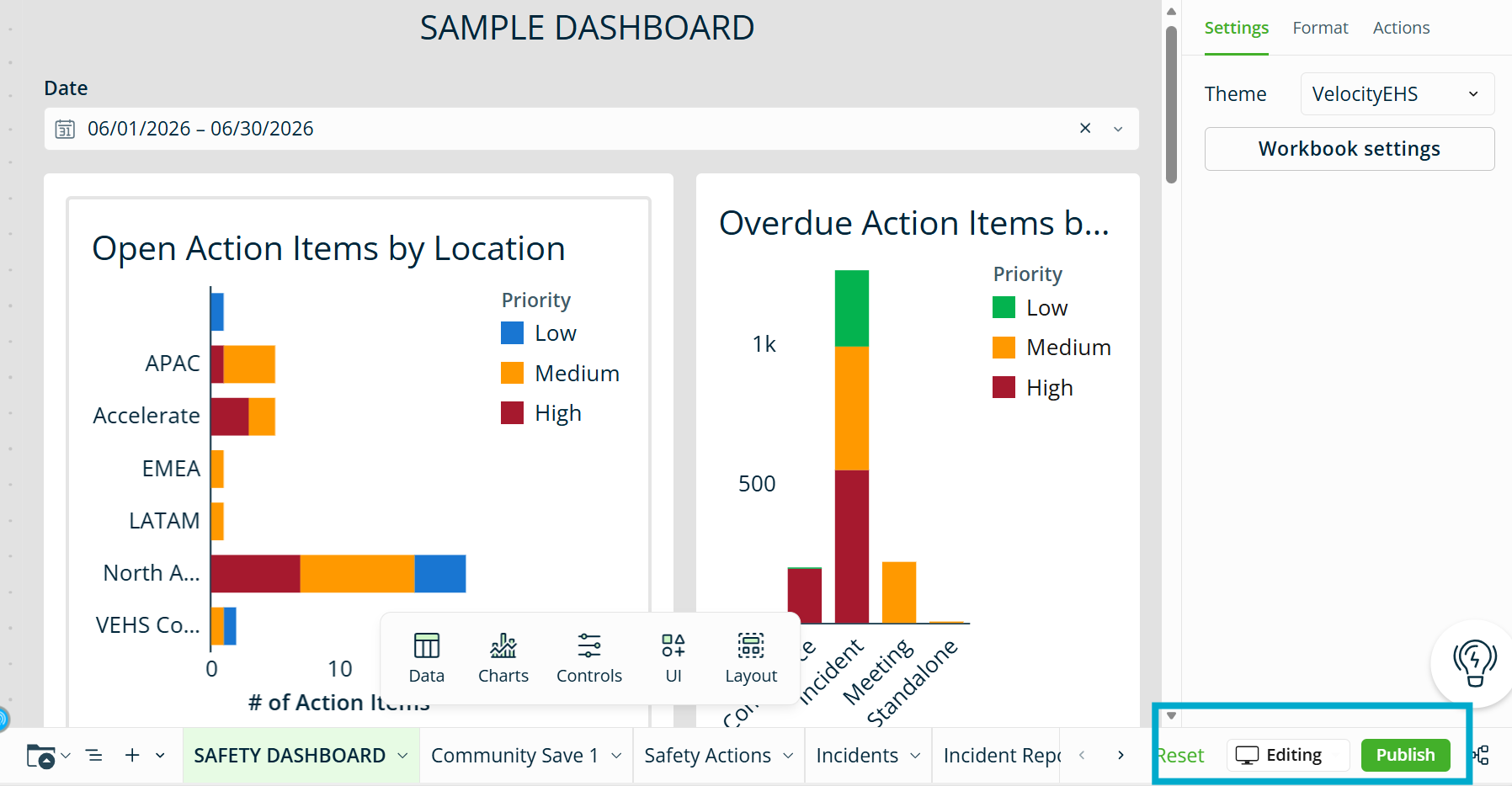
After creating a copy of a workbook, select Edit to make saved changes.
Edit mode allows you to:
- Modify workbook content.
- Add or remove elements.
- Adjust formatting and layout.
- Save changes.
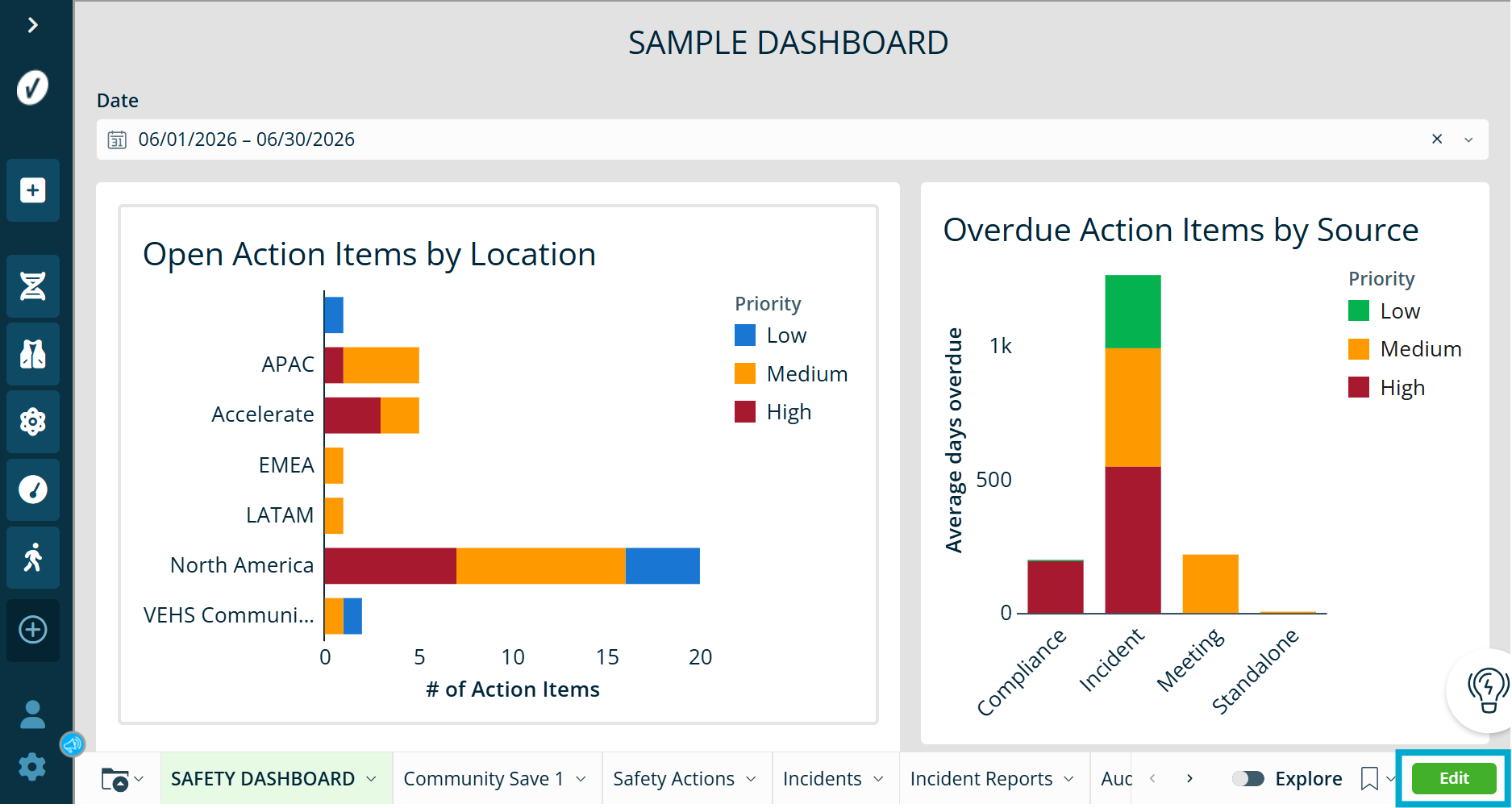
After editing a workbook, select Publish to save your changes and make them available to you or other users who have access to the workbook.
To learn more about creating a new dashboard or report, see Creating a New Dashboard.
Accessing Dashboards and Reports through Folders
Folders help you organize, store, and access your Dashboards and Reports.
You can use folders to:
- Organize related workbooks
- Share content with other users
- Manage personal and team dashboards
For more information, see Saving, organizing and sharing your Dashboards & Reports.
