

Saving, Organizing, and Sharing Dashboards and Reports
Folders help you save, organize, and share dashboards and reports in Advanced Dashboards and Advanced Reports.
You can use folders to keep private work separate from shared content, collaborate with other users, and control who can access dashboards and reports across your organization.
Use this article to learn how folders work, where to save workbooks, and how to share or export dashboards and reports.
Documents
The Documents folder is your personal workspace.
Dashboards and reports saved in Documents are visible only to you. Other users cannot access items saved in your Documents area.
Use Documents to:
- Create and test new dashboards and reports.
- Save draft versions of workbooks.
- Store personal dashboards and reports.
When a workbook is ready to share, move or save it to the appropriate Workspace folder.
Workspaces
Workspaces are shared folders that allow other users to access dashboards and reports based on their permissions.
Items saved in a Workspace folder can be viewed by users who have access to that workspace.
The Workspace folders available to you may vary based on your Accelerate solutions, role, and permissions.
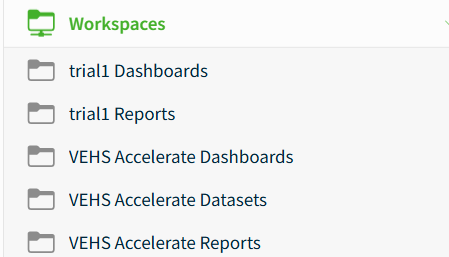
Common workspace folder types include:
- Company Dashboards: Dashboards saved in this folder are available to all Accelerate users in your organization.
- Company Reports: Reports saved in this folder are available to all Accelerate administrators in your organization.
- VelocityEHS Solution Dashboards: Dashboards saved in these folders are available only to users who have access to the related Accelerate solution. For example, Incident Management dashboards are available only to users with access to Incident Management.
- VelocityEHS Solution Reports: Reports saved in these folders are available only to administrators who have access to the related Accelerate solution. For example, Incident Management reports are available only to Incident Management administrators.
- VelocityEHS Datasets: Datasets contain the data sources used to create dashboards and reports. Users with access to datasets can work with their organization’s Accelerate data when creating or customizing dashboards and reports.
Access Folders
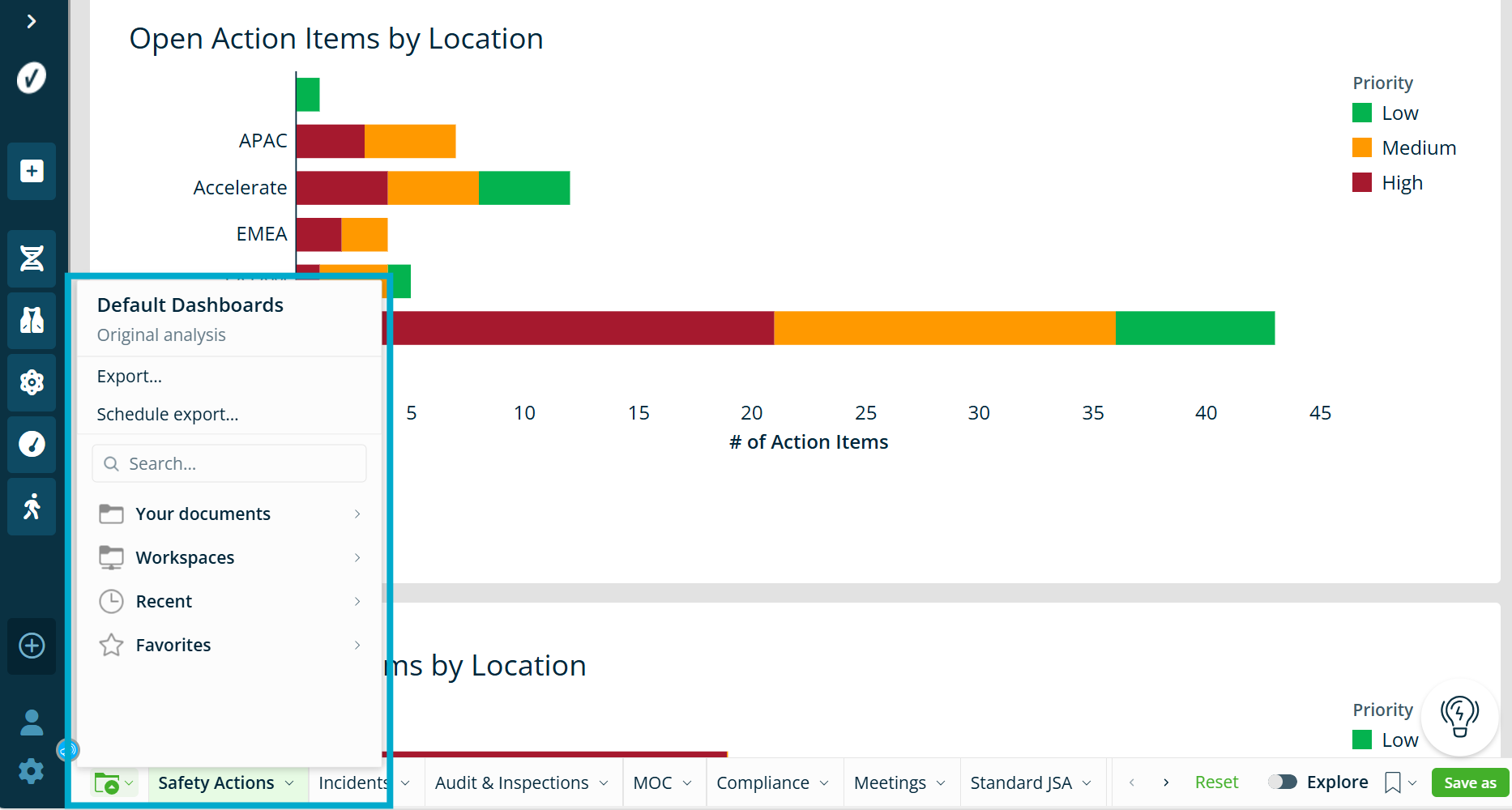
To access folders, select the Folder icon in the lower-left corner of Advanced Dashboards or Advanced Reports.
From the folder menu, you can access:
- Documents
- Workspaces
- Recent items
- Favorites
You can also use the folder menu to export dashboards and reports or schedule exports.
Save a Workbook
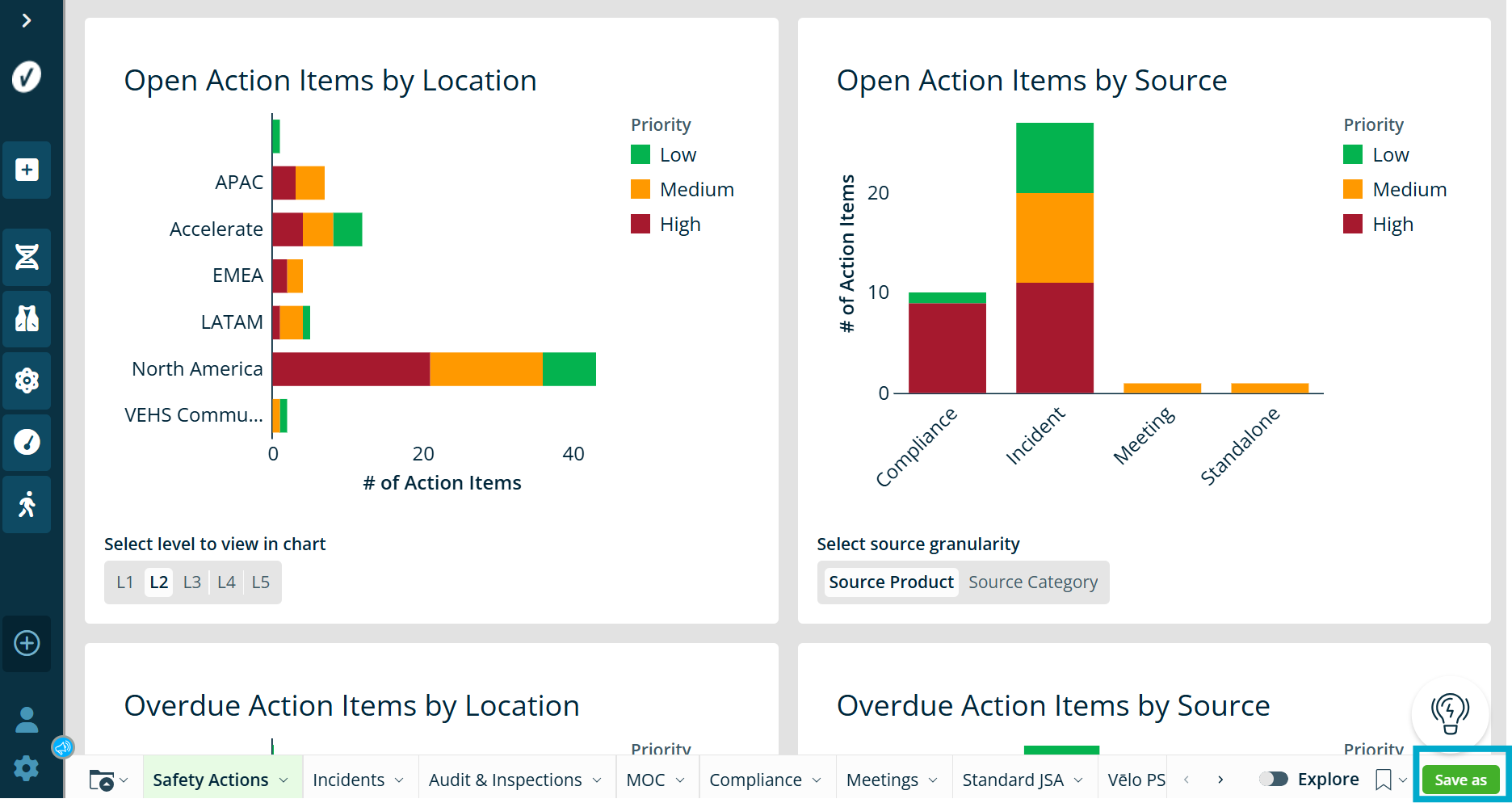
Administrators can save workbook changes by creating a copy of the workbook and choosing where it should be stored.
To save a workbook:
- Select Save As.
- Enter a name for the workbook.
- Choose where the workbook should be saved.
- Select Save.
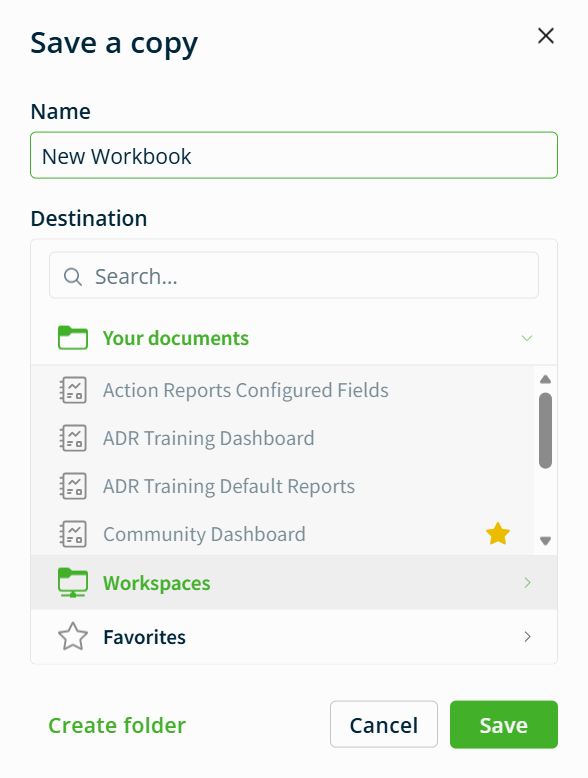
To keep a workbook private, save it in Documents.
To share a workbook, save it to the appropriate Workspace folder that matches the users who need access.
You can also create additional folders in Documents or Workspaces to organize related dashboards and reports.
Share a Workbook
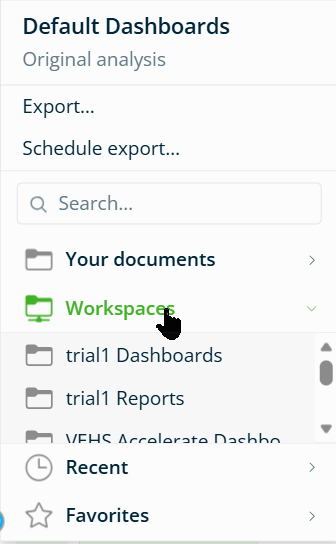
To share a workbook with other users, save or move it to a Workspace folder they can access.
Before sharing a workbook, confirm:
- The workbook is saved in the correct Workspace folder.
- The intended users have access to that workspace.
- The workbook does not include data or content that should remain private.
[NOTE BUBBLE]Users can only view shared dashboards and reports if they have the required permissions for that workspace.
Add Items to Favorites
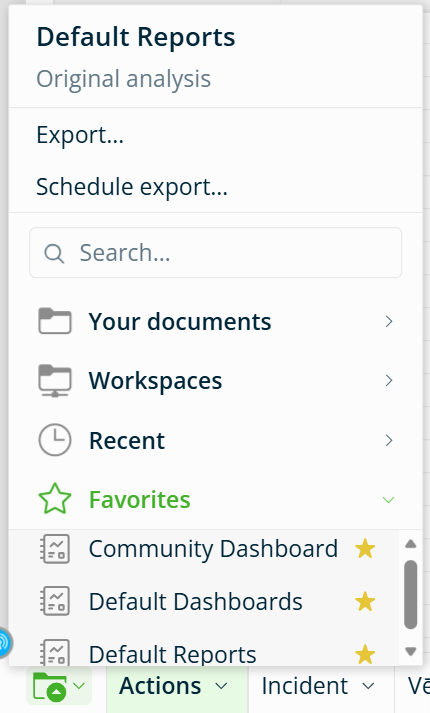
Add frequently used dashboards and reports to Favorites for quick access by selecting the Star icon next to the workbook.
Use Favorites for workbooks you open often, such as frequently reviewed dashboards, recurring reports, or dashboards used during team meetings.
Export Dashboards and Reports
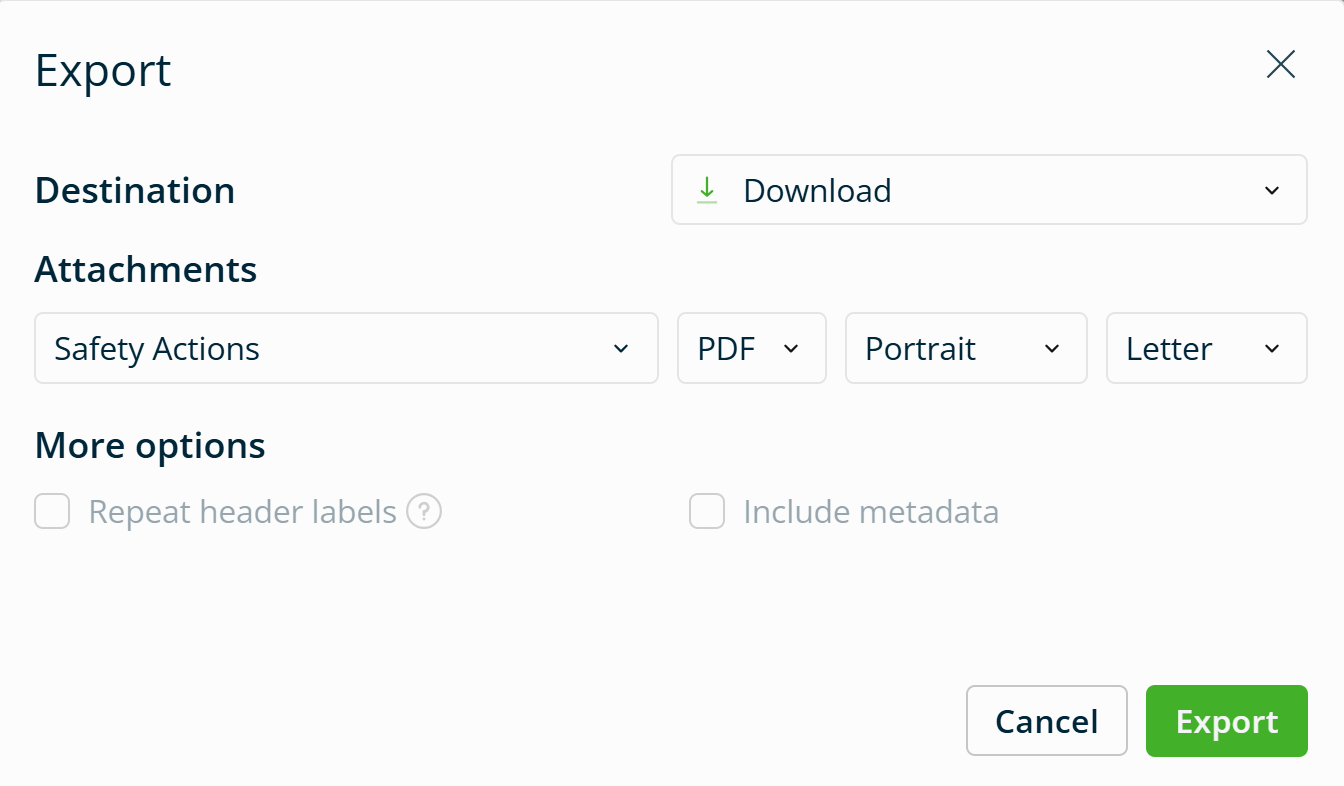
You can export dashboards and reports from the folder menu.
Export options may include:
- Downloading a dashboard or report.
- Emailing a dashboard or report.
- Exporting as Excel, PDF, or PNG.
- Exporting the entire dashboard or report.
- Exporting selected pages.
- Scheduling exports to be delivered by email.
Export Limits
Exports have the following limits:
- Exports are limited to 1 million rows. If you export a pivot table, the limit applies to the flattened table.
- Email exports are limited to 30 MB across all attachments. If the attachments exceed the limit, the export will generate
