

User Guides
Approving a Change Request
Approving a change request allows you to:
- Review the change request to understand the proposed changes and their impacts
- Indicate what modifications are necessary, if any, for the change request to be approved
- Indicate support for proceeding with the proposed change
To approve a change request:
- Select the change request from the Change Requests page. Or, click the link in the email notification you received when it was assigned to you.
- Using the tabs, review the details of the change request, including attachments, and make modifications, if needed.
- Decide on the next step:
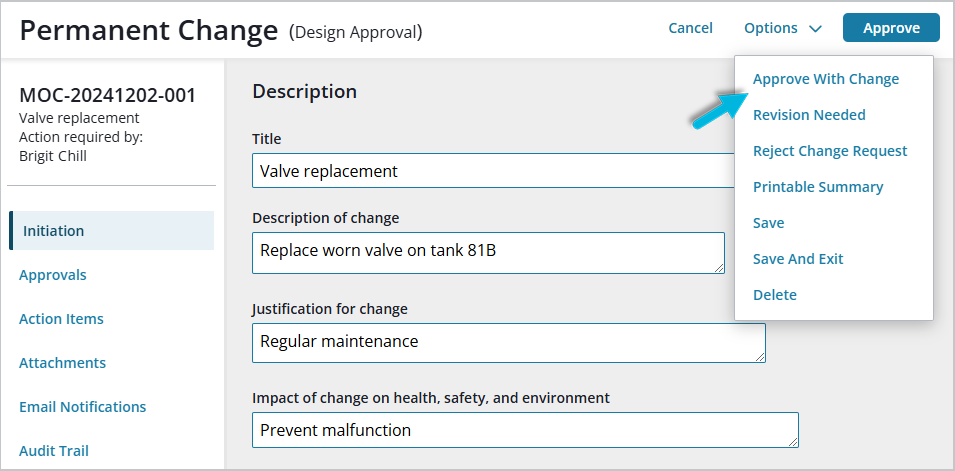
- If, as a designer, you approve the intent of the change with a minor update to the details, select Approve with Change from the Options menu and enter a comment. The comment will be posted to the audit trail and emailed to all subsequent approvers.
- If the change requires revision, select Revision Needed from the Options menu and enter a comment. The comment will be posted to the audit trail and emailed to the person responsible for concept revision. All designers and approvers who previously approved the change request will be asked to approve again after the revision.
- To approve the change request as is, select the Approve button at the top of the page.
Depending on the decisions made by the other approvers, you may see the change request again, or it may be on its way to being implemented; you can track its progress on the Change Requests page.
Note: Approvals are required in several different stages of the change request process. The choices available on the Options menu vary depending on the current stage of the change request; the above example shows options available in the Design Approval stage.
Was this helpful?
Thanks for your feedback!
