

Tasks
Task management is essential to compliance management; regulations that require inspections, reporting, and testing must be completed and require a robust audit trail. A task can be linked to regulation and equipment as part of the audit trail.
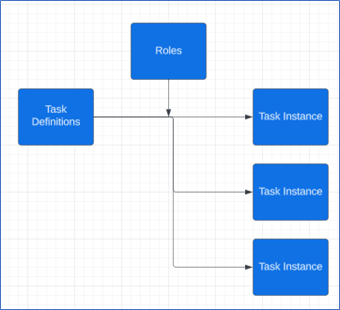
Within ESuite, task instances are created via task definitions; a task instance is a task that is executed and documented, and a task definition is the tool that creates the task instance.
Add a role
Roles in ESuite are linked to users and tasks. Users are added to a role, and then a role is added to a task. This means that if the responsible person changes, the task is left untouched. To update the person who receives notifications, access the role and update the user.
Create a role
- From the ESuite Navigation Menu, select Compliance > Tasks > Role Summary.
- From the toolbar, select New Record.
- Fill in the Role Name and detail information; required fields are in red.
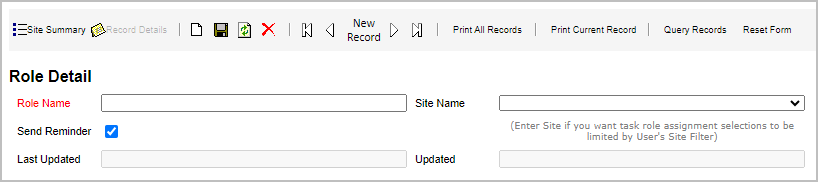
- Select the disc icon from the toolbar to save the new role.
Add user to a role
- From the ESuite Navigation Menu, select Compliance > Tasks > Role Summary.
- Find the role to which you want to add the user and select
- In the Assigned Users section, select Add New Record.
- Select the user from the list
- Select Save next to the user name.
Add a task definition
Task definitions create task instances; in other words, you’ll start by creating a task definition if you have a task to track.
Create task definition
- From the ESuite Navigation Menu, select Compliance > Tasks > Task Defn Summary.
- From the toolbar, select New Record.
- Fill in the information for the task definition; required fields are in red.
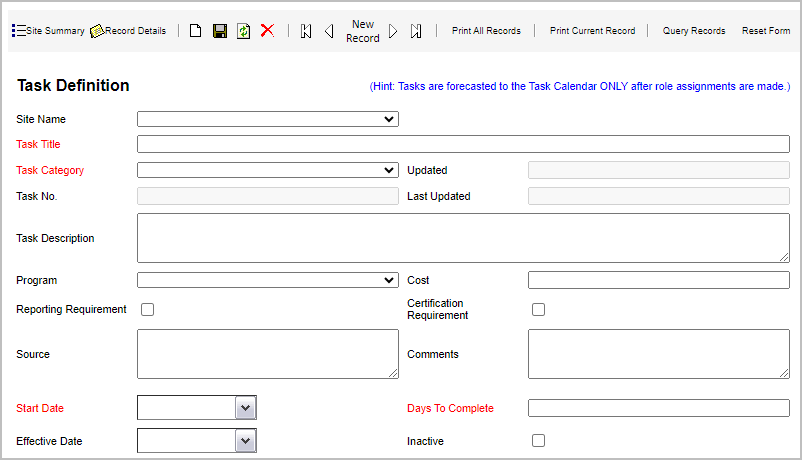
- Site Name is not required here to give you the option of having a task not associated with a location.
- Start Date is the start date of the first task instance.
- Days To Complete dictates the end date.
- Select the Recurrence Pattern. The options below this field will change based on your selection. The recurrence pattern determines the number of task instances created. For example, for a monthly task, the first Monday of every month that ends after 12 occurrences will create 12 task instances.
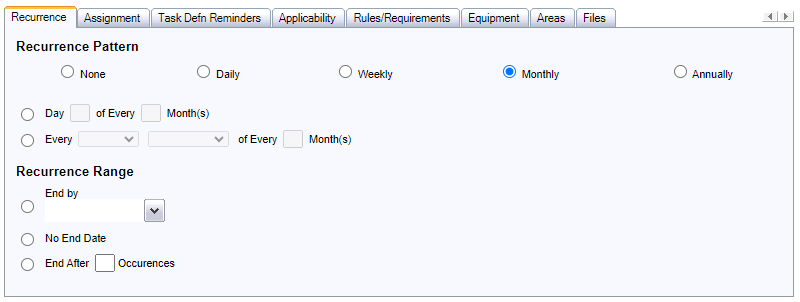
- Select the disc icon from the toolbar to save the new task definition.
Add a role to a task
By adding a role to a task, all users in that role will get a notification for the task.
- From the ESuite Navigation Menu, select Compliance > Tasks > Task Defn Summary.
- Find the task to which you want to add a role and select Details.
- Select the Assignment tab.
- Select Add New Record.
- Select the role from the list.
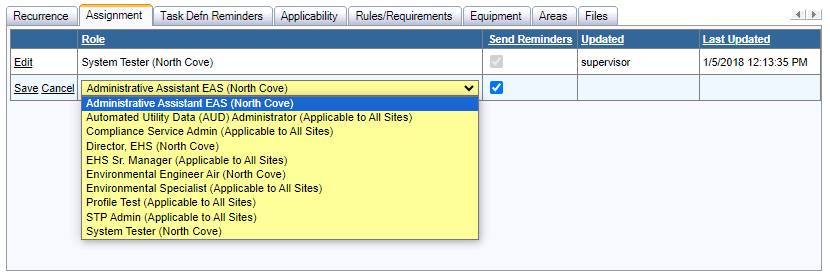
- Select Save next to the role name.
Task escalation
You can add additional task reminders as part of an escalation path for key tasks that risk non-compliance if not completed.
- From the ESuite Navigation Menu, select Compliance > Tasks > Task Defn Summary.
- Find the task definition you want to work with and select Details.
- Select the Task Defn Reminders tab.
- Select Add New Record.
- Fill in the necessary information.

- Reminder Days is the number of days before or after the due date that the reminder will go out.
- Before/After Due Date determines when the reminder will be sent.
- Select Save next to the contact name.
Close a task within the application
- From the ESuite Navigation Menu, select Compliance > Tasks > Task Instance Summary.
- Using the optional search fields, search for the task(s) to close, and then select the Go button.
- In the Search Results section, select the Close Task checkbox for the task(s) you want to close.
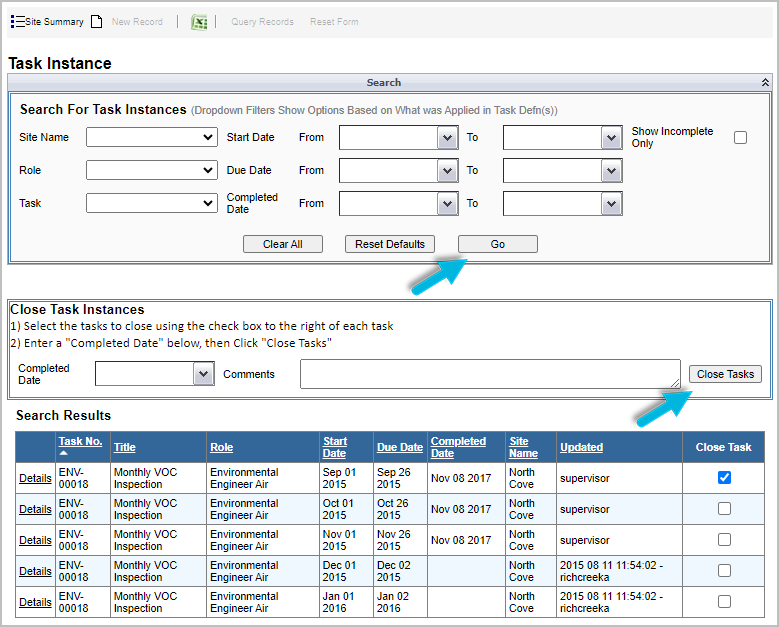
- In the Close Task Instances section, add the Completed Date and (optional) Comments.
- Select the Close Tasks button to close the task(s).
Close a task using task PDF
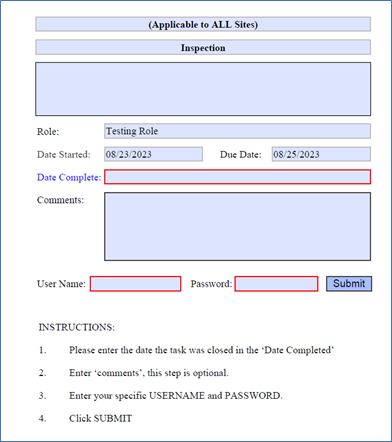
As a simple method for closing tasks, the responsible user will receive a PDF attached to the task reminder. This PDF allows users to close tasks quickly.
Open the PDF and complete the necessary information. Then select Submit.
Note: Although information can be completed while disconnected from the internet, a working connection is required when submitting.
Add a master task
Master tasks provide a simple way to create task definitions for multiple locations. For example, if you have a monthly waste inspection that all locations must perform, you can create a task for it only once using the Master Task feature.
- From the ESuite Navigation Menu, select Compliance > Tasks > Master Task Summary.
- From the toolbar, select New Record.
- Fill in the information for the task definition; required fields are in red.
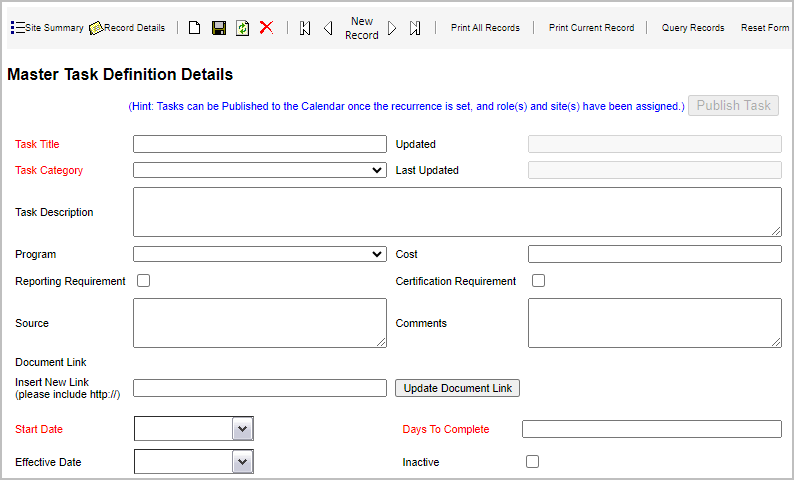
- Start Date is the start date of the first task instance.
- Days to Complete dictates the End Date.
- Select the Recurrence Pattern. The options below this field will change based on your selection. The recurrence pattern determines the number of task instances created. For example, for a monthly task, the first Monday of every month that ends after 12 occurrences will create 12 task instances.
- Select the disc icon from the toolbar to save the new master task.
- Select the Site tab.
- Select the location(s) to which you want to assign tasks.
- Select Save Sites.
Note: No role assignment has been completed; this can be done within Master Task or the Task Definitions. Without a role, no tasks have been assigned to individuals.
