

New Sites and Corporate Hierarchy
This article describes how to integrate new company locations into our environmental and ESG platforms. This ensures that our software remains aligned with your company’s expansion and changing needs in the long run.
Adding New Sites to Site Information
- From the Navigation Tree, select Site Information.
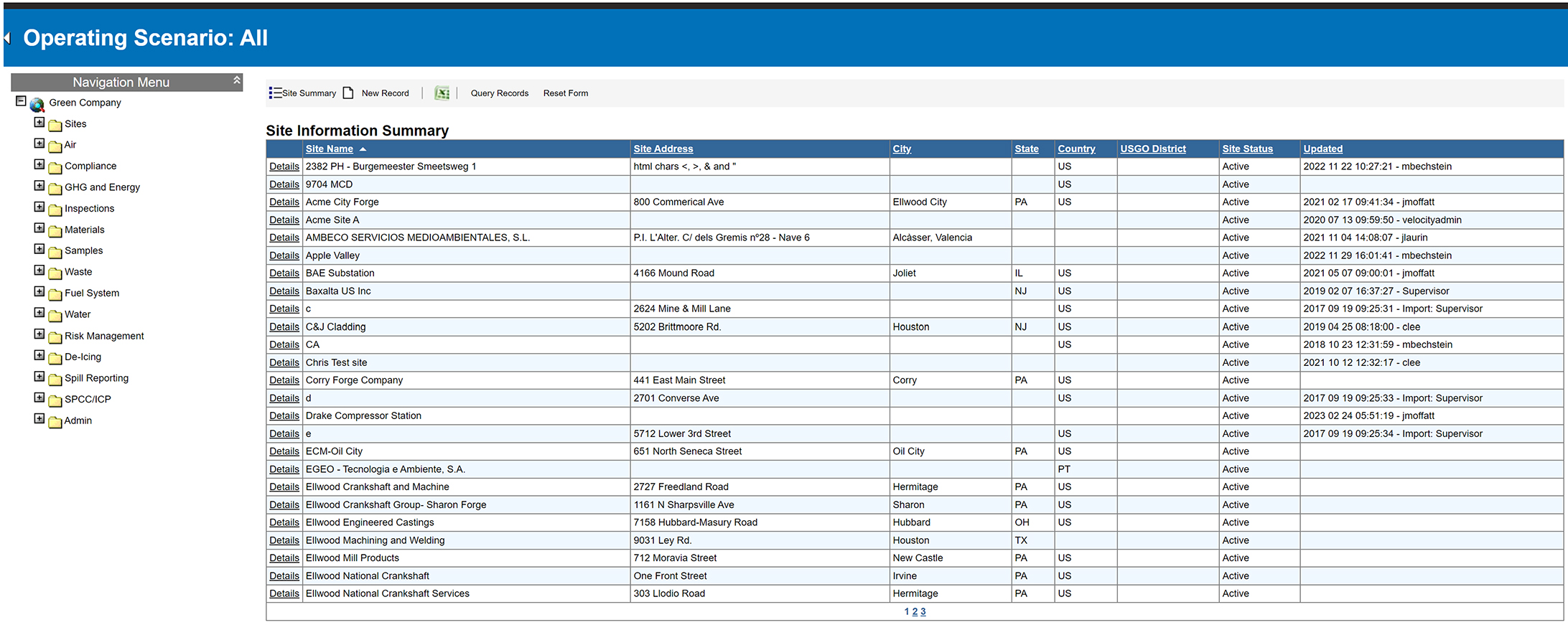
- Using the toolbar at the top of the screen, select New Record.

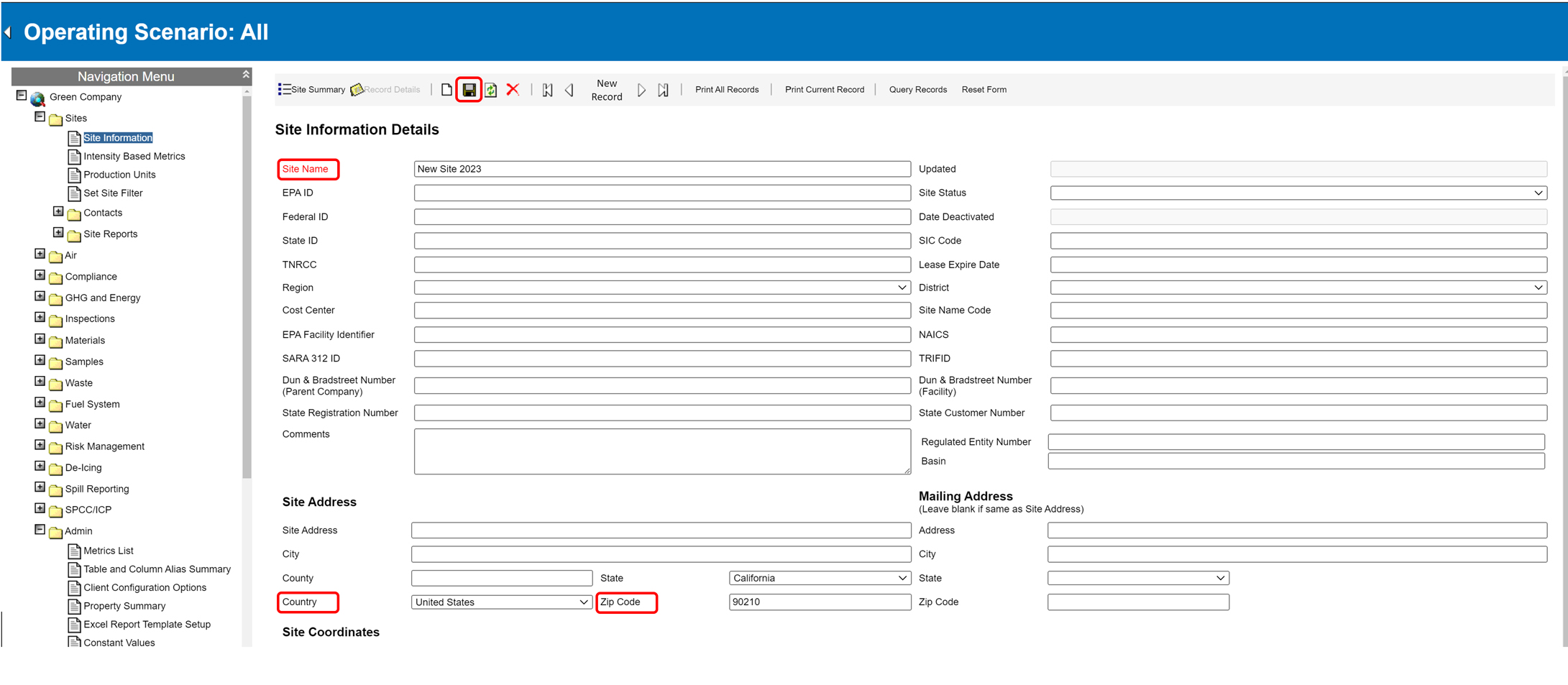
- To complete the form for a new site, enter the Site Name and any other available information about the site. Provide the following information at a minimum:
- Site Name
- Country
- Zip Code (for sites in the United States)
- Select the Save icon in the top toolbar.
Managing the Location Tree
After you’ve added a new site to your company, you’ll integrate it into the appropriate branch of your corporate hierarchy. This strategic step ensures accurate ESG reporting at the business unit level, supporting comprehensive data collection.
A site is a dedicated data point, crucial for populating our system with valuable insights. These sites, marked with a gold star, are organized under specific location nodes, contributing to a cohesive organizational structure.
Add a Location Node to the Location Tree (Corporate Hierarchy)
- From the Navigation Tree, select Admin → Corporate Hierarchy.
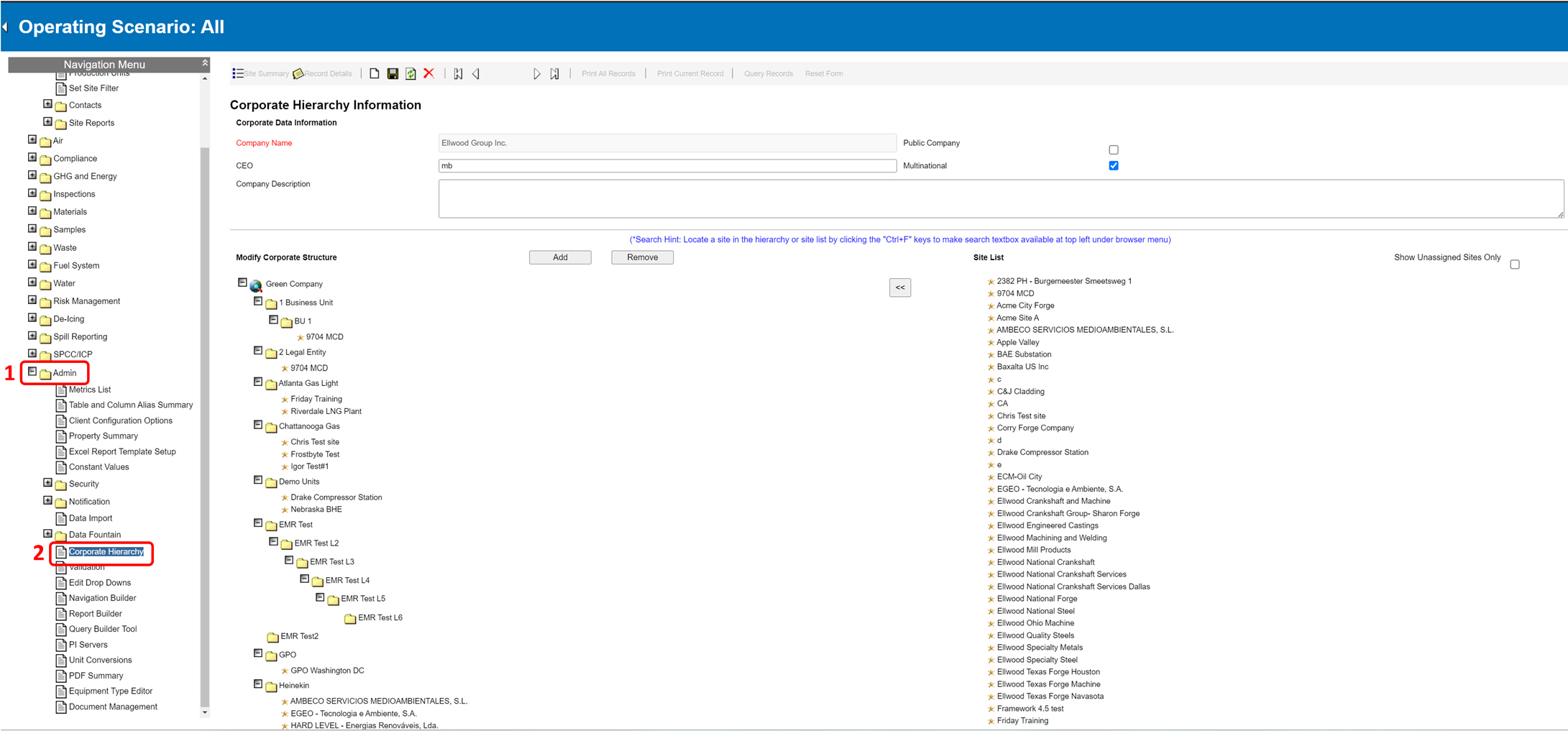
- Select the desired parent location for the new site. The location will be highlighted to indicate your choice.
You can collapse or expand a node by selecting the -/+ symbol to make it easier to locate the parent location.
- Select the Add button in the middle of the screen to create a new location.
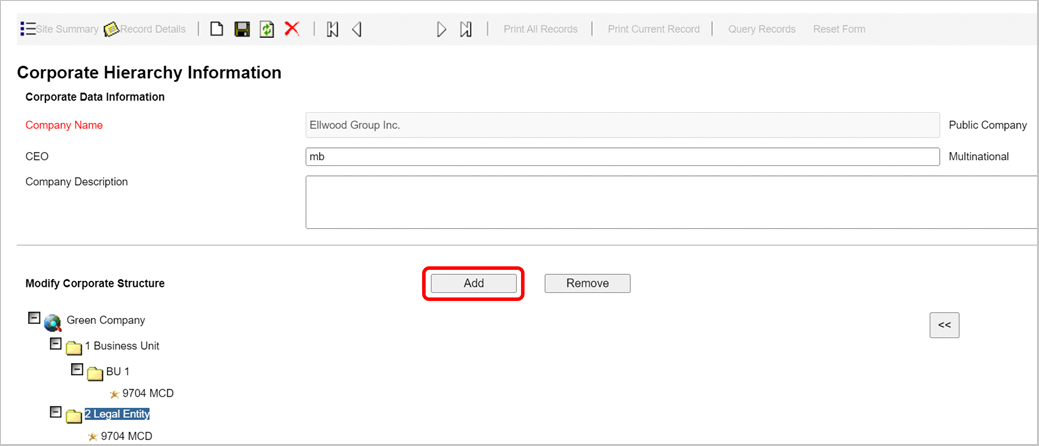
- Next to the Corporate Tier Name, enter the location’s name and select the appropriate Category based on the level of the location.

- Select Save.
Add a Location Site to the Location Tree (Corporate Hierarchy)
- From the Navigation Tree, select Admin → Corporate Hierarchy.
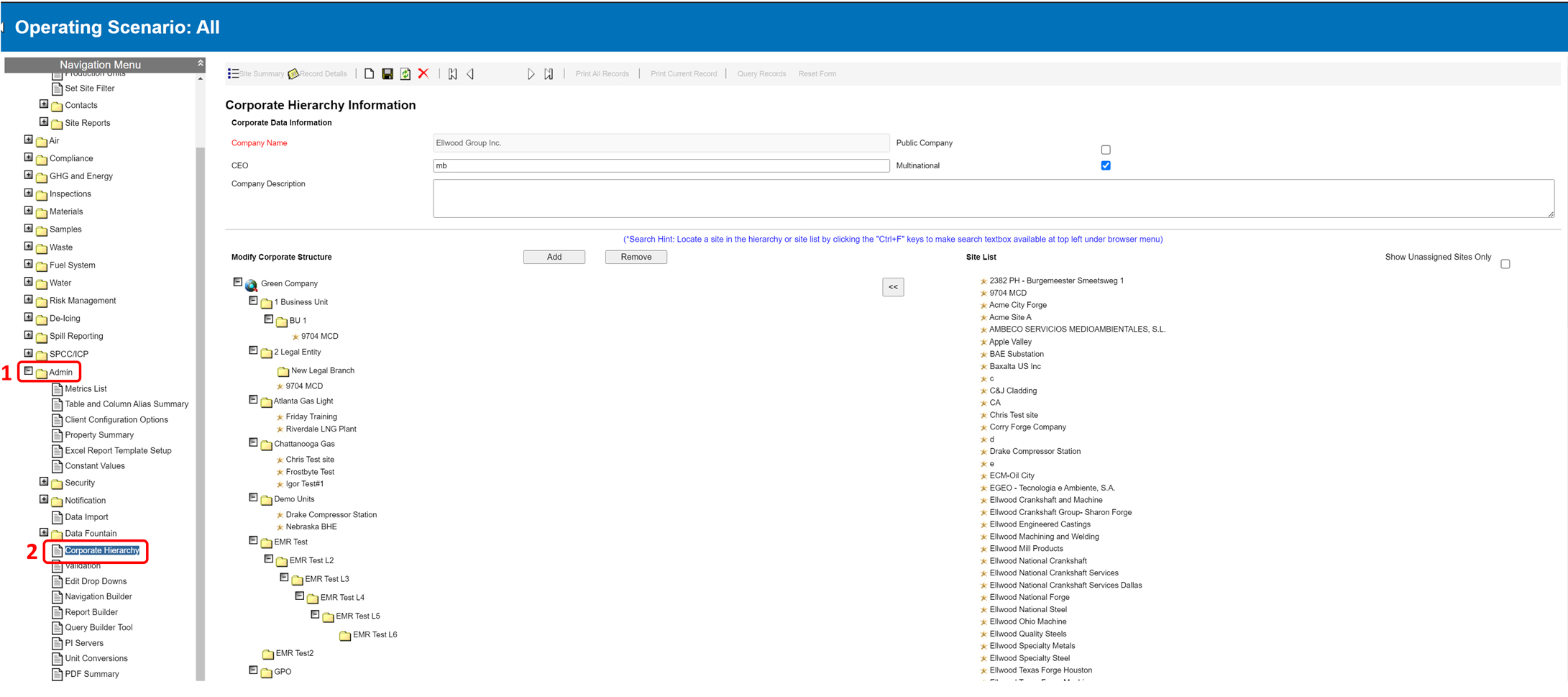
- Under the Modify Corporate Structure section, find the appropriate Location/Level where the site should be assigned.
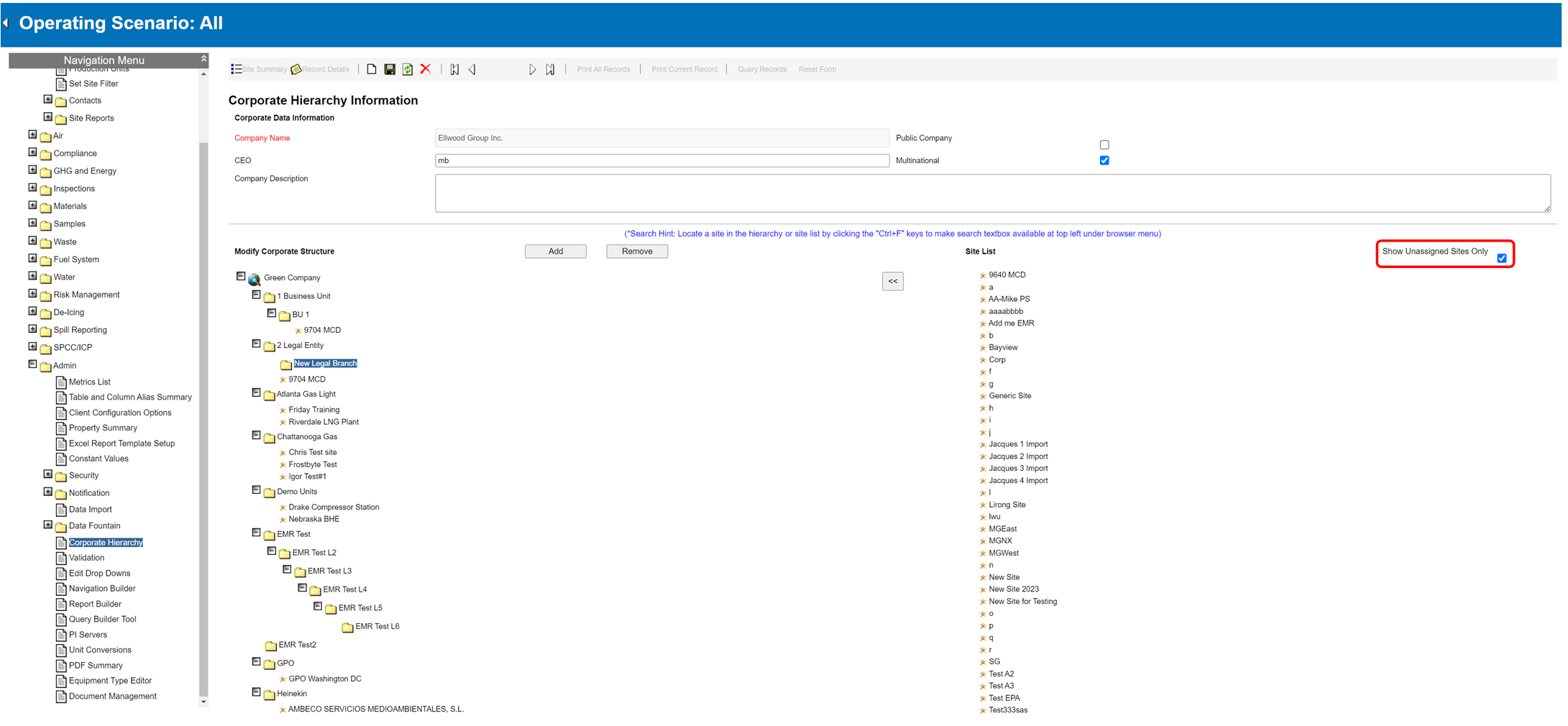
If the Location/Site has not been added to the location tree before, check the Show Unassigned Sites Only box on the right side of the screen. Skip this step if the Location/Site has already been added.
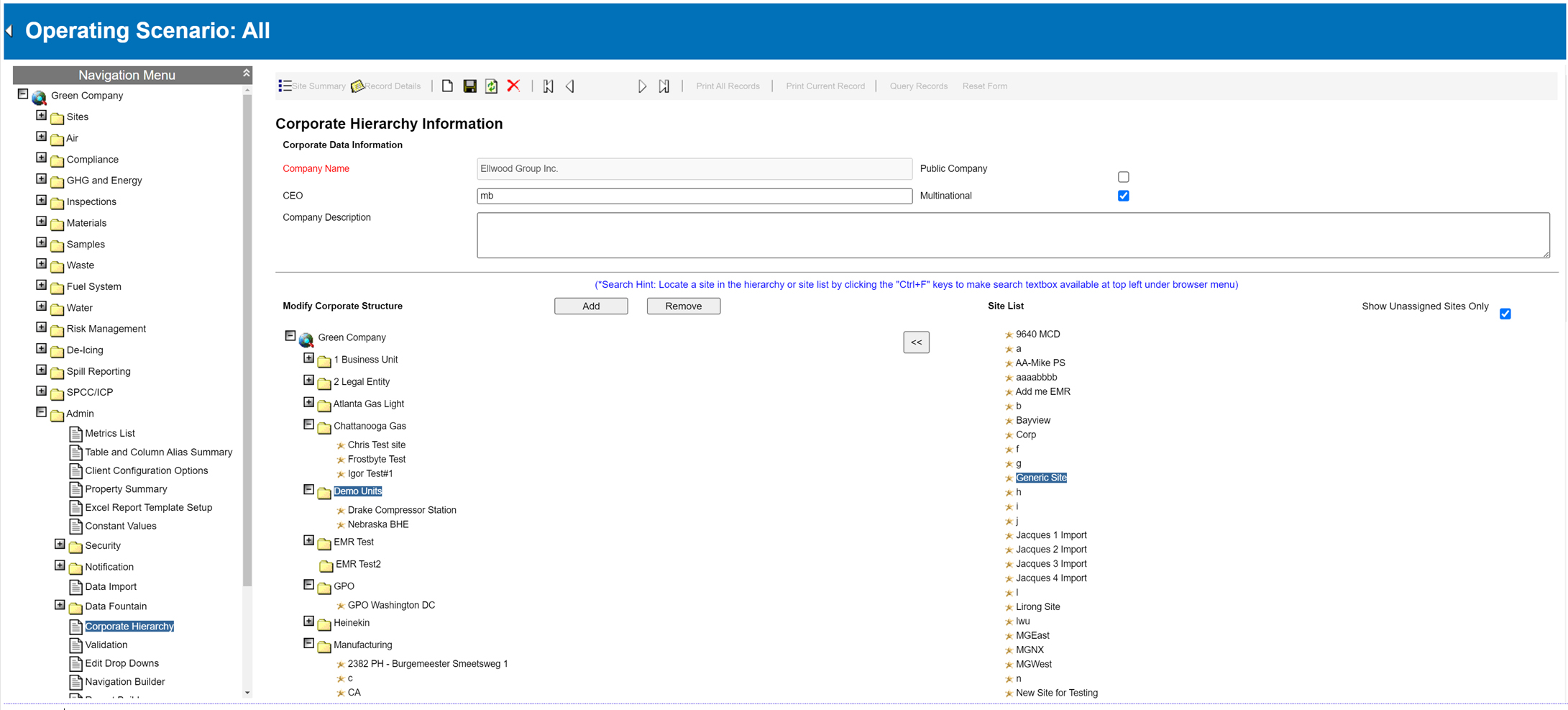
- On the list of Locations/Sites on the right of the screen, select the Location/Site that should be added to the Location Tree.
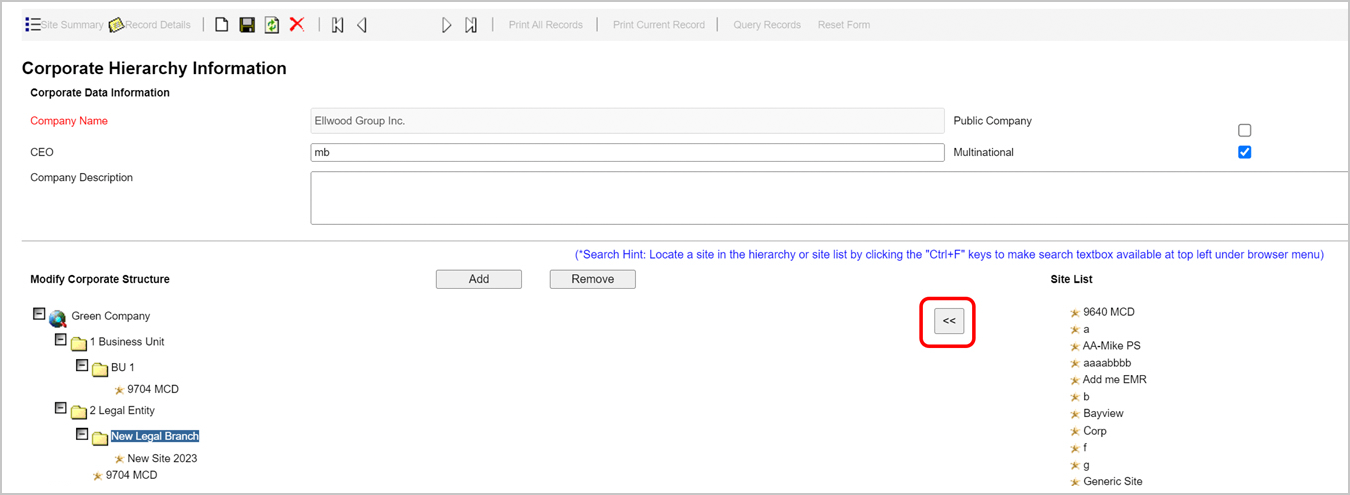
- Select the << button in the middle of the screen to assign the site to the selected location.
Setting Site Filters for Newly Created Site
For users with access to multiple locations, the Set Site Filter function offers a powerful tool to streamline your focus. This feature enables you to narrow your view to a specific site, allowing for concentrated data analysis and report editing. This site filter maintains its effect, extending beyond logouts until you opt to reset it, ensuring convenience and efficiency in managing your data interactions.
- Navigate to Sites → Set Site Filter.
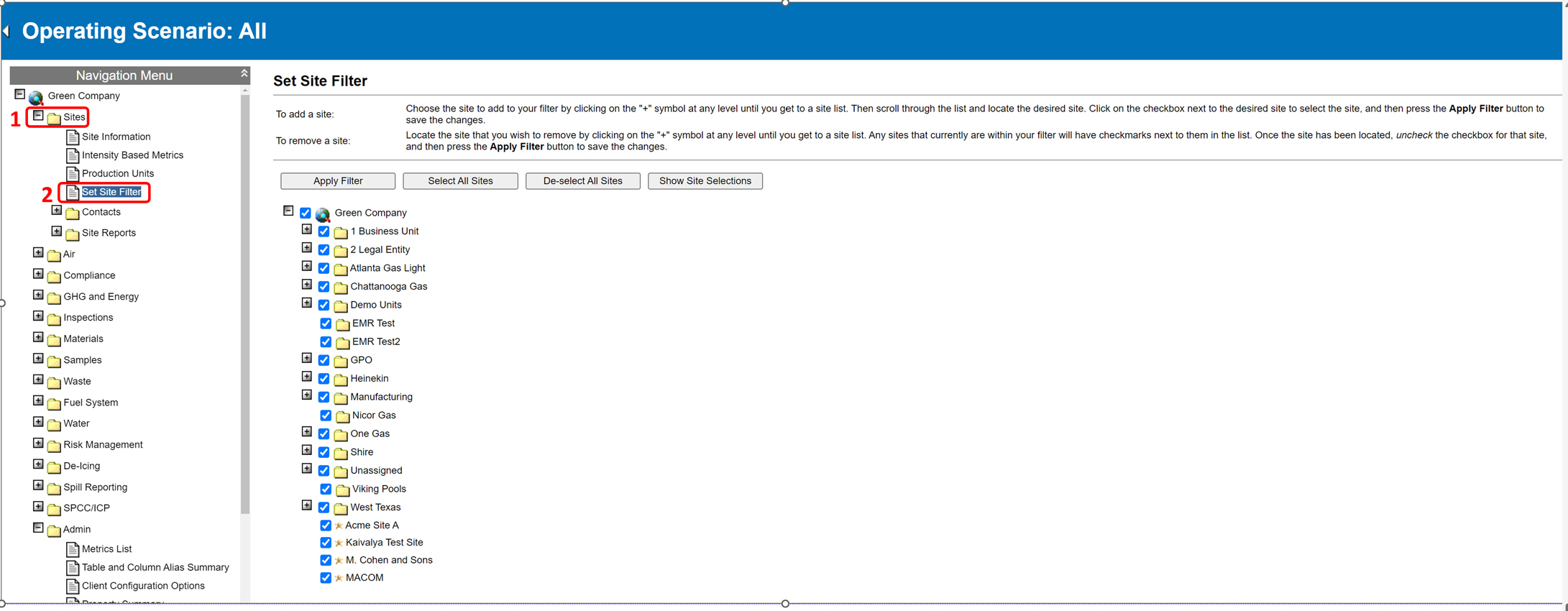
- Select a method to add the newly created Site to the Site Filter:
- Select the Select All Sites button.
- Use the Location Tree to locate the newly created site and check the checkbox next to the Site Name.
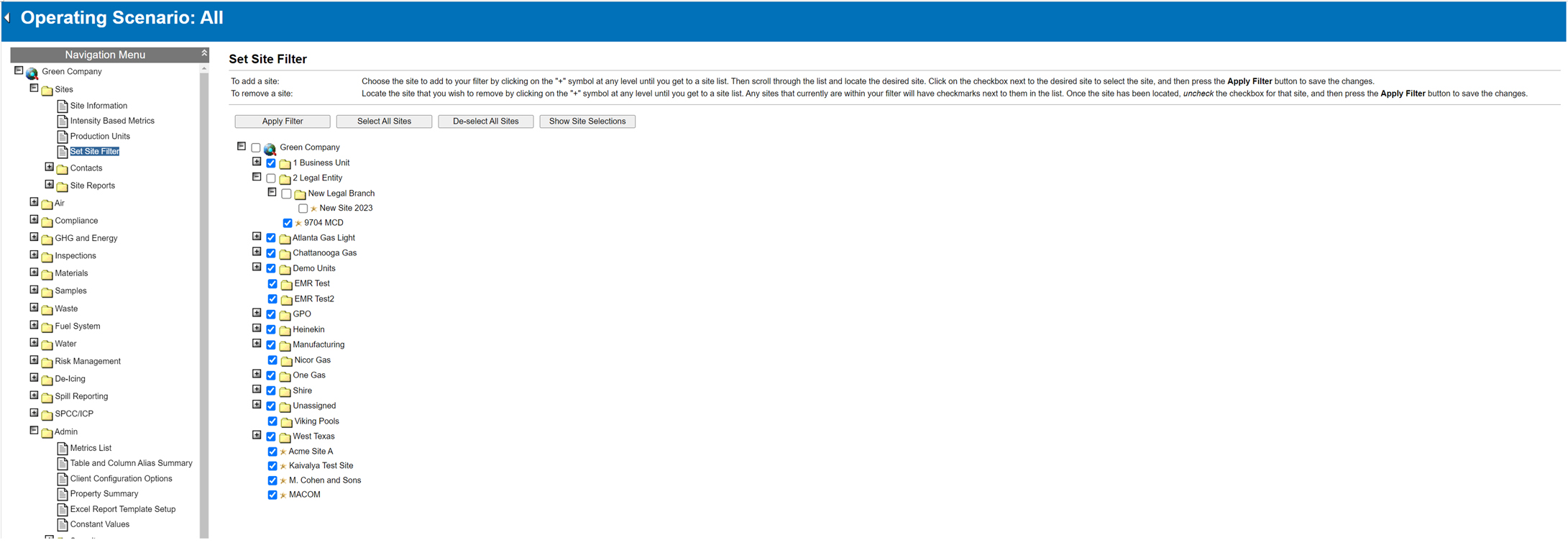
- Select Apply Filter, and then select OK.

