

Queue and Approval Changes
Workflow Approver Policy
Because users can be assigned multiple roles with conflicting policies (document routing, approver permissions), users can now be Subject to Approval and an Approver for a workflow. (Prior to Advanced Integration in Chemical Management, if you were an Approver, you could not be Subject to Approval, and vice versa.)
- For organization-wide workflows: To access the Queue and Approval page to approve documents in a workflow, users must be assigned a role with the Chemical Management – Workflow Approver policy.
- For site-specific workflows: To access the Queue and Approval page to approve documents at a location, users must be assigned a role with the Chemical Management – Workflow Approver policy at the location where the document is being requested.
Access to Queue and Approval Page in Chemical Management
To see and use the Queue and Approval page in Chemical Management, you must be assigned a role with the policy:
Chemical Management – Edit Queue and Approval Settings
This policy gives you access to manage all Queue and Approval settings within Chemical Management.
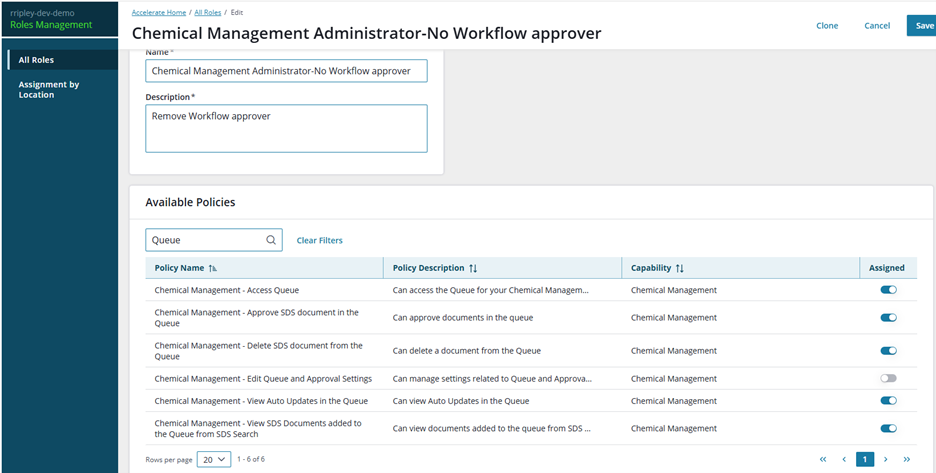
If you do not have this policy assigned to your role, you will not see “Queue and Approval” under System Settings in Chemical Management.

Document Submission Changes
On the Chemical Management Requests, Uploads, Add SDS to New Location, and Product Inventory (Add New Location) pages:
- The user will see the Single Select Location Module if the user is Subject to Approval at any location for which they are requesting a document. They can select only one location for document uploading.
- If a user is not subject to approval at any location and they are a requesting a document, they can select multiple locations.
- Role Types can no longer be selected as approvers of a workflow.
Display of Workflow Approval Questions: Site-Specific, Organization-Wide
Because users can be assigned multiple roles with conflicting Subject to Approval permissions, approval questions will display if the following are true:
- The account is using site-specific/organization-wide approval
- The user is Subject to Approval for at least one role assigned to them
- The user is Subject to Approval at the location to which the document is being submitted (site-specific only)
Handling Multiple Roles with Document Routing
Users can be assigned multiple roles in Accelerate, and those roles could have conflicts in how documents are routed to either the Queue or the eBinder.
If there is a conflict, documents are routed as follows, based on the document source:
- SDS Search: route documents to the eBinder
- Location Requests: route documents to the Queue
- Requests: route documents to Queue
- Uploads: route documents to Queue while in progress, and then to the eBinder once complete. Uploads marked Incomplete stay in the Queue.
SDSs added from SDS Search by General Users are always routed to the queue.
If a user is assigned to multiple roles, the roles have conflicting document routing, and the user is Subject to Approval, documents from SDS Search, Requests, and Uploads are routed to the Queue.
If the user is Subject to Approval at one location and not at another, and the user submits a document for approval, if the document should go through an approval process, it is routed to the Queue.
Example: Handling Conflicting Approver Permissions
If Role A has permission to be an Approver and Role B does not, and both roles are assigned to the same location, the user can be an Approver at that location.
